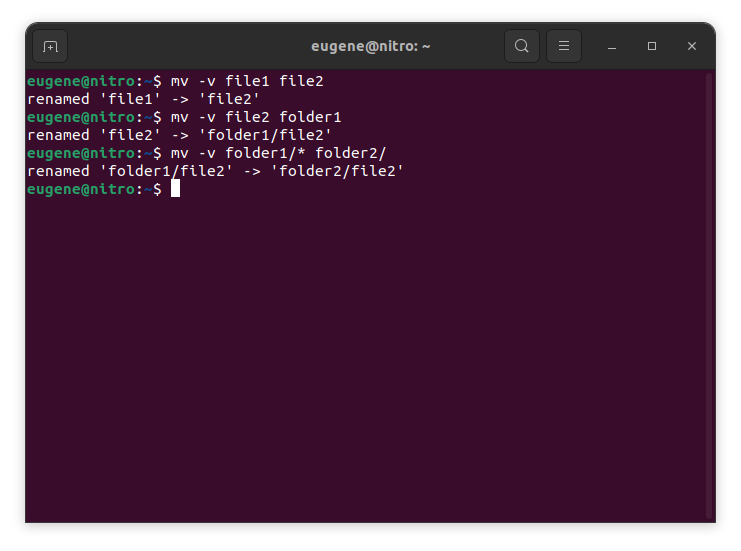

To move files in Linux you need to use the mv command. Here are some examples:
# move file1 to file2 (what command actually does is renaming the file)
$ mv file1 file2
# move file1 from dir1 to dir2
$ mv folder1/file1 folder2/
# move all files from folder1 to folder2
$ mv folder1/* folder2/
เมื่อใช้เพื่อย้ายไฟล์ภายในไดเร็กทอรีเดียวกันหรือไปยังไดเร็กทอรีอื่น mv จะเปลี่ยนชื่อไฟล์อย่างมีประสิทธิภาพหากเส้นทางต้นทางและปลายทางอยู่ภายใน ระบบไฟล์เดียวกัน.
Now when we touched the basics of the ‘mv’ command in Linux, lets explore more ways to efficiently move files and directories.
Mastering the “mv” command
การย้ายไฟล์หลายไฟล์
คำสั่ง mv ไม่ได้จำกัดอยู่เพียงการย้ายไฟล์เดียวในแต่ละครั้ง คุณสามารถย้ายหลายไฟล์พร้อมกันได้โดยใช้ไวด์การ์ด ตัวอย่างเช่น หากต้องการย้ายไฟล์ข้อความทั้งหมดจากไดเร็กทอรีหนึ่งไปยังอีกไดเร็กทอรี คุณสามารถใช้คำสั่งต่อไปนี้:
$ mv *.txt destination_directory/
This command selects all files with the “.txt” extension and moves them to the specified destination directory. The asterisk (*) acts as a wildcard, matching any characters.
การเขียนทับไฟล์
เมื่อย้ายไฟล์ คุณอาจพบสถานการณ์ที่มีไฟล์ชื่อเดียวกันอยู่แล้วในไดเร็กทอรีปลายทาง ตามค่าเริ่มต้น คำสั่ง mv จะแจ้งให้คุณยืนยันก่อนที่จะเขียนทับไฟล์ อย่างไรก็ตาม คุณสามารถแทนที่ลักษณะการทำงานนี้ได้โดยใช้ตัวเลือก -f:
$ mv -f filename destination_directory/
โปรดใช้ความระมัดระวังเมื่อใช้ตัวเลือก -f เนื่องจากจะเขียนทับไฟล์ที่มีอยู่โดยไม่มีการยืนยันใดๆ
การเก็บรักษาข้อมูลเมตาของไฟล์
คำสั่ง mv ไม่เพียงแต่ย้ายตำแหน่งไฟล์เท่านั้น แต่ยังช่วยให้คุณรักษาข้อมูลเมตาของไฟล์เหล่านั้น รวมถึงการประทับเวลาและการอนุญาตด้วย หากต้องการรักษาการประทับเวลาดั้งเดิมของไฟล์ระหว่างการย้าย ให้ใช้ตัวเลือก -p:
$ mv -p filename destination_directory/
สิ่งนี้มีประโยชน์อย่างยิ่งเมื่อคุณต้องการให้แน่ใจว่าไฟล์ที่ถูกย้ายยังคงรักษาการประทับเวลาการสร้างและการแก้ไขดั้งเดิมไว้
โหมดรายละเอียด
หากคุณต้องการดูข้อมูลโดยละเอียดเกี่ยวกับไฟล์ที่กำลังย้าย คุณสามารถใช้ตัวเลือก -v เพื่อเปิดใช้งานโหมดรายละเอียด:
$ mv -v filename destination_directory/
โหมด Verbose ให้การตอบรับแบบเรียลไทม์ โดยแสดงแต่ละไฟล์ในขณะที่ถูกย้าย ช่วยให้เข้าใจกระบวนการได้ชัดเจนยิ่งขึ้น
การย้ายไดเรกทอรี
คำสั่ง mv สามารถจัดการการเคลื่อนไหวของไดเร็กทอรีได้อย่างราบรื่นเช่นกัน หากต้องการย้ายไดเร็กทอรีทั้งหมดและเนื้อหาในนั้น เพียงระบุไดเร็กทอรีต้นทางและปลายทาง:
$ mv source_directory/ destination_directory/
คำสั่งนี้จะย้ายเนื้อหาทั้งหมดของไดเร็กทอรีต้นทางไปยังไดเร็กทอรีปลายทางที่ระบุ
ทางเลือกอื่นในการย้ายไฟล์ใน Linux
In addition to the mv command, Linux provides a few other commands and utilities for moving files and directories. Here are a couple of alternatives:
คำสั่ง cp (Copy) พร้อมด้วยตัวเลือก -r
คำสั่ง cp มักใช้สำหรับการคัดลอกไฟล์ แต่ยังสามารถใช้เพื่อย้ายไฟล์เหล่านั้นโดยการรวมเข้ากับตัวเลือก -r (เรียกซ้ำ) ตัวเลือกนี้จำเป็นเมื่อต้องจัดการกับไดเร็กทอรีและเนื้อหาในไดเร็กทอรี
$ cp -r source_directory/ destination_directory/
คำสั่งนี้จะคัดลอกเนื้อหาของไดเร็กทอรีต้นทางไปยังไดเร็กทอรีปลายทางซ้ำๆ และดำเนินการย้ายได้อย่างมีประสิทธิภาพ
คำสั่ง rsync
คำสั่ง rsync เป็นเครื่องมืออันทรงพลังสำหรับการซิงค์และคัดลอกไฟล์ นอกจากนี้ยังสามารถใช้เพื่อย้ายไฟล์ระหว่างไดเร็กทอรี ไวยากรณ์พื้นฐานคือ:
$ rsync -av --remove-source-files source_directory/ destination_directory/
ตัวเลือก -a จะรักษาสิทธิ์ของไฟล์และคุณลักษณะอื่น ๆ
ตัวเลือก -v เปิดใช้งานโหมด verbose เพื่อแสดงไฟล์ที่กำลังประมวลผล
The –remove-source-files option removes the files from the source directory after successful transfer.
rsync มีประโยชน์อย่างยิ่งสำหรับการย้ายข้อมูลจำนวนมากและรักษาการซิงโครไนซ์ระหว่างต้นทางและปลายทาง
ค้นหาและดำเนินการคำสั่ง
คำสั่ง find รวมกับ exec สามารถใช้ย้ายไฟล์ตามเกณฑ์ที่กำหนดได้ ตัวอย่างเช่น หากต้องการย้ายไฟล์ข้อความทั้งหมดในไดเร็กทอรีและไดเร็กทอรีย่อยไปยังตำแหน่งใหม่:
$ find source_directory/ -type f -name "*.txt" -exec mv {} destination_directory/
This command finds all files (-type f) with the “.txt” extension and executes the mv command on each of them, moving them to the specified destination.
สรุป
Mastering the mv command in Linux is essential for efficient file and directory management. We’ve covered the fundamental usage of the mv command, from simple file renaming to moving entire directories. Additionally, we explored alternative commands like cp with the -r option, the rsync command, and the dynamic combination of ค้นหา และ exec for more specialized moves. By incorporating these commands into your Linux toolkit, you empower yourself to manage files seamlessly and make the most of the robust capabilities that the Linux command line provides.