
Moodle is one of the best learning management systems available. It’s an open software, released under the open source ‘GNU General Public License’ which makes it highly flexible and customizable. In this guide you will learn how to install Moodle on Ubuntu server 20.04/22.04.
We are installing Moodle on a brand new, clean Ubuntu server with no software or data on it. If your server has data on it - make data backup first. Author is not responsible for possible data loss.
Enne alustamist
Vaata meie Moodle'i hostimisteenust kogukonna väljaanne. Sa saad alustada LMS-i kasutamist ilma, et peaksid seda installima!
Eeltingimused
- Paigalda VPS server Ubuntu 22.04-ga
- Hangi täielikult kvalifitseeritud domeeninimega. pointing to your server’s IP address, such as “moodle.example.org”
Selles juhendis kasutame domeeni näidetena moodle.example.org, muutke see oma domeeninimeks.
Valmistame Ubuntu serverit Moodle'i installimiseks
Uuendage süsteemi
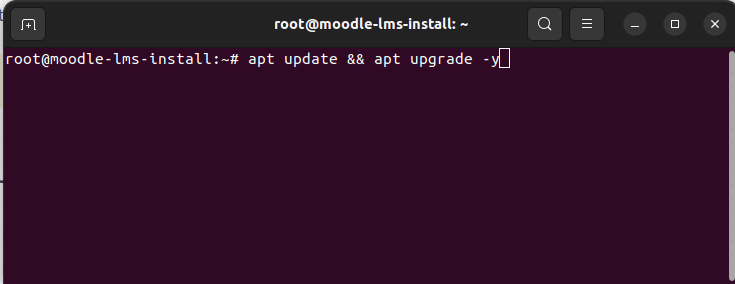
First thing first – updating the system. To get started connect to your server via SSH. Then run “apt update” and “apt upgrade” commands to update system packages to the latest version.
$ sudo apt update && apt upgrade -y
Installige Apache, PHP-8.1, MariaDB MySQL server
Seejärel installige Moodle'i sõltuvused. Peame installima Apache veebiserveri, PHP 8.1, MariaDB SQL serveri, meiliserveri ja nimekirja Moodle'i jaoks vajalikke PHP laiendusi.
$ sudo apt install apache2 php8.1 mariadb-server postfix
$ sudo apt install php8.1-mysql php8.1-fpm php8.1-iconv php8.1-mbstring php8.1-curl php8.1-tokenizer php8.1-xmlrpc php8.1-soap php8.1-ctype php8.1-zip php8.1-gd php8.1-simplexml php8.1-xml php8.1-intl
Kui installimine on lõpetatud, käivitage Apache veebiserver.
$ sudo systemctl start apache2
$ sudo systemctl enable apache2
Konfigureeri Apache VirtualHost ja PHP-FPM
Käivitame Moodle 4.2 Apache ja PHP-FPM peal. Järgmises etapis konfigureerime PHP-FPM-i Apache jaoks.
1. Käivita PHP-FPM teenus ja luba see käivitamisel.
$ sudo systemctl start php8.1-fpm
$ sudo systemctl enable php8.1-fpm
2. PHP-FPM-i kasutamiseks Apache'iga peame lubama proxy_fcgi ja proxy moodulid.
sudo a2enmod proxy_fcgi proxy
3. Loo Apache konfiguratsioonifail Moodle'i jaoks.
$ sudo nano /etc/apache2/sites-available/moodle.conf
Sisestage järgmine konfiguratsioon moodle.conf faili. Asenda ServerName, DocumentRoot, Directory teie väärtustega.
<VirtualHost *:80>
ServerName moodle.example.org
ServerAlias www.moodle.example.org
DocumentRoot /home/moodle/public_html

<Directory /home/moodle/public_html>
Options -Indexes +FollowSymLinks +MultiViews
AllowOverride All
Require all granted
</Directory>

<FilesMatch \.php$>
SetHandler "proxy:unix:/run/php/php8.1-fpm.sock|fcgi://localhost/"
</FilesMatch>

ErrorLog ${APACHE_LOG_DIR}/error.log
CustomLog ${APACHE_LOG_DIR}/access.log combined
</VirtualHost>
Salvesta ja sulge fail klahvikombinatsiooniga CTRL+X, seejärel Y, seejärel Enter.
4. Luba uus virtuaalne host ja lae Apache veebiserver uuesti.
$ a2ensite moodle
$ systemctl reload apache2
5. Also it’s nice to have a rewrite and SSL modules enabled
# a2enmod rewrite
# a2enmod ssl
# systemctl restart apache2
Loo andmebaas ja andmebaasi kasutaja.
1. Käivita ja luba MariaDB SQL server.
root@moodle-lms-install:~# systemctl start mariadb
root@moodle-lms-install:~# systemctl enable mariadb
2. Loo MySQL kasutaja ja andmebaas.
root@moodle-lms-install:~# mysql
MariaDB [(none)]> create database moodle_dev;
MariaDB [(none)]> grant all privileges on moodle_dev.* to moodle_user@localhost identified by 'Change_to_Strong_SQL_Password';
MariaDB [(none)]> flush privileges;
Kui meil on Apache, PHP ja MySQL seadistatud, saame jätkata moodle koodi installimisega.
Installige Moodle'i kood
1. Looge Moodle'i saidi jaoks kodu kataloog ja avalik kataloog
$ useradd --create-home -s /bin/sh moodle
$ mkdir -p /home/moodle/public_html
$ chmod 711 /home/moodle
2. Laadige alla uusim Moodle'i kood ja ekstraktige see avalikku kataloogi.
Saate alla laadida uusima Moodle'i https://download.moodle.org/releases/latest/. Get the code and upload it into the public directory. In our case the directory is “/home/moodle/public_html”
Käivitage installatsioon brauseris
Enne kui jätkate selle viimase sammuga, peate suunama oma domeeninime oma serveri IP-aadressile. Kui DNS on konfigureeritud, saate käivitada Moodle'i installatsiooni brauseris.
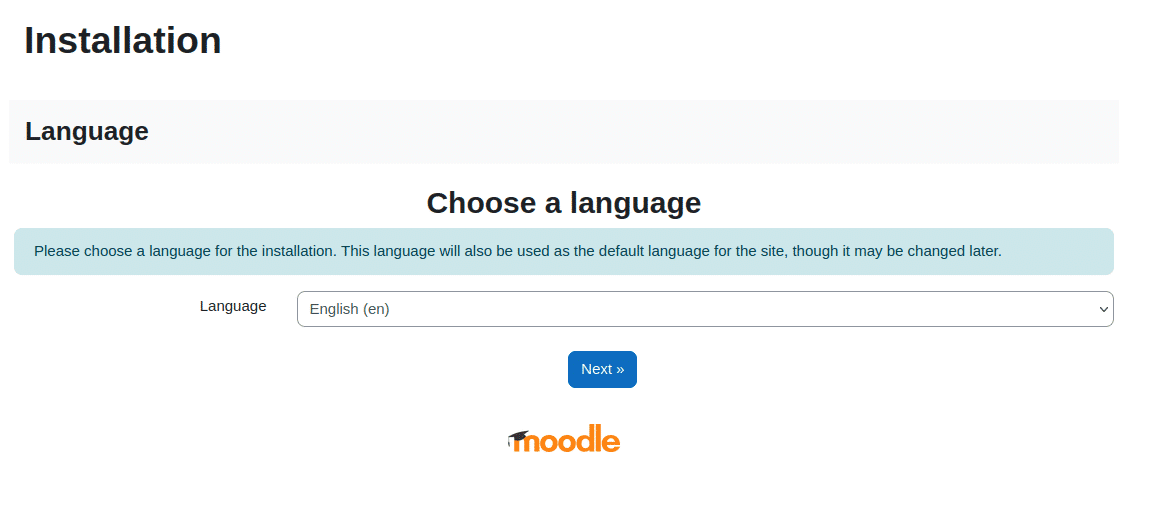
1. Open your browser and navigate to your Moodle’s site domain/sub-domain. You should see Moodle Installation page.
2. Choose website’s language. We will keep English.
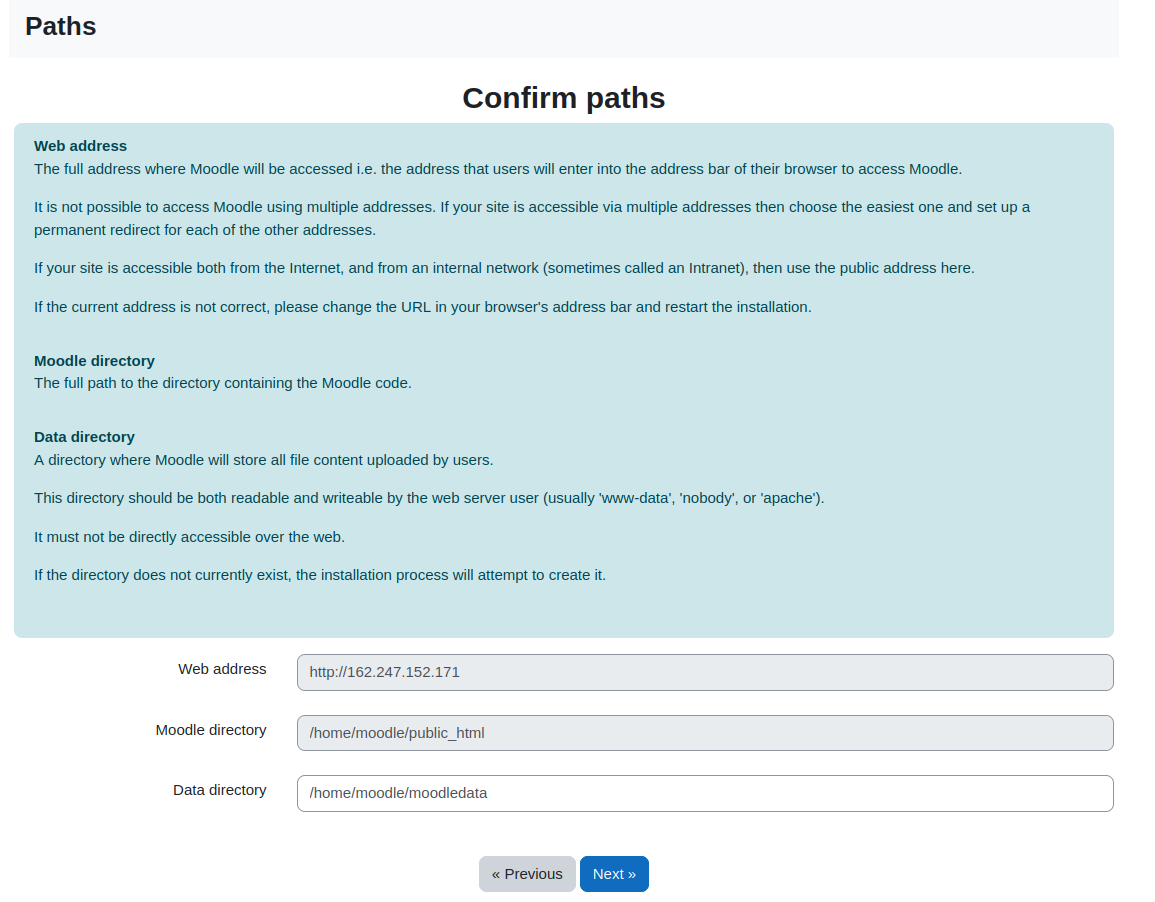
3. Kinnitage teed
Järgmises sammus kinnitage, et veebiaadress, moodle'i kataloog ja andmekataloog on õiged. Andmekataloog puudus meie installimisel, seega lõime selle sellel sammul.
# mkdir /home/moodle/moodledata
# chown www-data:www-data /home/moodle/moodledata
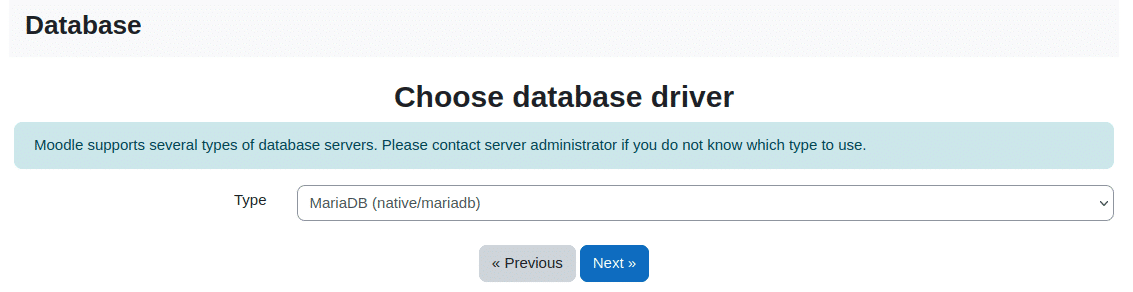
4. Valige andmebaasi server
Kasutame selle juhendi jaoks MariaDB-d. Valige rippmenüüst MariaDB.
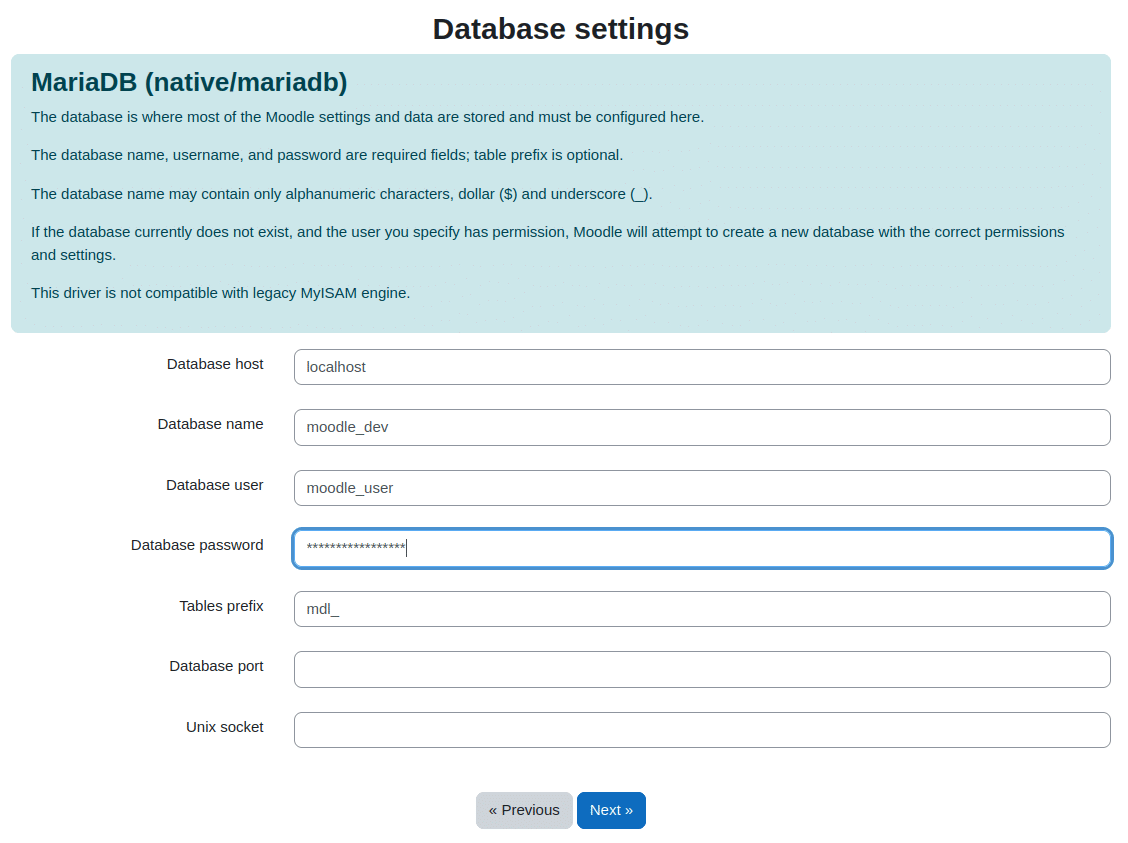
5. Sisestage andmebaasi seaded
Sisestage andmebaasi nimi, andmebaasi kasutaja ja parool, mille me varem lõime.
6. Looge config.php fail
After entering database settings and clicking “Next” a config.php file will be generated. Copy content of the file and create “config.php” in the root moodle directory (/home/moodle/public_html in this example).
7. Aktsepteeri litsents
Te peate sellel sammul lugema ja aktsepteerima Moodle'i litsentsilepingut.
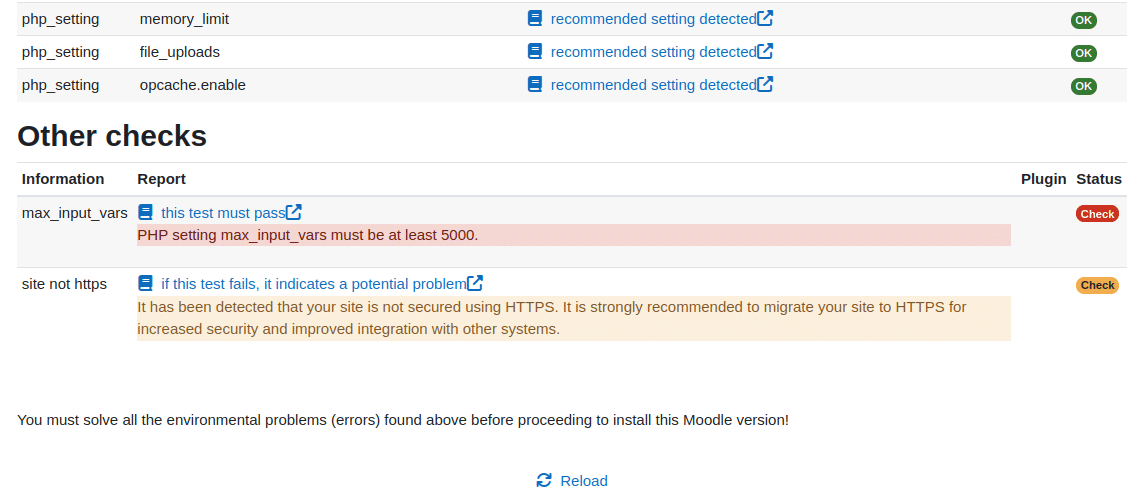
8. Läbige serveri kontrollid
Most of the checks passed in our installation. We only had to change “max_input_vars” from its default value to 5000.
$ nano /etc/php/8.1/fpm/php.ini
$ systemctl reload php8.1-fpm
9. Konfigureerige oma peamine administraatori konto
Sellel sammul peaksite seadistama administraatori konto. Sisestage administraatori kasutajanimi, parool ja muud vajalikud andmed.
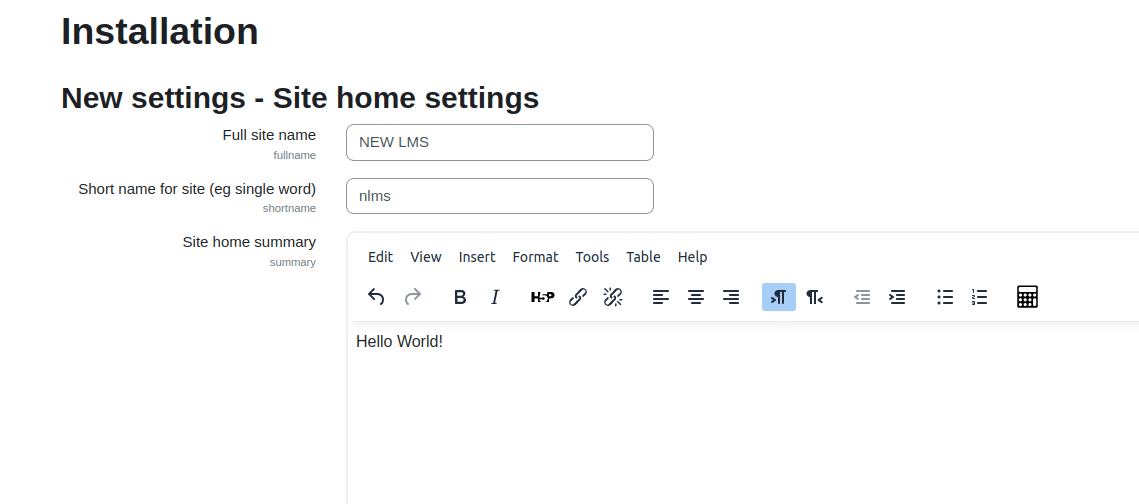
10. Sisestage saidi kodu seaded
Seadistage saidi nimi, saidi lühinimi, saidi kodu kokkuvõte ja muu teave.
Looge oma esimene kursus!
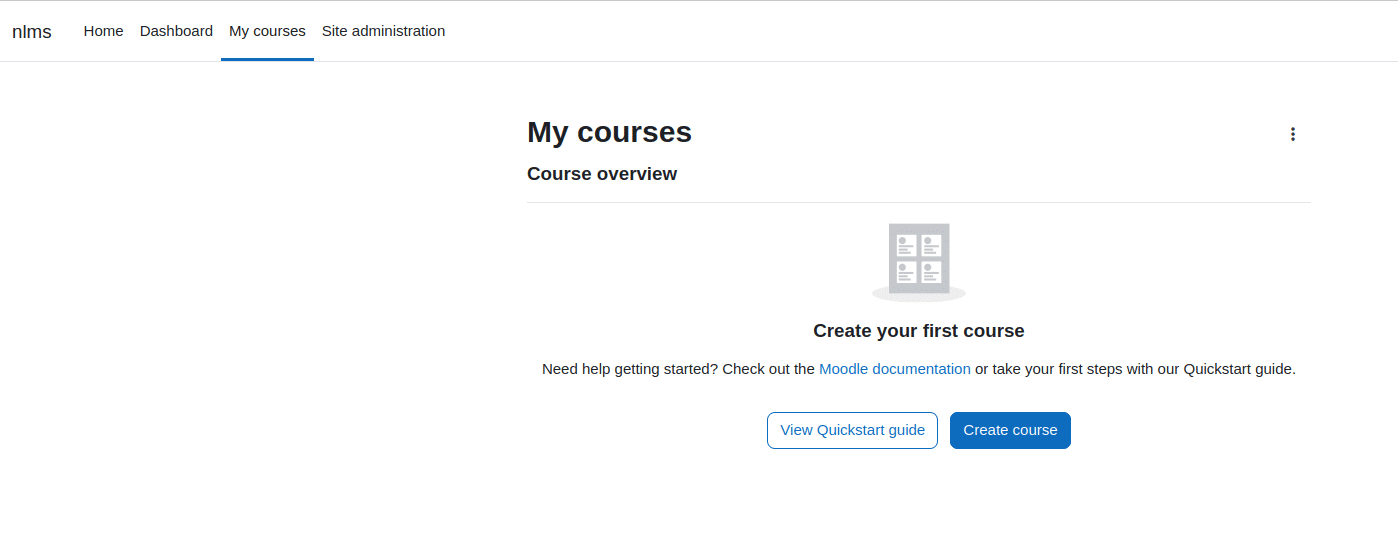
After few final clicks you will see the LMS dashboard and Calendar. Proceed to “My Courses” tab and create your first Moodle course! Well done!