
Moodle is one of the best learning management systems available. It’s an open software, released under the open source ‘GNU General Public License’ which makes it highly flexible and customizable. In this guide you will learn how to install Moodle on Ubuntu server 20.04/22.04.
We are installing Moodle on a brand new, clean Ubuntu server with no software or data on it. If your server has data on it - make data backup first. Author is not responsible for possible data loss.
Pirms sākat
Pārbaudiet mūsu mājas mitināšanas pakalpojumu Moodle kopienas izdevumam. Jūs varat sākt izmantot LMS, neinstalējot to!
Priekšnosacījumi
- Instalējiet VPS serveri ar Ubuntu 22.04 uz tā
- Iegūstiet pilnībā kvalificētu domēna vārdu. pointing to your server’s IP address, such as “moodle.example.org”
Šajā ceļvedī mēs izmantosim domēnu moodle.example.org, nomainiet to uz savu domēna vārdu.
Ubuntu servera sagatavošana Moodle instalēšanai
Atjaunināt sistēmu
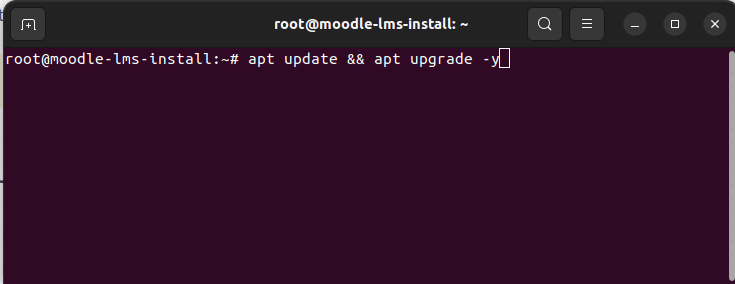
First thing first – updating the system. To get started connect to your server via SSH. Then run “apt update” and “apt upgrade” commands to update system packages to the latest version.
$ sudo apt update && apt upgrade -y
Instalējiet Apache, PHP-8.1, MariaDB MySQL serveri
Nākamais ir Moodle atkarību instalēšana. Mums jāinstalē Apache tīmekļa serveris, PHP 8.1, MariaDB SQL serveris, pasta serveris un PHP paplašinājumu saraksts, kas nepieciešams Moodle.
$ sudo apt install apache2 php8.1 mariadb-server postfix
$ sudo apt install php8.1-mysql php8.1-fpm php8.1-iconv php8.1-mbstring php8.1-curl php8.1-tokenizer php8.1-xmlrpc php8.1-soap php8.1-ctype php8.1-zip php8.1-gd php8.1-simplexml php8.1-xml php8.1-intl
Kad instalācija ir pabeigta, sāciet Apache tīmekļa serveri.
$ sudo systemctl start apache2
$ sudo systemctl enable apache2
Konfigurēt Apache VirtualHost un PHP-FPM
Mēs darbosimies ar Moodle 4.2 uz Apache un PHP-FPM. Nākamajā solī mēs konfigurēsim PHP-FPM Apache.
1. Sākt PHP-FPM pakalpojumu un iespējot to palaišanai.
$ sudo systemctl start php8.1-fpm
$ sudo systemctl enable php8.1-fpm
2. Lai izmantotu PHP-FPM ar Apache, mums jāiespējo proxy_fcgi un proxy moduļi.
sudo a2enmod proxy_fcgi proxy
3. Izveidot Apache konfigurācijas failu Moodle.
$ sudo nano /etc/apache2/sites-available/moodle.conf
Ievadiet sekojošo konfigurāciju moodle.conf. Aizvietojiet ServerName., DocumentRoot, Directory ar jūsu vērtībām.
<VirtualHost *:80>
ServerName moodle.example.org
ServerAlias www.moodle.example.org
DocumentRoot /home/moodle/public_html

<Directory /home/moodle/public_html>
Options -Indexes +FollowSymLinks +MultiViews
AllowOverride All
Require all granted
</Directory>

<FilesMatch \.php$>
SetHandler "proxy:unix:/run/php/php8.1-fpm.sock|fcgi://localhost/"
</FilesMatch>

ErrorLog ${APACHE_LOG_DIR}/error.log
CustomLog ${APACHE_LOG_DIR}/access.log combined
</VirtualHost>
Saglabājiet un aizveriet failu ar CTRL+X, tad Y, tad Enter.
4. Iespējot jauno virtuālo hostu un pārlādēt Apache tīmekļa serveri.
$ a2ensite moodle
$ systemctl reload apache2
5. Also it’s nice to have a rewrite and SSL modules enabled
# a2enmod rewrite
# a2enmod ssl
# systemctl restart apache2
Izveidot datubāzi un datubāzes lietotāju
1. Sākt un iespējot MariaDB SQL serveri
root@moodle-lms-install:~# systemctl start mariadb
root@moodle-lms-install:~# systemctl enable mariadb
2. Izveidot MySQL lietotāju un datubāzi
root@moodle-lms-install:~# mysql
MariaDB [(none)]> create database moodle_dev;
MariaDB [(none)]> grant all privileges on moodle_dev.* to moodle_user@localhost identified by 'Change_to_Strong_SQL_Password';
MariaDB [(none)]> flush privileges;
Kad mums ir konfigurēts Apache, PHP un MySQL, mēs varam turpināt ar moodle koda instalēšanu.
Instalējiet Moodle kodu
1. Izveidojiet mājas direktoriju Moodle vietnei un publisko direktoriju
$ useradd --create-home -s /bin/sh moodle
$ mkdir -p /home/moodle/public_html
$ chmod 711 /home/moodle
2. Lejupielādējiet jaunāko Moodle kodu un izsaiņojiet to publiskajā direktorijā.
Jūs varat lejupielādēt jaunāko Moodle no https://download.moodle.org/releases/latest/. Get the code and upload it into the public directory. In our case the directory is “/home/moodle/public_html”
Palaidiet instalāciju pārlūkā
Pirms turpināt šo pēdējo soli, jums jānorāda sava domēna vārds uz jūsu servera IP adresi. Kad DNS ir konfigurēts, jūs varat palaist Moodle instalāciju pārlūkā.
1. Open your browser and navigate to your Moodle’s site domain/sub-domain. You should see Moodle Installation page.
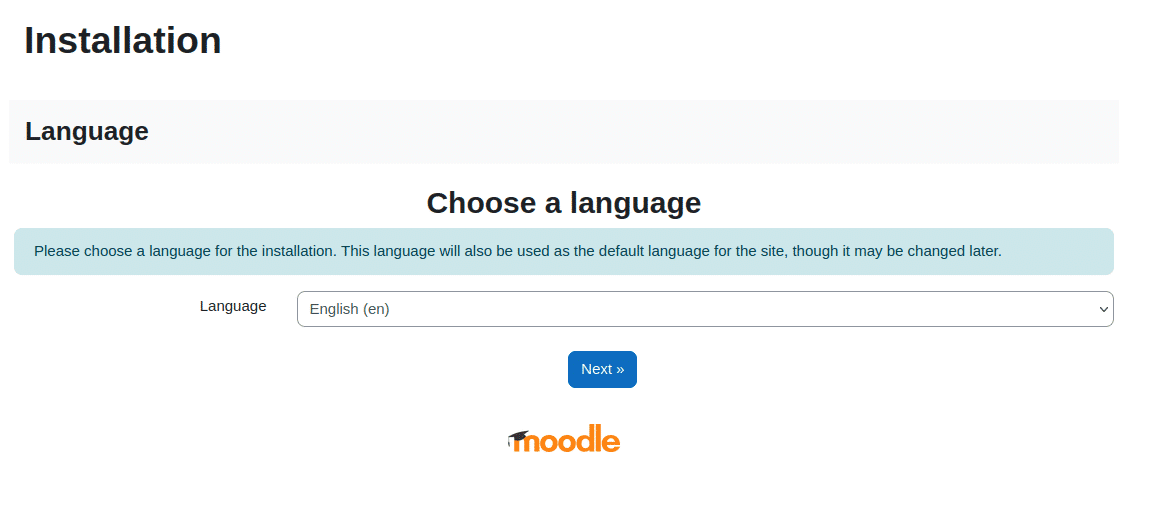
2. Choose website’s language. We will keep English.
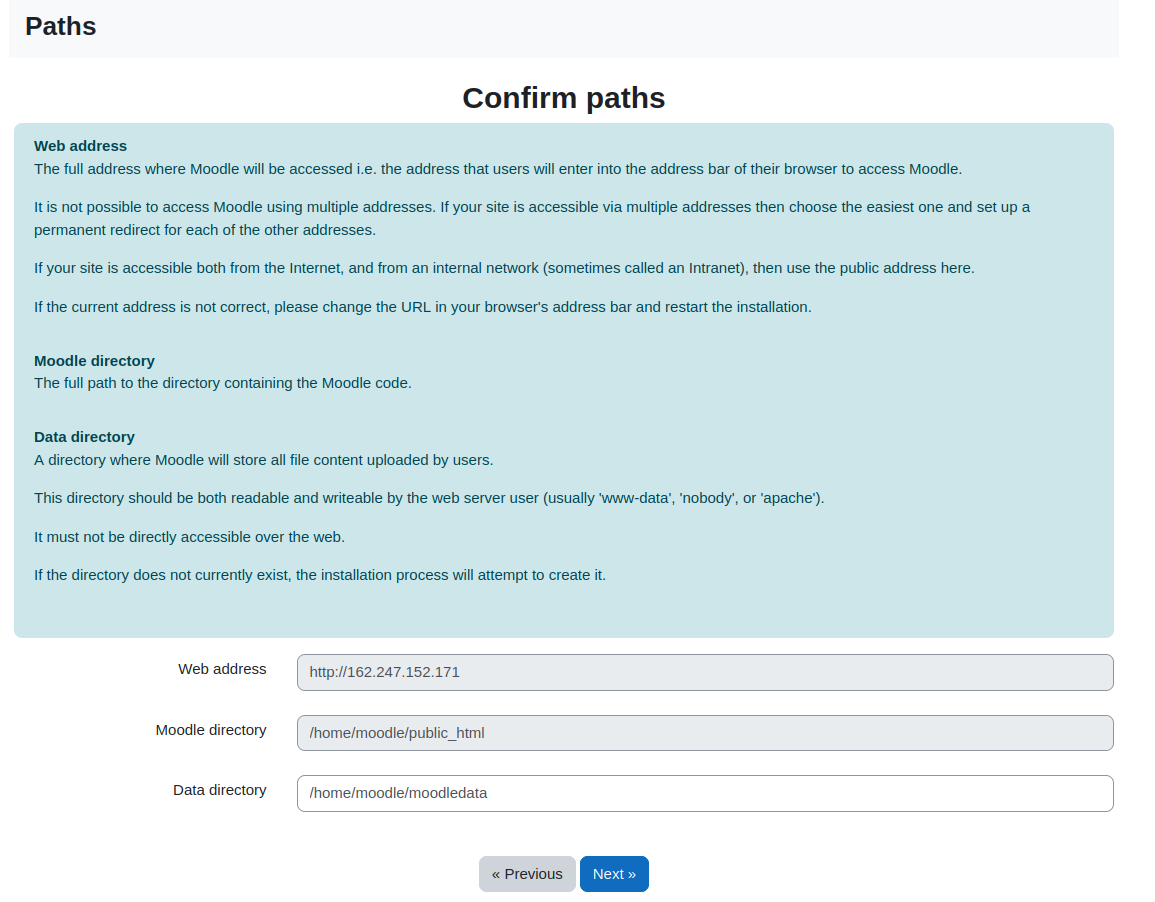
3. Apstipriniet ceļus
Nākamajā solī apstipriniet, ka tīmekļa adrese, moodle direktorija un datu direktorija ir pareizas. Datu direktorija trūka mūsu instalācijā, tāpēc mēs to izveidojām šajā solī.
# mkdir /home/moodle/moodledata
# chown www-data:www-data /home/moodle/moodledata
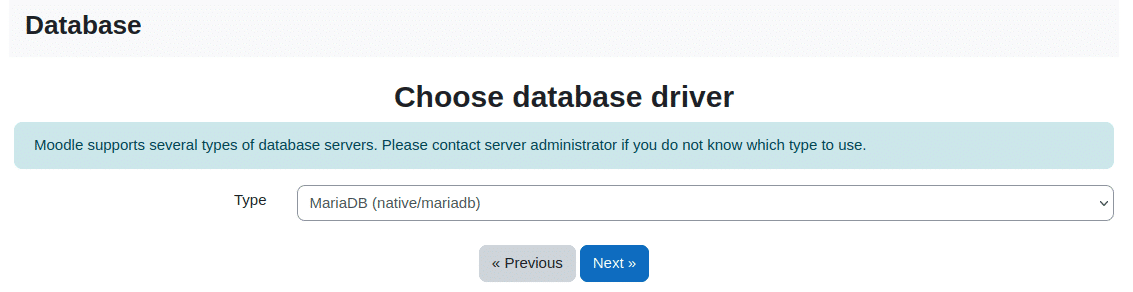
4. Izvēlieties datu bāzes serveri
Mēs izmantojam MariaDB šajā rokasgrāmatā. Izvēlieties MariaDB no nolaižamā izvēlnes.
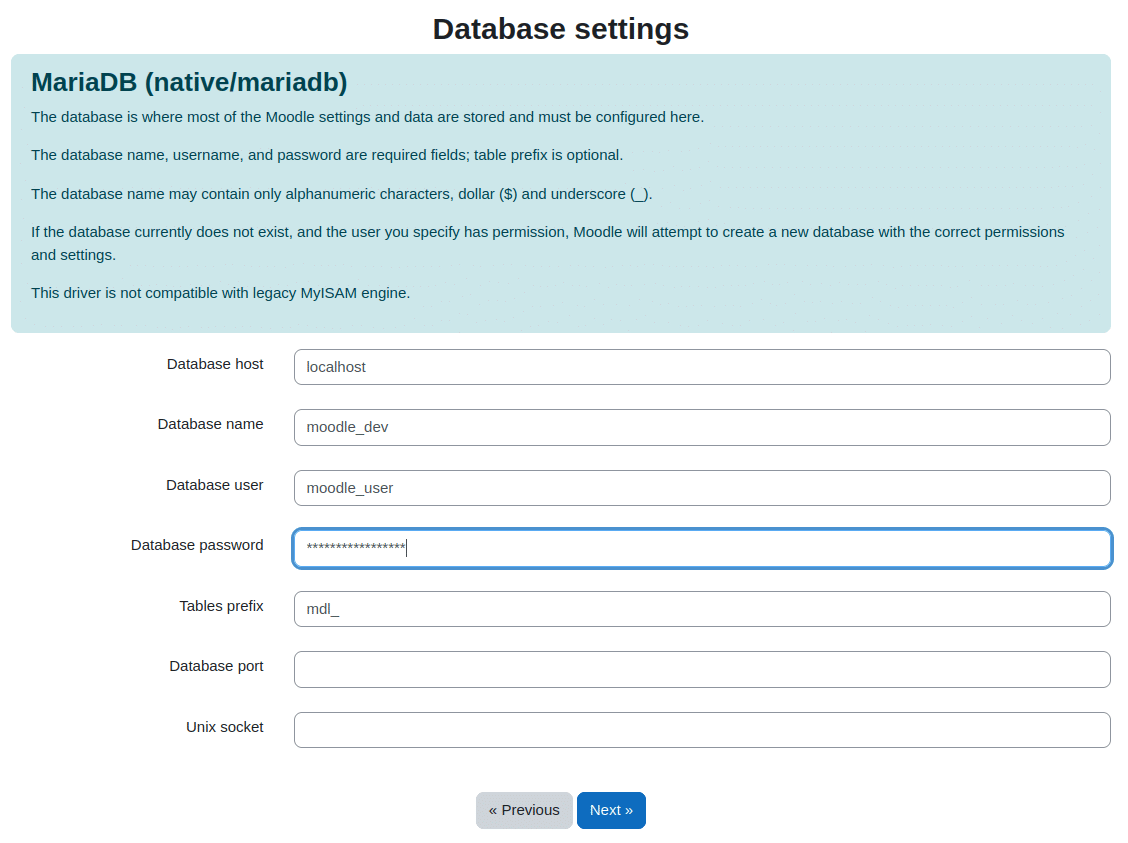
5. Ievadiet datu bāzes iestatījumus
Ievadiet datu bāzes nosaukumu, datu bāzes lietotāju un paroli, ko mēs izveidojām iepriekš.
6. Izveidojiet config.php failu
After entering database settings and clicking “Next” a config.php file will be generated. Copy content of the file and create “config.php” in the root moodle directory (/home/moodle/public_html in this example).
7. Pieņemiet licenci
Šajā solī jums ir jāizlasa un jāpieņem Moodle licences līgums.
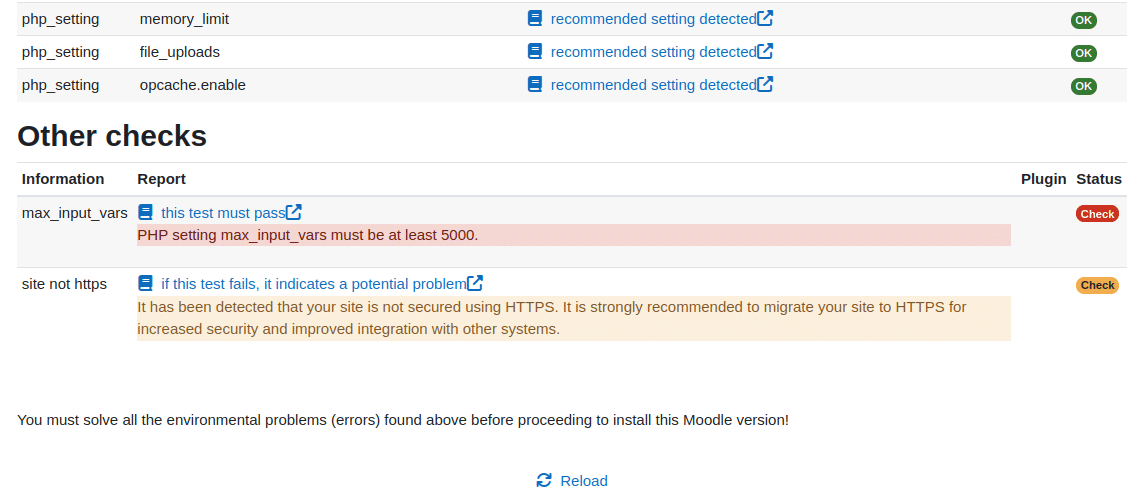
8. Veiciet servera pārbaudes
Most of the checks passed in our installation. We only had to change “max_input_vars” from its default value to 5000.
$ nano /etc/php/8.1/fpm/php.ini
$ systemctl reload php8.1-fpm
9. Konfigurējiet savu galveno administratora kontu
Šajā solī jums jāiestata administratora konts. Ievadiet administratora lietotājvārdu, paroli un citus nepieciešamos datus.
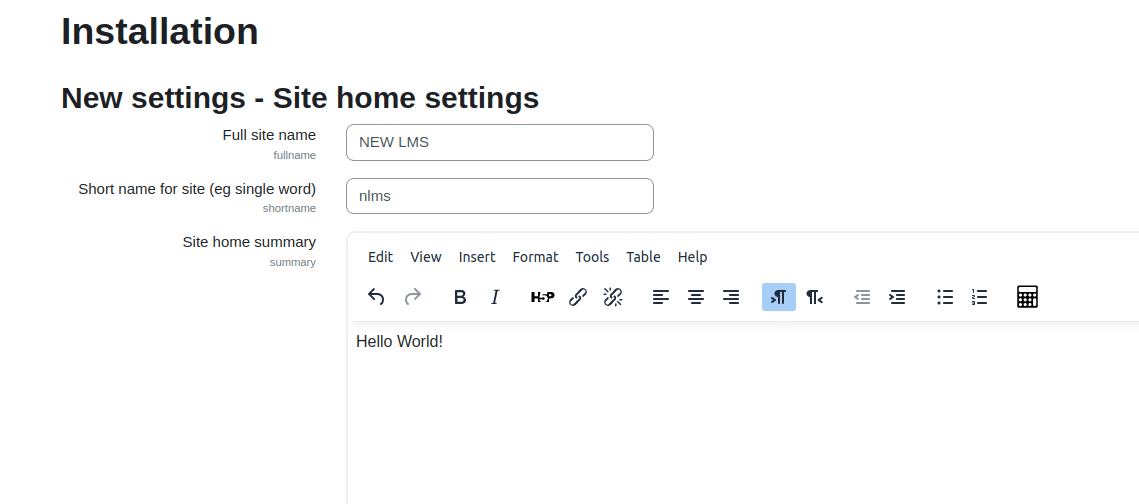
10. Ievadiet vietnes sākumlapas iestatījumus
Konfigurējiet vietnes nosaukumu, īso nosaukumu vietnei, vietnes sākumlapas kopsavilkumu un citu informāciju.
Izveidojiet savu pirmo kursu!
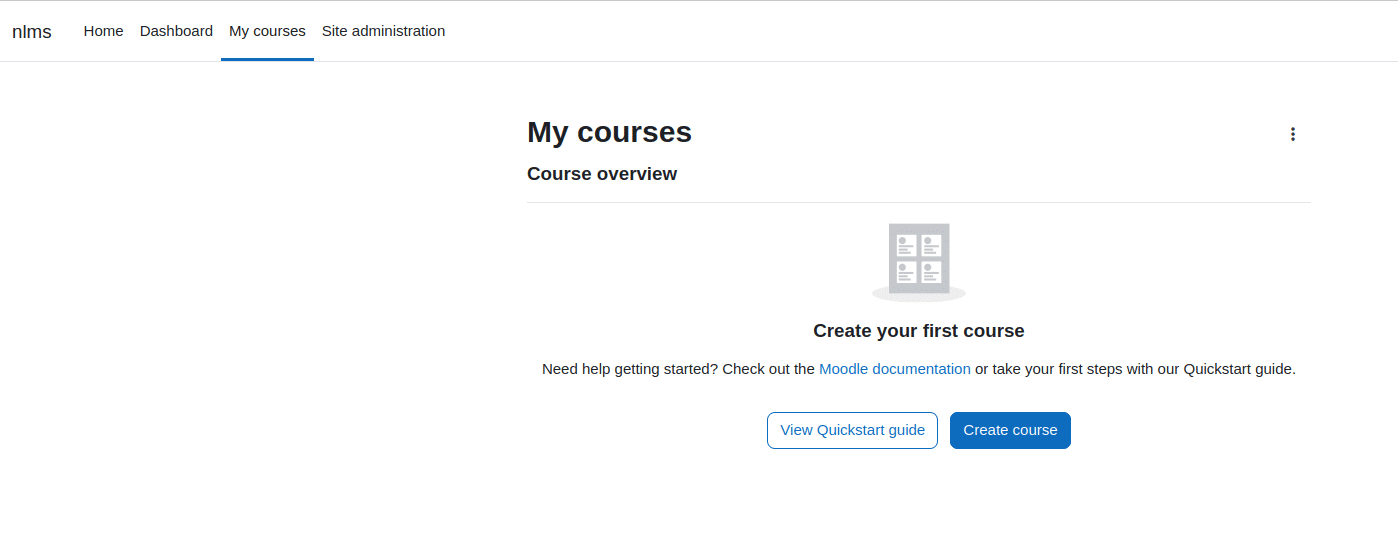
After few final clicks you will see the LMS dashboard and Calendar. Proceed to “My Courses” tab and create your first Moodle course! Well done!