
Last updated: September 16, 2026
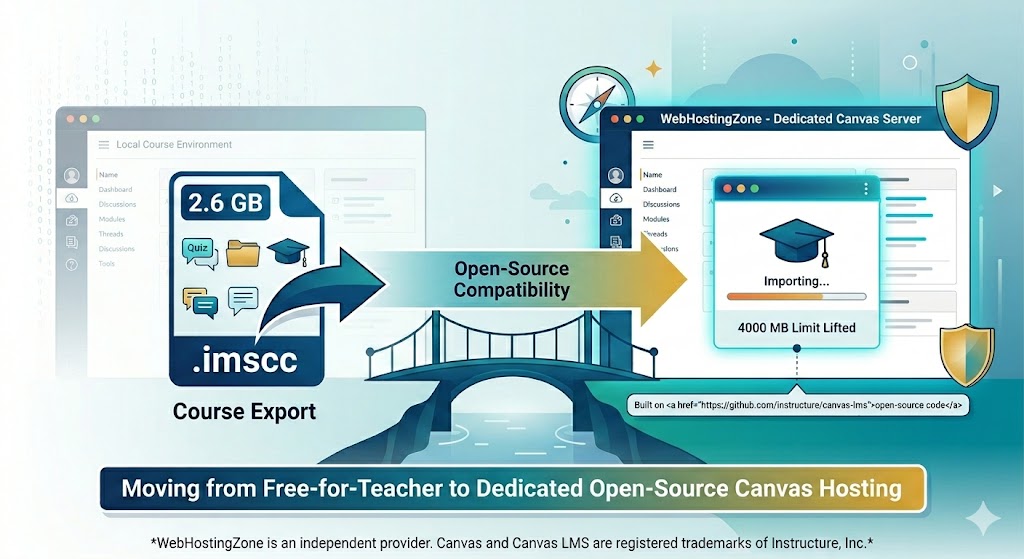
Moving away from Canvas Free-for-Teacher starts with preserving your course materials. Download your content, save any student records you need separately, and test an import before inviting learners to your new environment.
This guide explains the announced transition, the standard Canvas export and import process, and what to check when considering managed open-source Canvas LMS hosting.
Important dates for Free-for-Teacher users
Instructure has announced that Free-for-Teacher will reopen from September 30 through October 6, 2026, so existing users can export their course content. Its announcement says access will end after that window and content will not move automatically to Canvas Lite.
Canvas Lite is scheduled to launch at the end of September. These are announced dates, not confirmation that access is already available. Check Instructure’s transition announcement for updates before planning your export.
If you already have downloaded course packages, keep those copies and start testing them now. Otherwise, prepare a list of courses and records to download during the access window. We recommend exporting early rather than leaving it until the final day.
Choose where your courses will go
Canvas Lite
Canvas Lite is Instructure’s announced free option for individual educators. It requires a new account and educator identity verification. Announced limits include five active courses and 50 learners per course; it uses New Quizzes rather than Classic Quizzes.
Check eligibility carefully: Instructure says Canvas Lite is not intended for employees of for-profit businesses, nonprofit organizations, or government agencies. Read the official Canvas Lite details before choosing it.
Your institution’s Canvas environment
If your school or organization already provides Canvas, ask its administrator whether you can import your courses there. Confirm who will create the destination courses, arrange access, and check integrations.
Managed open-source Canvas LMS hosting
For a separately managed environment, WebHostingZone offers Open-Source Canvas LMS Hosting, including preinstalled Canvas, course-package imports, and administrative access. Plans with your own domain are available.
WHZ provides infrastructure hosting and technical server support. Teachers and administrators remain responsible for course content and learner administration; instructional training is outside the hosting service’s scope. Check the current plan details and confirm any migration assistance before ordering.
Do not assume every feature or external service in an Instructure-hosted environment is available in a separate open-source installation. Make a list of essential tools and request confirmation for the destination you are considering.
What does a course export include?
Instructure’s FFT migration guide describes the .imscc export as a package containing course structure and materials, including modules, pages, assignments, quizzes, question banks, discussion topics, rubrics, and files.
It does not include student submissions, gradebook records, discussion comments, active enrollments, or external-app configurations such as Google Drive and Microsoft Office 365. A course package is therefore not a complete account or student-history backup. Official FFT export and migration guidance
Step 1: Export each course
When your account is accessible:
- Open the course and enter Settings.
- Select Export Course Content.
- Choose the course export option and start the export.
- Wait for processing to finish, then download the resulting
.imsccfile. - Repeat for each course you want to preserve.
These steps follow Instructure’s course export guide. Interface wording may vary by Canvas version.
We recommend keeping an untouched copy of every package in a second secure location. Use clear filenames and record the export date. Downloading the file is essential; an export link inside your old account is not a substitute for a copy you control.
Step 2: Save student records separately
While you still have access, use the separate export options for grades and student work you need to retain. Instructure’s guidance links to Gradebook exports, assignment-submission downloads, and quiz reports. For discussion replies, it recommends saving threads as PDFs because bulk export is unavailable.
New Quizzes also requires separate attention: the guidance says each quiz and its reports must be exported individually. Student-record and quiz export guidance
Treat these downloads as records to preserve. Do not assume they will automatically recreate historical activity in the destination course. Store them securely and restrict access to people who need them.
Step 3: Import into a destination Canvas course
We recommend starting with an empty, unpublished test course.
- Open its Settings, then the course-content import screen.
- Select Canvas Course Export Package as the content type.
- Upload your
.imsccfile. - Choose all content or select the items you need.
- Review any available date-adjustment options.
- Start the import and inspect its status and reported issues.
Follow the official Canvas import guide for the current interface. A self-hosted version may label controls differently.
Imports can change existing course settings. Repeated quiz imports can also create duplicates rather than update the earlier copy, so investigate errors before importing the same package again. These limitations are documented in the same guide.
Step 4: Check the course before inviting learners
A completed import is the starting point for review. We recommend checking:
| Area | What to test |
|---|---|
| Course structure | Open every module and check its order, prerequisites, and completion rules. |
| Pages and files | Follow internal links and download sample files. Look for links still pointing to the old site. |
| Quizzes | Preview questions, scoring, feedback, and question-bank behaviour. Confirm the destination supports the required quiz engine. |
| Assignments | Check due dates, submission types, rubrics, and grading settings. |
| External tools | Reconfigure integrations where needed and test launches. |
| Video | Check playback and sharing permissions using a separate learner account. |
| Access | Review visibility, publishing, course dates, and enrollment arrangements. |
| Notifications | Test an invitation or course notification before launch. |
Ask a colleague to review a representative lesson from a learner’s perspective. Keep a short issue list and resolve anything that could prevent access, submissions, or assessment before publishing.
What if you cannot access your old account?
Check Instructure’s latest access instructions and look for previously downloaded .imscc files or original teaching materials. WHZ cannot unlock an Instructure account or promise recovery of content that you cannot export.
If you have a package, test it before committing to a migration schedule. If you only have original documents and media, plan for rebuilding the course structure.
Planning your own Canvas environment?
Before choosing hosting, prepare your course count, approximate file storage, expected simultaneous usage, required integrations, and preferred launch date. These details help establish whether a proposed environment fits your workload.
Explore WebHostingZone’s managed Canvas LMS hosting plans and use the consultation form on that page to discuss your requirements. Confirm feature compatibility and responsibilities before moving a live course.
WebHostingZone is an independent provider of hosting for open-source Canvas LMS. It is not affiliated with or endorsed by Instructure. Canvas and Canvas LMS are trademarks of Instructure.