
سد الفجوة: كيفية دمج BigBlueButton مع Canvas LMS
Good day! In this how-to I will show you how to integrate BigBlueButton web conferencing system and Canvas LMS (canvas learning management system). As a starting point I have two servers – one server with the latest version of Canvas LMS and the other server with the latest version of BigBlueButton installed on it.
يعد تكامل Canvas/BigBlueButton عملية سهلة ومباشرة.
1. أولاً، ابحث عن عنوان URL لواجهة برمجة التطبيقات BigBlueButton API والملح (المفتاح السري). اسأل الخاص بك استضافة BigBlueButton الموفر أو قم بتشغيل الأمر التالي على خادم BigBlueButton الخاص بك:
$ bbb-conf --salt
سيبدو عنوان URL والملح كما يلي:
URL: https://bbbdemo.webhostingzone.org/bigbluebutton/

Secret: DUFSeEyrBLk7BBEpFhCVk3pFpU8bv2
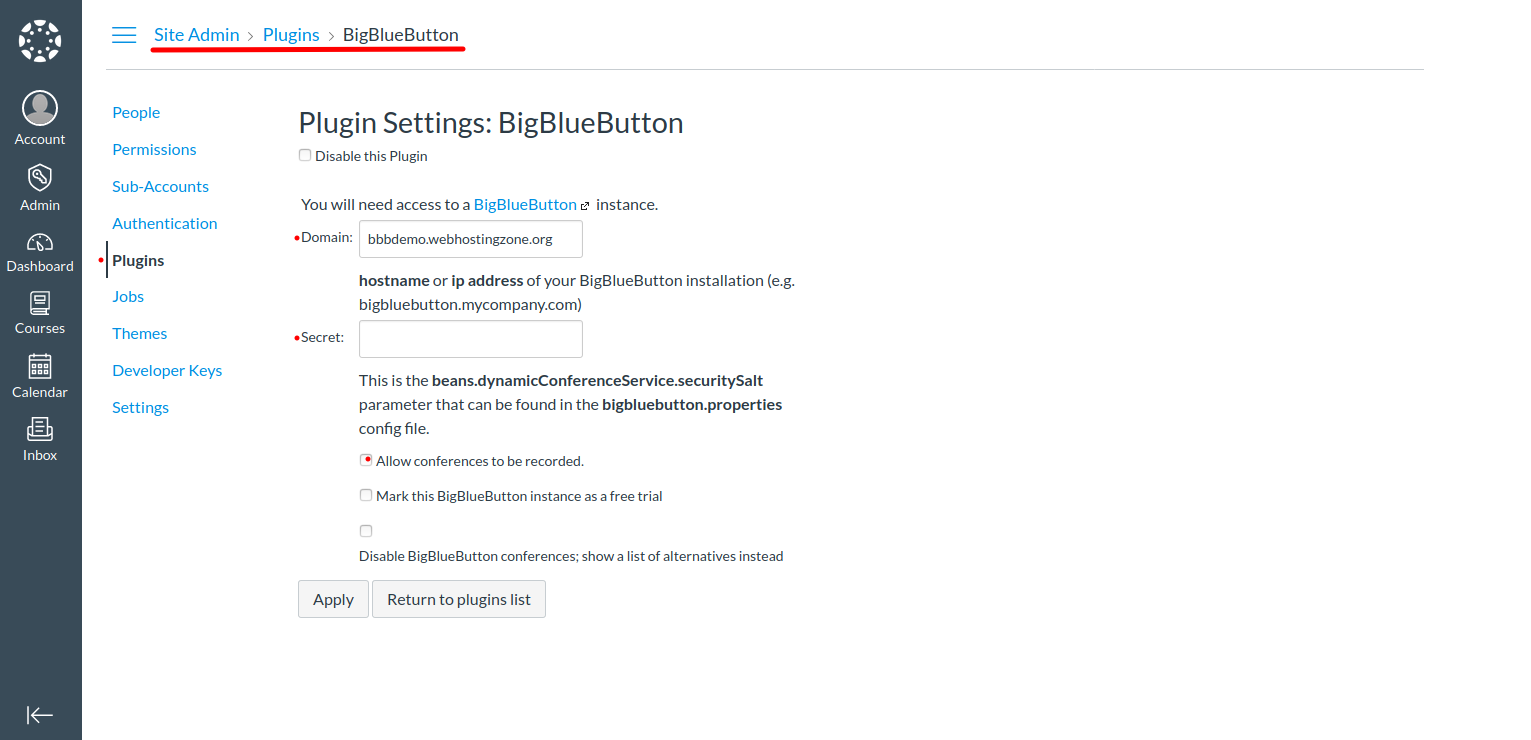
2. Now you can configure BigBlueButton plugin in Canvas. Go to Canvas > Site Admin > Plugins > BigBlueButton. Enter a domain name and salt into the plugin settings. Save changes. Note: Bigbluebutton url looks like https://bbb.example.com/bigbluebutton/. You need to enter only “bbb.example.com” in Canvas BBB plugin settings.
3. BigBlueButton and Canvas LMS have different freeswitch “destination_number” format. To make audio working in BigBlueButton you need to edit two files:
تحرير /opt/freeswitch/conf/dialplan/default/bbb_echo_test.xml وتغيير النص بالخط العريض
<extension name="bbb_echo_test_direct">

<condition field="destination_number" expression="^9196$|^9196(\d{5,20})$">
قم بتحرير /opt/freeswitch/conf/dialplan/default/bbb_conference.xml وقم بتغيير النص بالخط العريض في مكانين:
<extension name="bbb_conferences_ws">

<condition field="destination_number" expression="^(\d{5,20})$">

.

<extension name="bbb_conferences">

<condition field="destination_number" expression="^(\d{5,20})$">
بعد إجراء التغييرات المذكورة أعلاه، أعد تشغيل BigBlueButton.
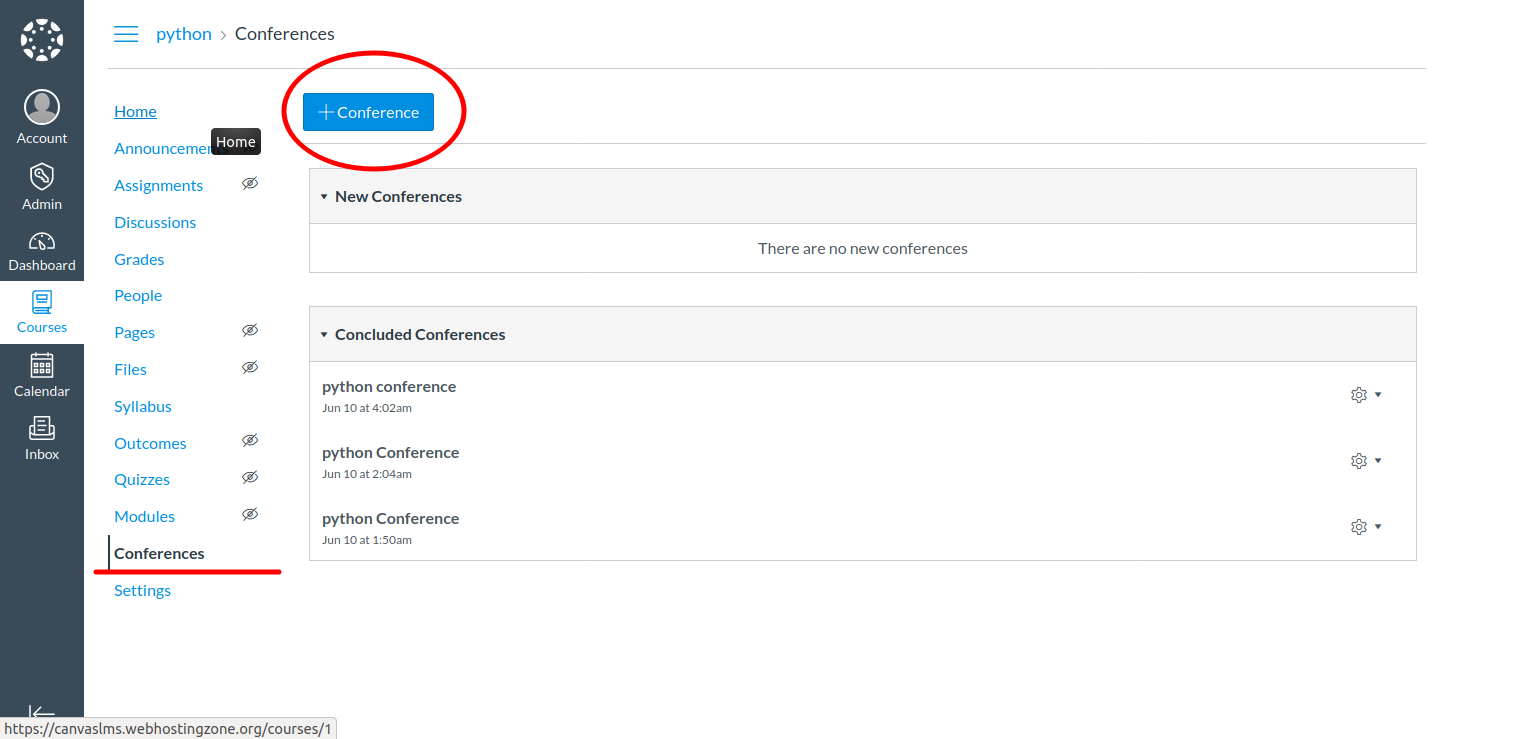
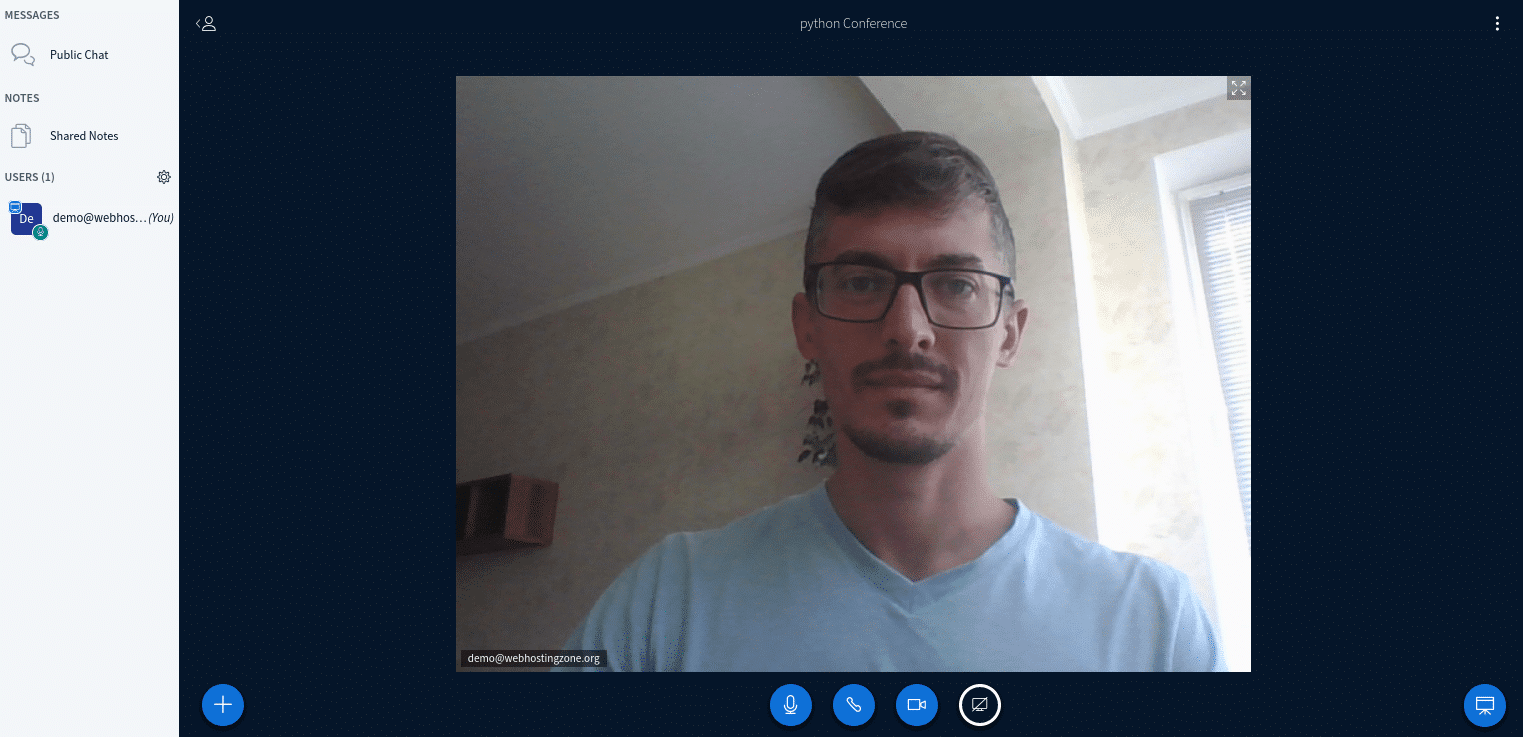
4. At this point you should be able to create a new conference in Canvas LMS. To create a conference go to a course created in Canvas > Conferences > New Conference.