
Bridging the Gap: Hvordan integrere BigBlueButton med Canvas LMS
Good day! In this how-to I will show you how to integrate BigBlueButton web conferencing system and Canvas LMS (canvas learning management system). As a starting point I have two servers – one server with the latest version of Canvas LMS and the other server with the latest version of BigBlueButton installed on it.
Canvas/BigBlueButton-integrasjon er en enkel og grei prosess.
1. Finn først og fremst BigBlueButton API URL og salt (hemmelig nøkkel). Spør din BigBlueButton-vert leverandør eller kjør neste kommando på BigBlueButton-serveren:
$ bbb-conf --salt
URL og salt vil se slik ut:
URL: https://bbbdemo.webhostingzone.org/bigbluebutton/

Secret: DUFSeEyrBLk7BBEpFhCVk3pFpU8bv2
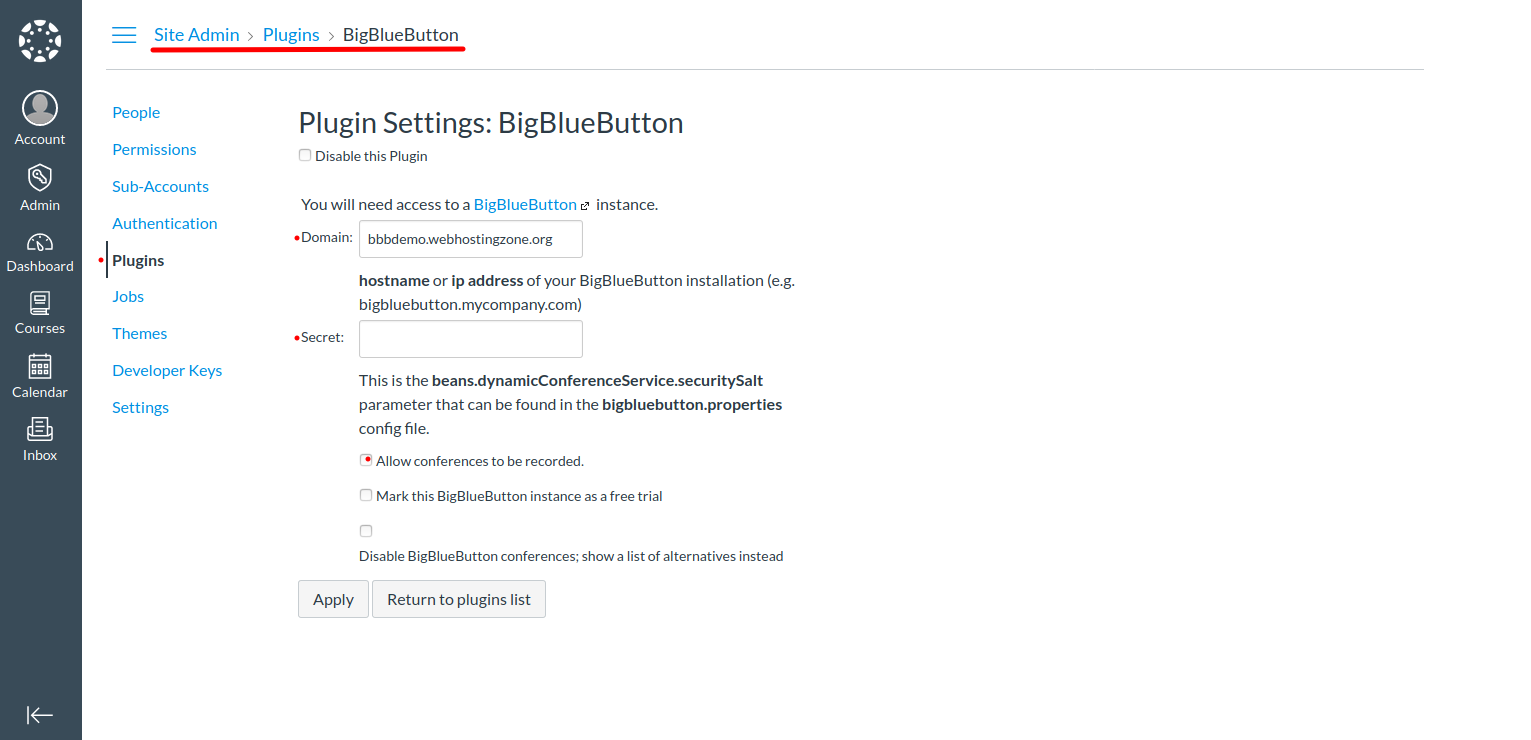
2. Now you can configure BigBlueButton plugin in Canvas. Go to Canvas > Site Admin > Plugins > BigBlueButton. Enter a domain name and salt into the plugin settings. Save changes. Note: Bigbluebutton url looks like https://bbb.example.com/bigbluebutton/. You need to enter only “bbb.example.com” in Canvas BBB plugin settings.
3. BigBlueButton and Canvas LMS have different freeswitch “destination_number” format. To make audio working in BigBlueButton you need to edit two files:
Rediger /opt/freeswitch/conf/dialplan/default/bbb_echo_test.xml og endre teksten i fet skrift
<extension name="bbb_echo_test_direct">

<condition field="destination_number" expression="^9196$|^9196(\d{5,20})$">
Rediger /opt/freeswitch/conf/dialplan/default/bbb_conference.xml og endre teksten i fet skrift to steder:
<extension name="bbb_conferences_ws">

<condition field="destination_number" expression="^(\d{5,20})$">

.

<extension name="bbb_conferences">

<condition field="destination_number" expression="^(\d{5,20})$">
Etter at du har gjort endringene ovenfor, start BigBlueButton på nytt.
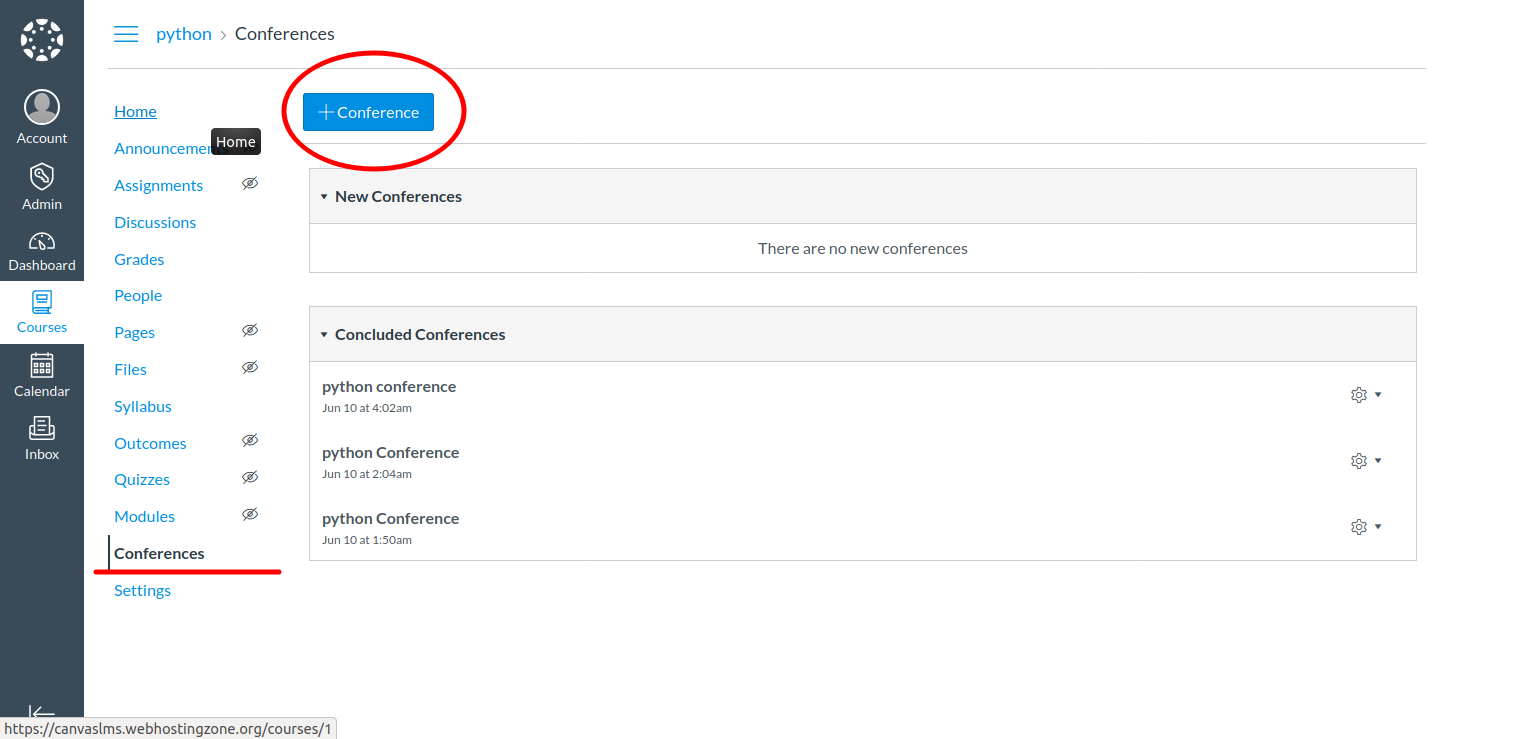
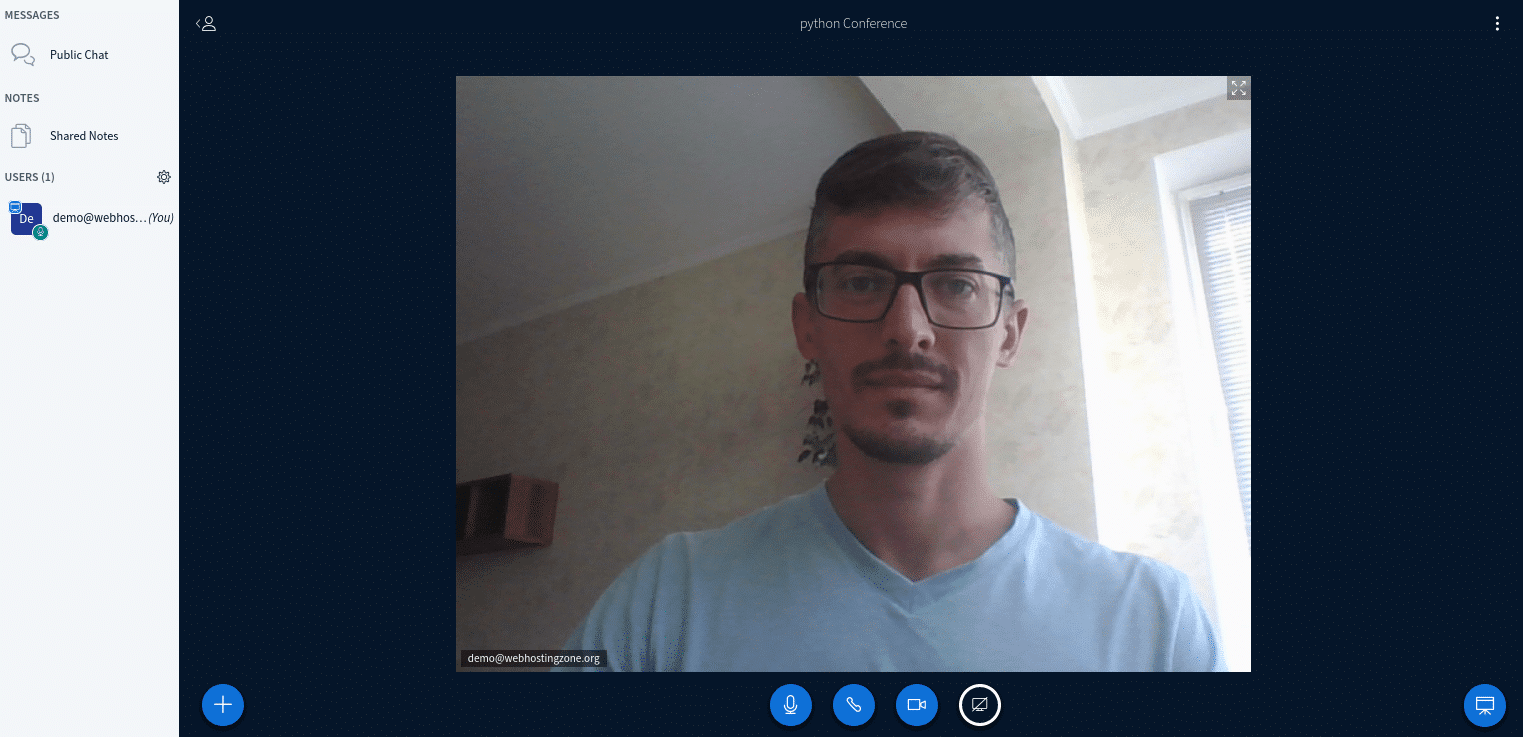
4. At this point you should be able to create a new conference in Canvas LMS. To create a conference go to a course created in Canvas > Conferences > New Conference.