
Thu hẹp khoảng cách: Cách tích hợp BigBlueButton với Canvas LMS
Good day! In this how-to I will show you how to integrate BigBlueButton web conferencing system and Canvas LMS (canvas learning management system). As a starting point I have two servers – one server with the latest version of Canvas LMS and the other server with the latest version of BigBlueButton installed on it.
Tích hợp Canvas/BigBlueButton là một quá trình dễ dàng và đơn giản.
1. Trước hết hãy tìm URL API BigBlueButton và muối (khóa bí mật). Hỏi của bạn Lưu trữ BigBlueButton nhà cung cấp hoặc chạy lệnh tiếp theo trên máy chủ BigBlueButton của bạn:
$ bbb-conf --salt
URL và muối sẽ trông như thế này:
URL: https://bbbdemo.webhostingzone.org/bigbluebutton/

Secret: DUFSeEyrBLk7BBEpFhCVk3pFpU8bv2
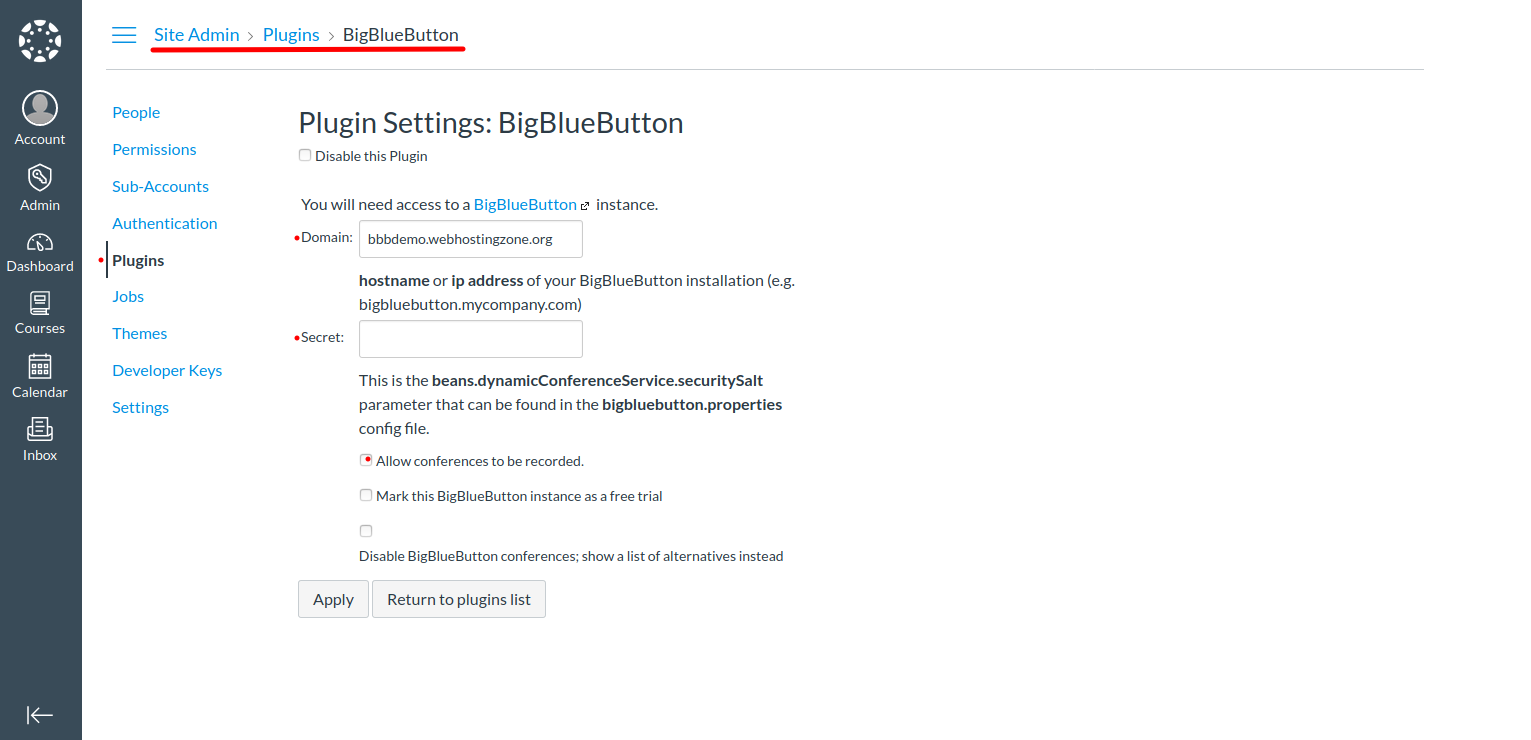
2. Now you can configure BigBlueButton plugin in Canvas. Go to Canvas > Site Admin > Plugins > BigBlueButton. Enter a domain name and salt into the plugin settings. Save changes. Note: Bigbluebutton url looks like https://bbb.example.com/bigbluebutton/. You need to enter only “bbb.example.com” in Canvas BBB plugin settings.
3. BigBlueButton and Canvas LMS have different freeswitch “destination_number” format. To make audio working in BigBlueButton you need to edit two files:
Chỉnh sửa /opt/freeswitch/conf/dialplan/default/bbb_echo_test.xml và thay đổi văn bản in đậm
<extension name="bbb_echo_test_direct">

<condition field="destination_number" expression="^9196$|^9196(\d{5,20})$">
Chỉnh sửa /opt/freeswitch/conf/dialplan/default/bbb_conference.xml và thay đổi văn bản in đậm ở hai vị trí:
<extension name="bbb_conferences_ws">

<condition field="destination_number" expression="^(\d{5,20})$">

.

<extension name="bbb_conferences">

<condition field="destination_number" expression="^(\d{5,20})$">
Sau khi bạn thực hiện những thay đổi trên, hãy khởi động lại BigBlueButton.
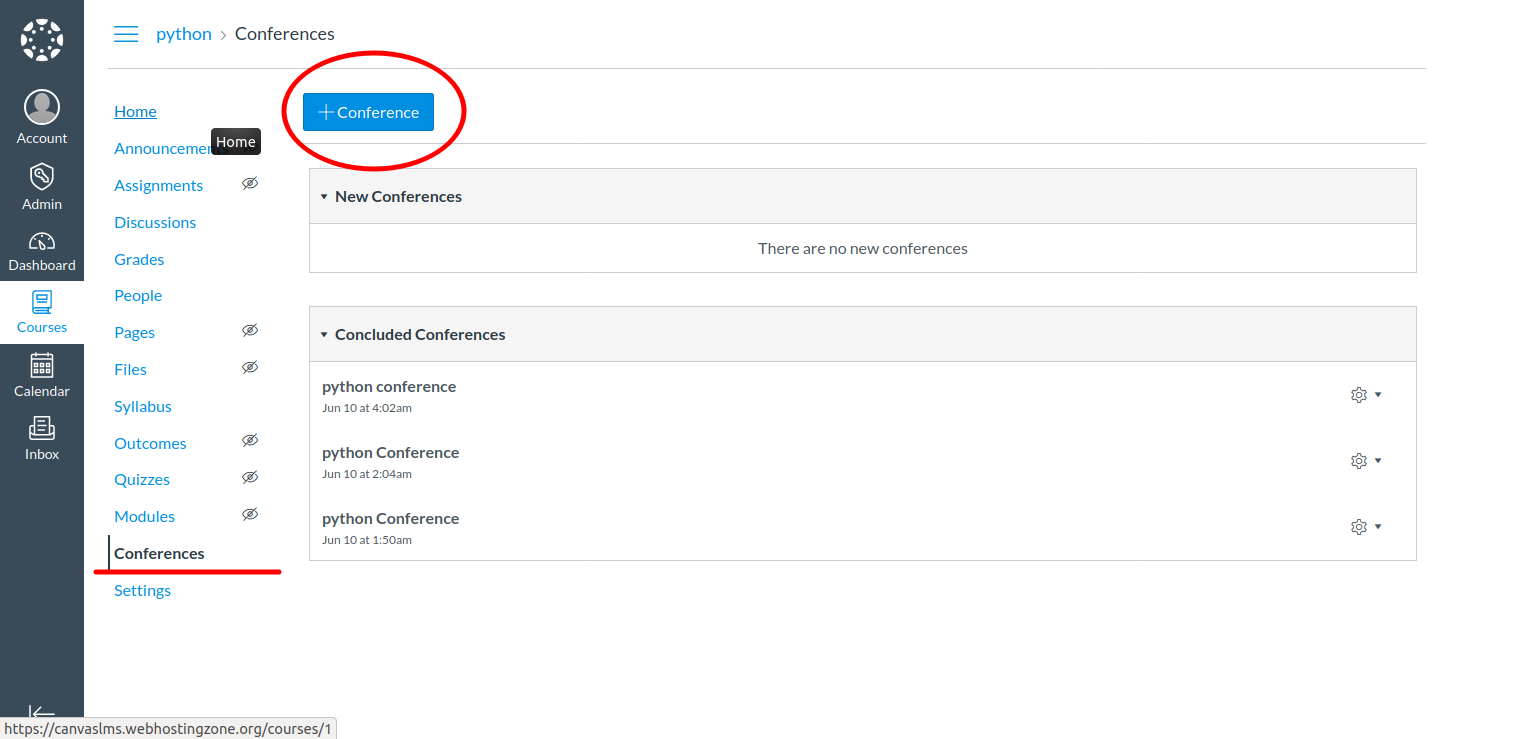
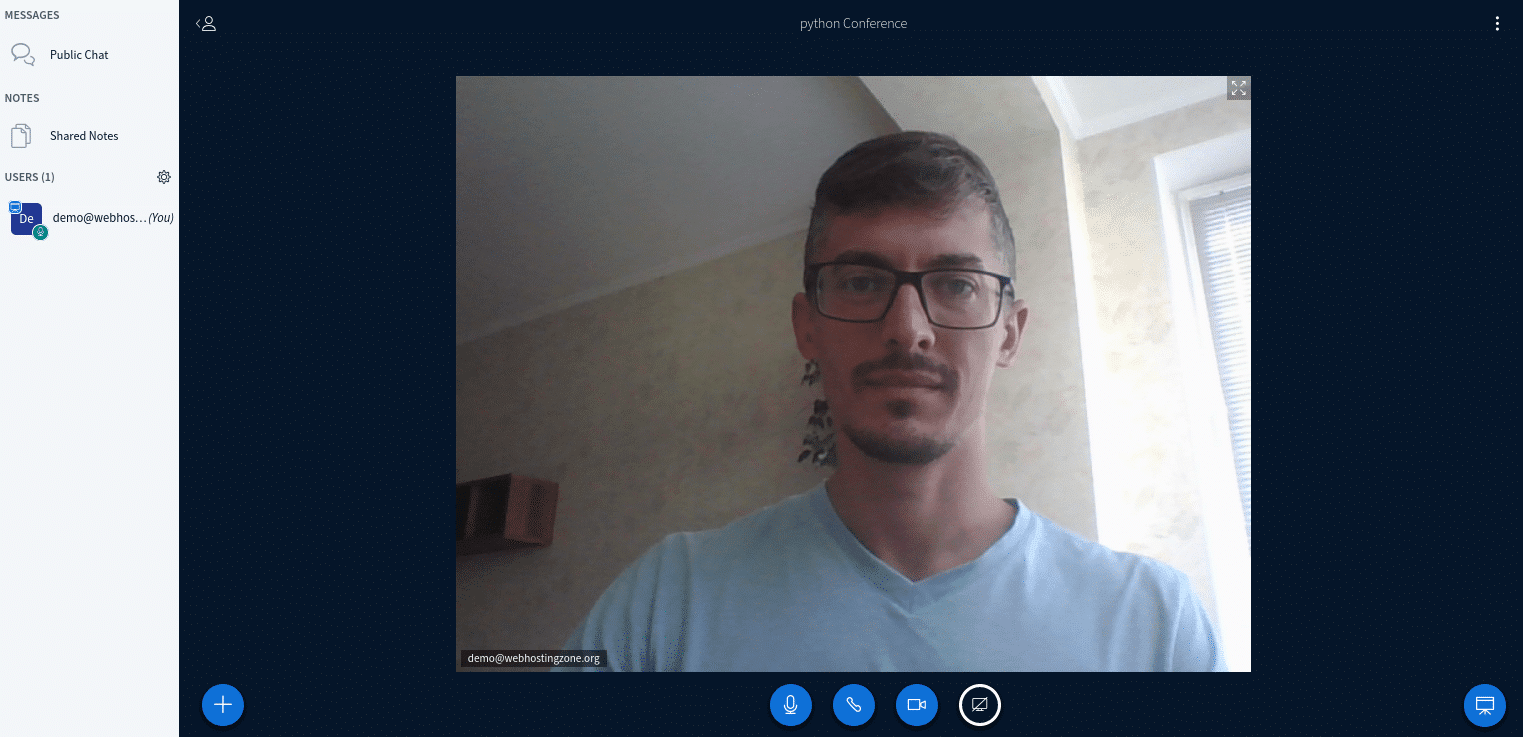
4. At this point you should be able to create a new conference in Canvas LMS. To create a conference go to a course created in Canvas > Conferences > New Conference.