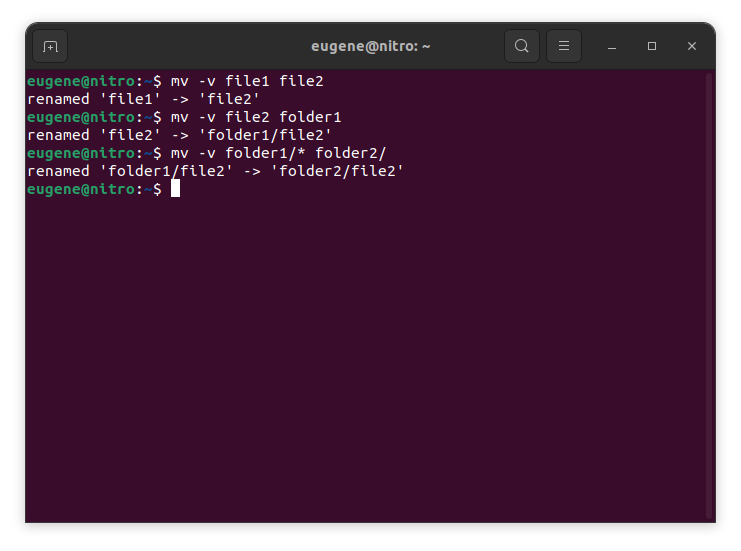

To move files in Linux you need to use the mv command. Here are some examples:
# move file1 to file2 (what command actually does is renaming the file)
$ mv file1 file2
# move file1 from dir1 to dir2
$ mv folder1/file1 folder2/
# move all files from folder1 to folder2
$ mv folder1/* folder2/
जब किसी फ़ाइल को एक ही निर्देशिका में या किसी भिन्न निर्देशिका में ले जाने के लिए उपयोग किया जाता है, तो mv प्रभावी रूप से फ़ाइल का नाम बदल देता है यदि स्रोत और गंतव्य पथ भीतर हैं वही फ़ाइल सिस्टम.
Now when we touched the basics of the ‘mv’ command in Linux, lets explore more ways to efficiently move files and directories.
Mastering the “mv” command
एकाधिक फ़ाइलें ले जाना
एमवी कमांड एक समय में एक ही फ़ाइल को स्थानांतरित करने तक सीमित नहीं है। आप वाइल्डकार्ड का उपयोग करके एक साथ कई फ़ाइलें स्थानांतरित कर सकते हैं। उदाहरण के लिए, सभी टेक्स्ट फ़ाइलों को एक निर्देशिका से दूसरी निर्देशिका में ले जाने के लिए, आप निम्न कमांड का उपयोग कर सकते हैं:
$ mv *.txt destination_directory/
This command selects all files with the “.txt” extension and moves them to the specified destination directory. The asterisk (*) acts as a wildcard, matching any characters.
फ़ाइलों को ओवरराइट करना
फ़ाइलों को स्थानांतरित करते समय, आपको ऐसी स्थिति का सामना करना पड़ सकता है जहां गंतव्य निर्देशिका में समान नाम वाली फ़ाइल पहले से मौजूद है। डिफ़ॉल्ट रूप से, एमवी कमांड आपको फ़ाइल को ओवरराइट करने से पहले पुष्टि के लिए संकेत देगा। हालाँकि, आप -f विकल्प का उपयोग करके इस व्यवहार को ओवरराइड कर सकते हैं:
$ mv -f filename destination_directory/
-F विकल्प का उपयोग करते समय सावधान रहें, क्योंकि यह बिना किसी पुष्टि के मौजूदा फ़ाइलों को अधिलेखित कर देगा।
फ़ाइल मेटाडेटा का संरक्षण
एमवी कमांड न केवल फाइलों को स्थानांतरित करता है बल्कि आपको टाइमस्टैम्प और अनुमतियों सहित उनके मेटाडेटा को संरक्षित करने की भी अनुमति देता है। स्थानांतरण के दौरान फ़ाइलों के मूल टाइमस्टैम्प को बनाए रखने के लिए, -p विकल्प का उपयोग करें:
$ mv -p filename destination_directory/
यह विशेष रूप से तब उपयोगी होता है जब आप यह सुनिश्चित करना चाहते हैं कि स्थानांतरित फ़ाइलें अपने मूल निर्माण और संशोधन टाइमस्टैम्प को बरकरार रखें।
वर्बोज़ मोड
यदि आप स्थानांतरित की जा रही फ़ाइलों के बारे में विस्तृत जानकारी देखना पसंद करते हैं, तो आप वर्बोज़ मोड को सक्षम करने के लिए -v विकल्प का उपयोग कर सकते हैं:
$ mv -v filename destination_directory/
वर्बोज़ मोड वास्तविक समय में फीडबैक प्रदान करता है, प्रत्येक फ़ाइल को स्थानांतरित होने पर प्रदर्शित करता है, जिससे प्रक्रिया की स्पष्ट समझ मिलती है।
चलती हुई निर्देशिकाएँ
एमवी कमांड निर्देशिका गतिविधियों को भी सहजता से संभाल सकता है। संपूर्ण निर्देशिका और उसकी सामग्री को स्थानांतरित करने के लिए, बस स्रोत और गंतव्य निर्देशिका निर्दिष्ट करें:
$ mv source_directory/ destination_directory/
यह कमांड स्रोत निर्देशिका की संपूर्ण सामग्री को निर्दिष्ट गंतव्य निर्देशिका में ले जाता है।
लिनक्स में फ़ाइलों को स्थानांतरित करने के वैकल्पिक तरीके
In addition to the mv command, Linux provides a few other commands and utilities for moving files and directories. Here are a couple of alternatives:
-r विकल्प के साथ सीपी (कॉपी) कमांड
सीपी कमांड का उपयोग पारंपरिक रूप से फ़ाइलों की प्रतिलिपि बनाने के लिए किया जाता है, लेकिन इसका उपयोग -r विकल्प (पुनरावर्ती) के साथ संयोजन करके उन्हें स्थानांतरित करने के लिए भी किया जा सकता है। निर्देशिकाओं और उनकी सामग्री से निपटते समय यह विकल्प आवश्यक है।
$ cp -r source_directory/ destination_directory/
यह कमांड स्रोत निर्देशिका की सामग्री को पुनरावर्ती रूप से गंतव्य निर्देशिका में कॉपी करता है और प्रभावी ढंग से एक मूव ऑपरेशन प्राप्त करता है।
rsync कमांड
Rsync कमांड फ़ाइलों को सिंक करने और कॉपी करने के लिए एक शक्तिशाली उपकरण है। इसका उपयोग निर्देशिकाओं के बीच फ़ाइलों को स्थानांतरित करने के लिए भी किया जा सकता है। मूल वाक्यविन्यास है:
$ rsync -av --remove-source-files source_directory/ destination_directory/
-ए विकल्प फ़ाइल अनुमतियों और अन्य विशेषताओं को सुरक्षित रखता है।
-v विकल्प संसाधित की जा रही फ़ाइलों को दिखाने के लिए वर्बोज़ मोड को सक्षम बनाता है।
The –remove-source-files option removes the files from the source directory after successful transfer.
rsync बड़ी मात्रा में डेटा स्थानांतरित करने और स्रोत और गंतव्य के बीच सिंक्रनाइज़ेशन बनाए रखने के लिए विशेष रूप से उपयोगी है।
कमांड ढूंढें और निष्पादित करें
निष्पादन के साथ संयुक्त खोज कमांड का उपयोग कुछ मानदंडों के आधार पर फ़ाइलों को स्थानांतरित करने के लिए किया जा सकता है। उदाहरण के लिए, किसी निर्देशिका और उसकी उपनिर्देशिकाओं की सभी पाठ फ़ाइलों को एक नए स्थान पर ले जाने के लिए:
$ find source_directory/ -type f -name "*.txt" -exec mv {} destination_directory/
This command finds all files (-type f) with the “.txt” extension and executes the mv command on each of them, moving them to the specified destination.
सारांश
Mastering the mv command in Linux is essential for efficient file and directory management. We’ve covered the fundamental usage of the mv command, from simple file renaming to moving entire directories. Additionally, we explored alternative commands like cp with the -r option, the rsync command, and the dynamic combination of खोजो और exec for more specialized moves. By incorporating these commands into your Linux toolkit, you empower yourself to manage files seamlessly and make the most of the robust capabilities that the Linux command line provides.