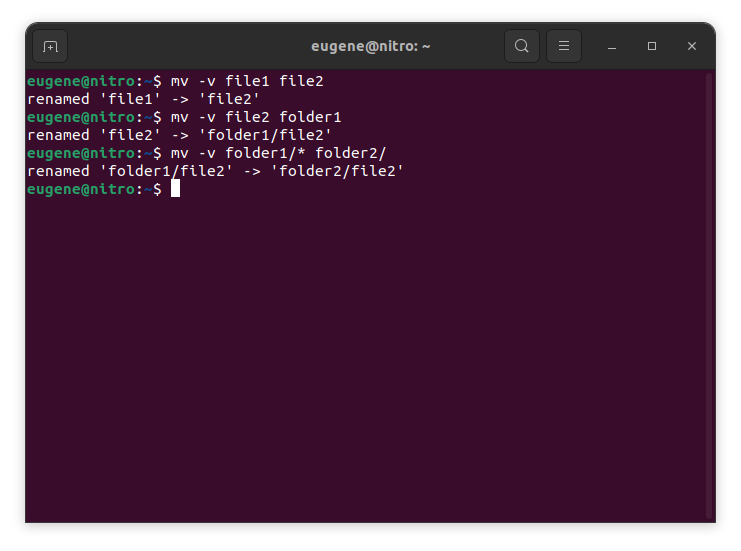

To move files in Linux you need to use the mv command. Here are some examples:
# move file1 to file2 (what command actually does is renaming the file)
$ mv file1 file2
# move file1 from dir1 to dir2
$ mv folder1/file1 folder2/
# move all files from folder1 to folder2
$ mv folder1/* folder2/
동일한 디렉터리 내에서 또는 다른 디렉터리로 파일을 이동하는 데 사용되는 경우 mv는 원본 및 대상 경로가 다음 디렉터리 내에 있는 경우 파일 이름을 효과적으로 바꿉니다. 동일한 파일 시스템.
Now when we touched the basics of the ‘mv’ command in Linux, lets explore more ways to efficiently move files and directories.
Mastering the “mv” command
여러 파일 이동
mv 명령은 한 번에 하나의 파일을 이동하는 것으로 제한되지 않습니다. 와일드카드를 사용하여 여러 파일을 동시에 이동할 수 있습니다. 예를 들어 모든 텍스트 파일을 한 디렉터리에서 다른 디렉터리로 이동하려면 다음 명령을 사용할 수 있습니다.
$ mv *.txt destination_directory/
This command selects all files with the “.txt” extension and moves them to the specified destination directory. The asterisk (*) acts as a wildcard, matching any characters.
파일 덮어쓰기
파일을 이동할 때 대상 디렉터리에 동일한 이름의 파일이 이미 존재하는 상황이 발생할 수 있습니다. 기본적으로 mv 명령은 파일을 덮어쓰기 전에 확인 메시지를 표시합니다. 그러나 -f 옵션을 사용하여 이 동작을 재정의할 수 있습니다.
$ mv -f filename destination_directory/
-f 옵션을 사용할 때는 확인 없이 기존 파일을 덮어쓰므로 주의하십시오.
파일 메타데이터 보존
mv 명령은 파일을 재배치할 뿐만 아니라 타임스탬프 및 권한을 포함한 메타데이터를 보존할 수도 있습니다. 이동 중에 파일의 원래 타임스탬프를 유지하려면 -p 옵션을 사용하세요.
$ mv -p filename destination_directory/
이는 이동된 파일이 원래 생성 및 수정 타임스탬프를 유지하도록 하려는 경우 특히 유용합니다.
자세한 모드
이동 중인 파일에 대한 자세한 정보를 보려면 -v 옵션을 사용하여 상세 모드를 활성화할 수 있습니다.
$ mv -v filename destination_directory/
Verbose 모드는 실시간 피드백을 제공하여 각 파일이 이동될 때 이를 표시하여 프로세스를 더욱 명확하게 이해할 수 있도록 해줍니다.
디렉토리 이동
mv 명령은 디렉터리 이동도 원활하게 처리할 수 있습니다. 전체 디렉터리와 그 내용을 이동하려면 소스 및 대상 디렉터리를 지정하기만 하면 됩니다.
$ mv source_directory/ destination_directory/
이 명령은 소스 디렉터리의 전체 내용을 지정된 대상 디렉터리로 이동합니다.
Linux에서 파일을 이동하는 다른 방법
In addition to the mv command, Linux provides a few other commands and utilities for moving files and directories. Here are a couple of alternatives:
-r 옵션이 포함된 cp(복사) 명령
cp 명령은 일반적으로 파일을 복사하는 데 사용되지만 -r 옵션(재귀)과 결합하여 파일을 이동하는 데에도 사용할 수 있습니다. 이 옵션은 디렉토리와 그 내용을 다룰 때 필요합니다.
$ cp -r source_directory/ destination_directory/
이 명령은 소스 디렉터리의 내용을 대상 디렉터리에 재귀적으로 복사하고 이동 작업을 효과적으로 수행합니다.
rsync 명령
rsync 명령은 파일 동기화 및 복사를 위한 강력한 도구입니다. 디렉터리 간에 파일을 이동하는 데에도 사용할 수 있습니다. 기본 구문은 다음과 같습니다.
$ rsync -av --remove-source-files source_directory/ destination_directory/
-a 옵션은 파일 권한 및 기타 속성을 유지합니다.
-v 옵션을 사용하면 상세 모드를 활성화하여 처리 중인 파일을 표시할 수 있습니다.
The –remove-source-files option removes the files from the source directory after successful transfer.
rsync는 대량의 데이터를 이동하고 소스와 대상 간의 동기화를 유지하는 데 특히 유용합니다.
찾기 및 실행 명령
exec와 결합된 find 명령을 사용하면 특정 기준에 따라 파일을 이동할 수 있습니다. 예를 들어 디렉터리 및 해당 하위 디렉터리의 모든 텍스트 파일을 새 위치로 이동하려면 다음을 수행합니다.
$ find source_directory/ -type f -name "*.txt" -exec mv {} destination_directory/
This command finds all files (-type f) with the “.txt” extension and executes the mv command on each of them, moving them to the specified destination.
요약
Mastering the mv command in Linux is essential for efficient file and directory management. We’ve covered the fundamental usage of the mv command, from simple file renaming to moving entire directories. Additionally, we explored alternative commands like cp with the -r option, the rsync command, and the dynamic combination of 찾다 그리고 exec for more specialized moves. By incorporating these commands into your Linux toolkit, you empower yourself to manage files seamlessly and make the most of the robust capabilities that the Linux command line provides.