

If you are reading this article then you are in trouble. You wanted to edit a file using vim editor but got stuck in it. Stop panicking and wait with re-installing the OS and starting all from scratch – in this article I will show you how to exit a vim trap.
कुंजी संयोजनों का उपयोग करके VIM संपादक से बाहर निकलें
विम संपादक शुरुआती लोगों के लिए मुश्किल है, लेकिन जब आप वीआईएम का उपयोग करके सही कुंजी संयोजन सीख लेते हैं तो यह आसान हो जाता है। विम को छोड़ने के लिए यहां सबसे लोकप्रिय कुंजी संयोजन हैं।
विम सेविंग परिवर्तन से बाहर निकलें
परिवर्तनों को सहेजने के साथ विम से बाहर निकलने के लिए दबाएँ ईएससी संपादन मोड से बाहर निकलने के लिए कुंजी, फिर दबाकर रखें बदलाव और दबाएँ COLON key (:). Then enter “wq” and press Enter. Here “w” stands for write and “q” stands for “quit”. On US keyboards the colon : अर्धविराम के समान ही कुंजी है ;, located right of the letter “L” key.
:wq
परिवर्तन सहेजे बिना विम से बाहर निकलें
To exit vim without saving changes hold down Shift and press the colon key (:). Then enter “q!” and press Enter.
:q!
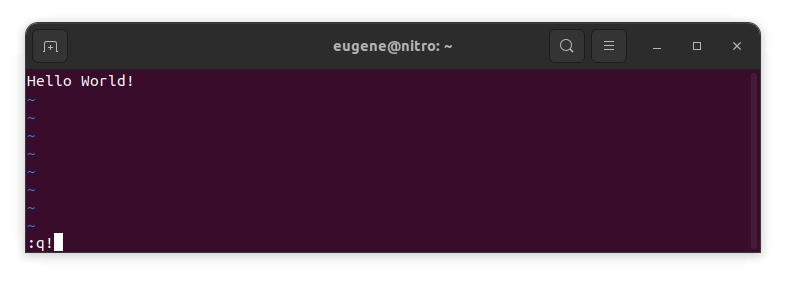
मौजूदा VIM संपादक के बिना परिवर्तन सहेजें
To save changes without exiting vim hold down Shift and press the colon key (:). Then enter “w” and press Enter.
:w
वीआईएम में प्रवीणता प्राप्त करना
अब जब मैंने विम से बाहर निकलने और परिवर्तनों को सहेजने की मूल बातें कवर कर ली हैं तो आइए आपकी दक्षता बढ़ाने के लिए कुछ अतिरिक्त उपयोगी विम शॉर्टकट और सुविधाओं पर आगे बढ़ें।
फ़ाइल को संपादित करने के लिए VIM प्रारंभ करना
आमतौर पर डेवलपर्स कमांड का उपयोग करके फ़ाइल को संपादित करने के लिए vim लॉन्च करते हैं:
vim filename
यदि फाइल गायब है तो उसे बना दिया जाएगा। आप संपादित करने के लिए एकाधिक फ़ाइलें निर्दिष्ट कर सकते हैं:
vim file1 file2 file3
विशिष्ट लाइन पर फ़ाइल खोलने के लिए आप vim कमांड के बाद [num] जोड़ सकते हैं। उदाहरण के लिए लाइन 127 पर फ़ाइल खोलने के लिए दर्ज करें:
vim filename +127
VIM में नेविगेट करना
Once you’ve entered Vim, navigating efficiently is key. Here are some popular shortcuts:
- कर्सर ले जाना:
- संबंधित दिशाओं (ऊपर, नीचे, बाएँ, दाएँ) में जाने के लिए तीर कुंजियों का उपयोग करें।
- Alternatively, employ the
h,j,k, andlkeys for left, down, up, and right movements, respectively.
- शब्द नेविगेशन:
- Move the cursor to the beginning of the next word with
w. - Navigate to the end of the current word using
e. - Jump to the beginning of the previous word with
b.
- Move the cursor to the beginning of the next word with
- नेविगेटिंग लाइनें:
- Go to the start of the line by pressing
0. - Move to the end of the line with
$.
- Go to the start of the line by pressing
VIM में टेक्स्ट संपादित करना
Once you’ve reached the desired location, these shortcuts will aid in text manipulation:
- सम्मिलित मोड में प्रवेश करना:
- Press
ito enter insert mode before the cursor. - Use
Ito start inserting at the beginning of the line. - Employ
ato append after the cursor. Aपंक्ति के अंत में जोड़ने की अनुमति देता है।
- Press
- पाठ हटाना:
- Delete the character under the cursor with
x. - Erase the entire line with
dd. - Cut (delete) the current line and enter insert mode with
cc.
- Delete the character under the cursor with
- कॉपी और पेस्ट:
- Copy a line with
yy. - Paste the copied line below the current line using
p.
- Copy a line with
- पूर्ववत करें और पुनः करें:
- Undo the last action with
u. - Redo with
Ctrl + r.
- Undo the last action with
VIM में खोज रहे हैं
कुशल खोज महत्वपूर्ण है. यहां कुछ खोज-संबंधित शॉर्टकट दिए गए हैं:
- पाठ की खोज:
- Initiate a search with
/, followed by the desired term. - Use
nto jump to the next occurrence andNto go to the previous one.
- Initiate a search with
- पाठ बदलना:
- Substitute the current word with a new one using
:s/old/new/g.
- Substitute the current word with a new one using
विम से बाहर निकल रहा है
मैंने शुरुआत में ही बुनियादी बातें बता दी हैं, लेकिन यहां कुछ और विकल्प दिए गए हैं:
- सभी सहेजें और छोड़ें:
- To save all changes and quit multiple files simultaneously, use
:waऔर:qa.
- To save all changes and quit multiple files simultaneously, use
- बिना सहेजे बाहर निकलना:
- If you want to exit Vim without saving any changes made in any of the files,
:qa!will do the trick.
- If you want to exit Vim without saving any changes made in any of the files,
निष्कर्ष
याद रखें, विम में महारत हासिल करने में समय और अभ्यास लगता है। जितना अधिक आप इसका उपयोग करेंगे, यह उतना ही अधिक आरामदायक और शक्तिशाली हो जाएगा। शुभ संपादन!