

If you are reading this article then you are in trouble. You wanted to edit a file using vim editor but got stuck in it. Stop panicking and wait with re-installing the OS and starting all from scratch – in this article I will show you how to exit a vim trap.
키 조합을 사용하여 VIM 편집기 종료
Vim 편집기는 초보자에게는 까다롭지만 올바른 키 조합을 배우면 VIM을 사용하는 것이 쉬워집니다. 다음은 vim을 종료하는 데 가장 많이 사용되는 키 조합입니다.
변경 사항을 저장하면서 vim 종료
변경 사항을 저장하고 vim을 종료하려면 다음을 누르세요. Esc 키를 눌러 편집 모드를 종료한 다음 길게 누르세요. 옮기다 그리고 누르세요 콜론 key (:). Then enter “wq” and press Enter. Here “w” stands for write and “q” stands for “quit”. On US keyboards the colon : 세미콜론과 같은 키입니다 ;, located right of the letter “L” key.
:wq
변경 사항을 저장하지 않고 vim 종료
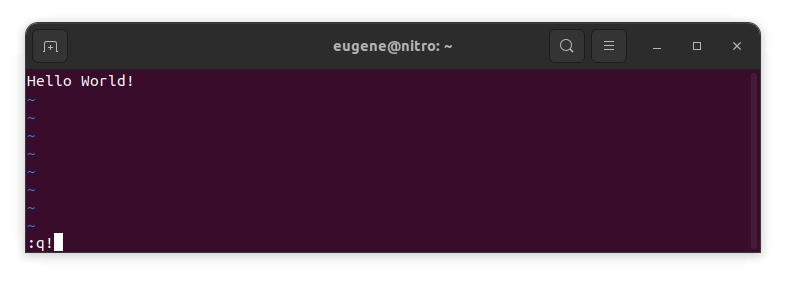
To exit vim without saving changes hold down Shift and press the colon key (:). Then enter “q!” and press Enter.
:q!
기존 VIM 편집기 없이 변경 사항 저장
To save changes without exiting vim hold down Shift and press the colon key (:). Then enter “w” and press Enter.
:w
VIM에 익숙해지기
이제 Vim을 종료하고 변경 사항을 저장하는 기본 사항을 다루었으므로 숙련도를 높이는 데 도움이 되는 유용한 Vim 바로 가기 및 기능을 추가로 살펴보겠습니다.
파일 편집을 위해 VIM 시작
일반적으로 개발자는 vim을 실행하여 다음 명령을 사용하여 파일을 편집합니다.
vim filename
파일이 없으면 생성됩니다. 편집할 파일을 여러 개 지정할 수 있습니다.
vim file1 file2 file3
특정 줄의 파일을 열려면 vim 명령 뒤에 [num]을 추가하면 됩니다. 예를 들어 127행의 파일을 열려면 다음을 입력하십시오.
vim filename +127
VIM에서 탐색
Once you’ve entered Vim, navigating efficiently is key. Here are some popular shortcuts:
- 커서 이동:
- 화살표 키를 사용하여 해당 방향(위, 아래, 왼쪽, 오른쪽)으로 이동합니다.
- Alternatively, employ the
h,j,k, andlkeys for left, down, up, and right movements, respectively.
- 단어 탐색:
- Move the cursor to the beginning of the next word with
w. - Navigate to the end of the current word using
e. - Jump to the beginning of the previous word with
b.
- Move the cursor to the beginning of the next word with
- 라인 탐색:
- Go to the start of the line by pressing
0. - Move to the end of the line with
$.
- Go to the start of the line by pressing
VIM에서 텍스트 편집
Once you’ve reached the desired location, these shortcuts will aid in text manipulation:
- 삽입 모드 시작:
- Press
ito enter insert mode before the cursor. - Use
Ito start inserting at the beginning of the line. - Employ
ato append after the cursor. A줄 끝에 추가할 수 있습니다.
- Press
- 텍스트 삭제:
- Delete the character under the cursor with
x. - Erase the entire line with
dd. - Cut (delete) the current line and enter insert mode with
cc.
- Delete the character under the cursor with
- 복사하여 붙여넣기:
- Copy a line with
yy. - Paste the copied line below the current line using
p.
- Copy a line with
- 실행 취소 및 다시 실행:
- Undo the last action with
u. - Redo with
Ctrl + r.
- Undo the last action with
VIM에서 검색하기
효율적인 검색이 중요합니다. 검색 관련 단축키는 다음과 같습니다.
- 텍스트 검색:
- Initiate a search with
/, followed by the desired term. - Use
nto jump to the next occurrence andNto go to the previous one.
- Initiate a search with
- 텍스트 교체:
- Substitute the current word with a new one using
:s/old/new/g.
- Substitute the current word with a new one using
Vim 종료
처음에 기본 사항을 이미 다루었지만 여기에 몇 가지 옵션이 더 있습니다.
- 모두 저장하고 종료합니다.
- To save all changes and quit multiple files simultaneously, use
:wa그리고:qa.
- To save all changes and quit multiple files simultaneously, use
- 저장하지 않고 종료:
- If you want to exit Vim without saving any changes made in any of the files,
:qa!will do the trick.
- If you want to exit Vim without saving any changes made in any of the files,
결론
Vim을 마스터하려면 시간과 연습이 필요하다는 점을 기억하세요. 많이 사용할수록 더욱 편안하고 강력해집니다. 즐거운 편집 되세요!