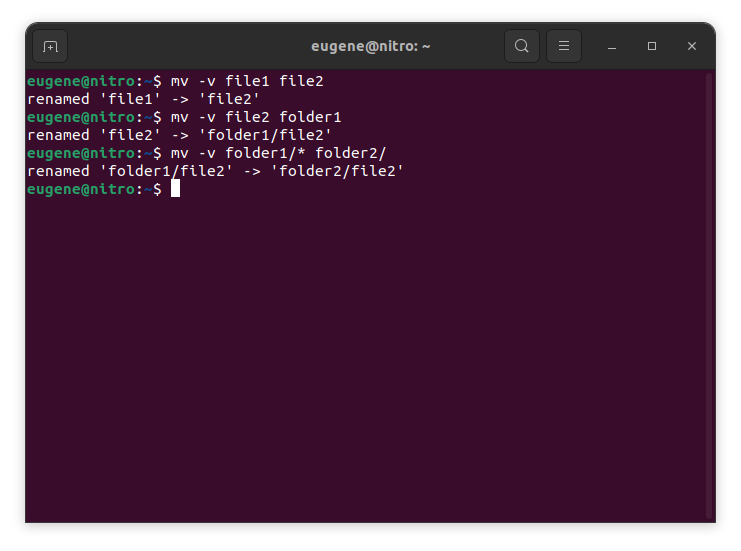

To move files in Linux you need to use the mv command. Here are some examples:
# move file1 to file2 (what command actually does is renaming the file)
$ mv file1 file2
# move file1 from dir1 to dir2
$ mv folder1/file1 folder2/
# move all files from folder1 to folder2
$ mv folder1/* folder2/
Kun sitä käytetään siirtämään tiedosto samassa hakemistossa tai eri hakemistossa, mv nimeää tiedoston tehokkaasti uudelleen, jos lähde- ja kohdepolut ovat sama tiedostojärjestelmä.
Now when we touched the basics of the ‘mv’ command in Linux, lets explore more ways to efficiently move files and directories.
Mastering the “mv” command
Useiden tiedostojen siirtäminen
mv-komento ei rajoitu yhden tiedoston siirtämiseen kerrallaan. Voit siirtää useita tiedostoja samanaikaisesti käyttämällä yleismerkkejä. Esimerkiksi, jos haluat siirtää kaikki tekstitiedostot hakemistosta toiseen, voit käyttää seuraavaa komentoa:
$ mv *.txt destination_directory/
This command selects all files with the “.txt” extension and moves them to the specified destination directory. The asterisk (*) acts as a wildcard, matching any characters.
Tiedostojen korvaaminen
Kun siirrät tiedostoja, saatat kohdata tilanteen, jossa samanniminen tiedosto on jo olemassa kohdehakemistossa. Oletusarvoisesti mv-komento pyytää sinua vahvistamaan ennen tiedoston korvaamista. Voit kuitenkin ohittaa tämän toiminnan käyttämällä -f-vaihtoehtoa:
$ mv -f filename destination_directory/
Ole varovainen käyttäessäsi vaihtoehtoa -f, koska se korvaa olemassa olevat tiedostot ilman vahvistusta.
Tiedoston metatietojen säilyttäminen
mv-komento ei vain siirrä tiedostoja, vaan antaa sinun myös säilyttää niiden metatiedot, mukaan lukien aikaleimat ja käyttöoikeudet. Jos haluat säilyttää tiedostojen alkuperäiset aikaleimat siirron aikana, käytä -p-vaihtoehtoa:
$ mv -p filename destination_directory/
Tämä on erityisen hyödyllistä, kun haluat varmistaa, että siirretyt tiedostot säilyttävät alkuperäiset luonti- ja muokkausaikaleimat.
Monisanainen tila
Jos haluat nähdä yksityiskohtaisia tietoja siirrettävistä tiedostoista, voit ottaa monisanaisen tilan käyttöön vaihtoehdolla -v:
$ mv -v filename destination_directory/
Monisanainen tila antaa reaaliaikaisen palautteen, joka näyttää jokaisen tiedoston sitä siirrettäessä, mikä antaa selkeämmän käsityksen prosessista.
Hakemistojen siirtäminen
mv-komento voi myös käsitellä saumattomasti hakemistoliikkeitä. Voit siirtää koko hakemiston ja sen sisällön määrittämällä lähde- ja kohdehakemistot:
$ mv source_directory/ destination_directory/
Tämä komento siirtää lähdehakemiston koko sisällön määritettyyn kohdehakemistoon.
Vaihtoehtoisia tapoja siirtää tiedostoja Linuxissa
In addition to the mv command, Linux provides a few other commands and utilities for moving files and directories. Here are a couple of alternatives:
cp (Kopioi) -komento vaihtoehdolla -r
cp-komentoa käytetään perinteisesti tiedostojen kopioimiseen, mutta sitä voidaan käyttää myös niiden siirtämiseen yhdistämällä se valitsimeen -r (rekursiivinen). Tämä vaihtoehto on välttämätön käsiteltäessä hakemistoja ja niiden sisältöä.
$ cp -r source_directory/ destination_directory/
Tämä komento kopioi rekursiivisesti lähdehakemiston sisällön kohdehakemistoon ja suorittaa tehokkaasti siirron.
rsync-komento
Rsync-komento on tehokas työkalu tiedostojen synkronointiin ja kopioimiseen. Sitä voidaan käyttää myös tiedostojen siirtämiseen hakemistojen välillä. Perussyntaksi on:
$ rsync -av --remove-source-files source_directory/ destination_directory/
Valinta -a säilyttää tiedostojen käyttöoikeudet ja muut attribuutit.
Vaihtoehto -v mahdollistaa monisanaisen tilan näyttämään käsiteltävät tiedostot.
The –remove-source-files option removes the files from the source directory after successful transfer.
rsync on erityisen hyödyllinen suurten tietomäärien siirtämiseen ja synkronoinnin ylläpitämiseen lähteen ja kohteen välillä.
etsi ja suorita komento
Find-komentoa yhdessä exec-komennolla voidaan käyttää tiedostojen siirtämiseen tiettyjen kriteerien perusteella. Esimerkiksi kaikkien hakemiston ja sen alihakemistojen tekstitiedostojen siirtäminen uuteen paikkaan:
$ find source_directory/ -type f -name "*.txt" -exec mv {} destination_directory/
This command finds all files (-type f) with the “.txt” extension and executes the mv command on each of them, moving them to the specified destination.
Yhteenveto
Mastering the mv command in Linux is essential for efficient file and directory management. We’ve covered the fundamental usage of the mv command, from simple file renaming to moving entire directories. Additionally, we explored alternative commands like cp with the -r option, the rsync command, and the dynamic combination of löytää ja exec for more specialized moves. By incorporating these commands into your Linux toolkit, you empower yourself to manage files seamlessly and make the most of the robust capabilities that the Linux command line provides.