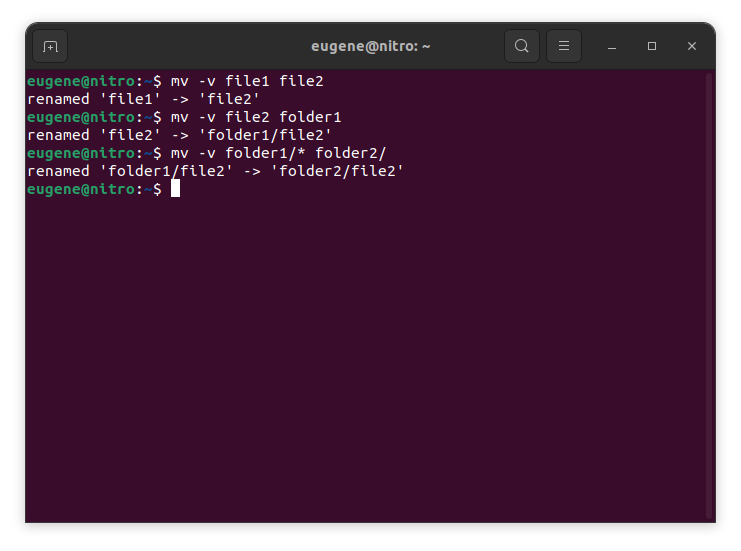

To move files in Linux you need to use the mv command. Here are some examples:
# move file1 to file2 (what command actually does is renaming the file)
$ mv file1 file2
# move file1 from dir1 to dir2
$ mv folder1/file1 folder2/
# move all files from folder1 to folder2
$ mv folder1/* folder2/
Ja to izmanto, lai pārvietotu failu tajā pašā direktorijā vai uz citu direktoriju, mv efektīvi pārdēvē failu, ja avota un mērķa ceļi atrodas tā pati failu sistēma.
Now when we touched the basics of the ‘mv’ command in Linux, lets explore more ways to efficiently move files and directories.
Mastering the “mv” command
Vairāku failu pārvietošana
Komanda mv neaprobežojas ar viena faila pārvietošanu vienlaikus. Varat vienlaikus pārvietot vairākus failus, izmantojot aizstājējzīmes. Piemēram, lai pārvietotu visus teksta failus no viena direktorija uz citu, varat izmantot šādu komandu:
$ mv *.txt destination_directory/
This command selects all files with the “.txt” extension and moves them to the specified destination directory. The asterisk (*) acts as a wildcard, matching any characters.
Failu pārrakstīšana
Pārvietojot failus, var rasties situācija, kad fails ar tādu pašu nosaukumu jau pastāv mērķa direktorijā. Pēc noklusējuma komanda mv liks jums apstiprināt pirms faila pārrakstīšanas. Tomēr jūs varat ignorēt šo darbību, izmantojot opciju -f:
$ mv -f filename destination_directory/
Esiet piesardzīgs, izmantojot opciju -f, jo tā bez apstiprinājuma pārrakstīs esošos failus.
Faila metadatu saglabāšana
Komanda mv ne tikai pārvieto failus, bet arī ļauj saglabāt to metadatus, tostarp laikspiedolus un atļaujas. Lai pārvietošanas laikā saglabātu sākotnējos failu laikspiedolus, izmantojiet opciju -p:
$ mv -p filename destination_directory/
Tas ir īpaši noderīgi, ja vēlaties nodrošināt, lai pārvietotie faili saglabātu sākotnējos izveides un modifikācijas laikspiedolus.
Runātais režīms
Ja vēlaties skatīt detalizētu informāciju par failiem, kas tiek pārvietoti, varat izmantot opciju -v, lai iespējotu detalizētu režīmu:
$ mv -v filename destination_directory/
Plašs režīms nodrošina reāllaika atgriezenisko saiti, parādot katru failu, kad tas tiek pārvietots, nodrošinot skaidrāku izpratni par procesu.
Katalogu pārvietošana
Komanda mv var nemanāmi apstrādāt arī direktoriju kustības. Lai pārvietotu visu direktoriju un tā saturu, vienkārši norādiet avota un mērķa direktorijus:
$ mv source_directory/ destination_directory/
Šī komanda pārvieto visu avota direktorijas saturu norādītajā mērķa direktorijā.
Alternatīvi veidi, kā pārvietot failus operētājsistēmā Linux
In addition to the mv command, Linux provides a few other commands and utilities for moving files and directories. Here are a couple of alternatives:
cp (Kopēt) komanda ar opciju -r
Komandu cp tradicionāli izmanto failu kopēšanai, taču to var izmantot arī to pārvietošanai, apvienojot to ar opciju -r (rekursīvs). Šī opcija ir nepieciešama, strādājot ar direktorijiem un to saturu.
$ cp -r source_directory/ destination_directory/
Šī komanda rekursīvi kopē avota direktorija saturu galamērķa direktorijā un efektīvi panāk pārvietošanas darbību.
rsync komanda
Komanda rsync ir spēcīgs rīks failu sinhronizēšanai un kopēšanai. To var izmantot arī failu pārvietošanai starp direktorijiem. Pamata sintakse ir:
$ rsync -av --remove-source-files source_directory/ destination_directory/
Opcija -a saglabā faila atļaujas un citus atribūtus.
Opcija -v nodrošina detalizētu režīmu, lai parādītu apstrādājamos failus.
The –remove-source-files option removes the files from the source directory after successful transfer.
rsync ir īpaši noderīga, lai pārvietotu lielu datu apjomu un uzturētu sinhronizāciju starp avotu un galamērķi.
atrast un izpildīt komandu
Komandu Find kopā ar exec var izmantot, lai pārvietotu failus, pamatojoties uz noteiktiem kritērijiem. Piemēram, lai pārvietotu visus teksta failus direktorijā un tā apakšdirektorijās uz jaunu atrašanās vietu:
$ find source_directory/ -type f -name "*.txt" -exec mv {} destination_directory/
This command finds all files (-type f) with the “.txt” extension and executes the mv command on each of them, moving them to the specified destination.
Kopsavilkums
Mastering the mv command in Linux is essential for efficient file and directory management. We’ve covered the fundamental usage of the mv command, from simple file renaming to moving entire directories. Additionally, we explored alternative commands like cp with the -r option, the rsync command, and the dynamic combination of atrast un exec for more specialized moves. By incorporating these commands into your Linux toolkit, you empower yourself to manage files seamlessly and make the most of the robust capabilities that the Linux command line provides.