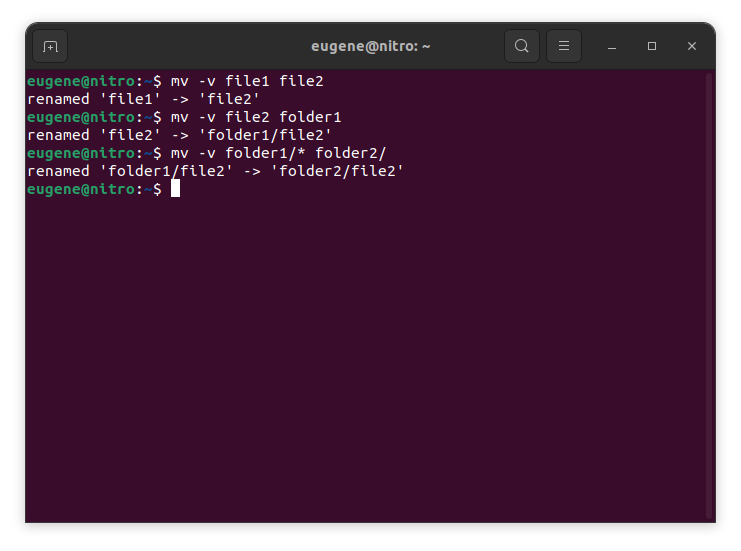

To move files in Linux you need to use the mv command. Here are some examples:
# move file1 to file2 (what command actually does is renaming the file)
$ mv file1 file2
# move file1 from dir1 to dir2
$ mv folder1/file1 folder2/
# move all files from folder1 to folder2
$ mv folder1/* folder2/
同じディレクトリ内または別のディレクトリにファイルを移動するために使用される場合、ソースと宛先のパスが同じディレクトリ内にある場合、mv はファイルの名前を効果的に変更します。 同じファイルシステム.
Now when we touched the basics of the ‘mv’ command in Linux, lets explore more ways to efficiently move files and directories.
Mastering the “mv” command
複数のファイルの移動
mv コマンドは、一度に 1 つのファイルを移動することに限定されません。ワイルドカードを使用して複数のファイルを同時に移動できます。たとえば、すべてのテキスト ファイルをあるディレクトリから別のディレクトリに移動するには、次のコマンドを使用できます。
$ mv *.txt destination_directory/
This command selects all files with the “.txt” extension and moves them to the specified destination directory. The asterisk (*) acts as a wildcard, matching any characters.
ファイルの上書き
ファイルを移動するときに、宛先ディレクトリに同じ名前のファイルがすでに存在する状況が発生することがあります。デフォルトでは、mv コマンドはファイルを上書きする前に確認を求めるプロンプトを表示します。ただし、-f オプションを使用すると、この動作をオーバーライドできます。
$ mv -f filename destination_directory/
-f オプションを使用すると、確認なしに既存のファイルが上書きされるため、使用するときは注意してください。
ファイルのメタデータの保存
mv コマンドを使用すると、ファイルを再配置するだけでなく、タイムスタンプやアクセス許可などのメタデータを保存することもできます。移動中にファイルの元のタイムスタンプを維持するには、-p オプションを使用します。
$ mv -p filename destination_directory/
これは、移動されたファイルが元の作成および変更のタイムスタンプを保持していることを確認する場合に特に便利です。
詳細モード
移動されるファイルに関する詳細情報を確認したい場合は、 -v オプションを使用して冗長モードを有効にすることができます。
$ mv -v filename destination_directory/
詳細モードでは、リアルタイムのフィードバックが提供され、各ファイルが移動されるたびに表示されるため、プロセスをより明確に理解できます。
ディレクトリの移動
mv コマンドはディレクトリの移動もシームレスに処理できます。ディレクトリ全体とその内容を移動するには、ソース ディレクトリと宛先ディレクトリを指定するだけです。
$ mv source_directory/ destination_directory/
このコマンドは、ソース ディレクトリの内容全体を指定された宛先ディレクトリに移動します。
Linux でファイルを移動する別の方法
In addition to the mv command, Linux provides a few other commands and utilities for moving files and directories. Here are a couple of alternatives:
-r オプションを使用した cp (コピー) コマンド
cp コマンドは伝統的にファイルのコピーに使用されますが、-r オプション (再帰的) と組み合わせることでファイルの移動にも使用できます。このオプションは、ディレクトリとその内容を処理する場合に必要です。
$ cp -r source_directory/ destination_directory/
このコマンドは、ソース ディレクトリの内容を宛先ディレクトリに再帰的にコピーし、移動操作を効果的に実行します。
rsyncコマンド
rsync コマンドは、ファイルの同期とコピーのための強力なツールです。ディレクトリ間でファイルを移動する場合にも使用できます。基本的な構文は次のとおりです。
$ rsync -av --remove-source-files source_directory/ destination_directory/
-a オプションは、ファイルのアクセス許可とその他の属性を保持します。
-v オプションを使用すると、詳細モードが有効になり、処理中のファイルが表示されます。
The –remove-source-files option removes the files from the source directory after successful transfer.
rsync は、大量のデータを移動し、ソースと宛先の間の同期を維持する場合に特に役立ちます。
コマンドを検索して実行する
find コマンドを exec と組み合わせて使用すると、特定の条件に基づいてファイルを移動できます。たとえば、ディレクトリとそのサブディレクトリ内のすべてのテキスト ファイルを新しい場所に移動するには、次のようにします。
$ find source_directory/ -type f -name "*.txt" -exec mv {} destination_directory/
This command finds all files (-type f) with the “.txt” extension and executes the mv command on each of them, moving them to the specified destination.
概要
Mastering the mv command in Linux is essential for efficient file and directory management. We’ve covered the fundamental usage of the mv command, from simple file renaming to moving entire directories. Additionally, we explored alternative commands like cp with the -r option, the rsync command, and the dynamic combination of 見つける そして exec for more specialized moves. By incorporating these commands into your Linux toolkit, you empower yourself to manage files seamlessly and make the most of the robust capabilities that the Linux command line provides.