
If you are reading this article then you are in trouble. You wanted to edit a file using vim editor but got stuck in it. Stop panicking and wait with re-installing the OS and starting all from scratch – in this article I will show you how to exit a vim trap.
Poistu VIM-editorista näppäinyhdistelmien avulla
Vim-editori on hankala aloittelijoille, mutta kun opit oikeat näppäinyhdistelmät, VIM:n käyttäminen muuttuu helpoksi. Tässä ovat suosituimmat näppäinyhdistelmät vimistä poistumiseen.
Poistu vimistä tallentamalla muutokset
Poistu vimistä tallentamalla muutokset painamalla Esc näppäintä poistuaksesi muokkaustilasta, pidä sitten Shift painettuna ja paina kolmonen key (:). Then enter “wq” and press Enter. Here “w” stands for write and “q” stands for “quit”. On US keyboards the colon : on sama näppäin kuin puolipiste ;, located right of the letter “L” key.
:wq
Poistu vimistä tallentamatta muutoksia
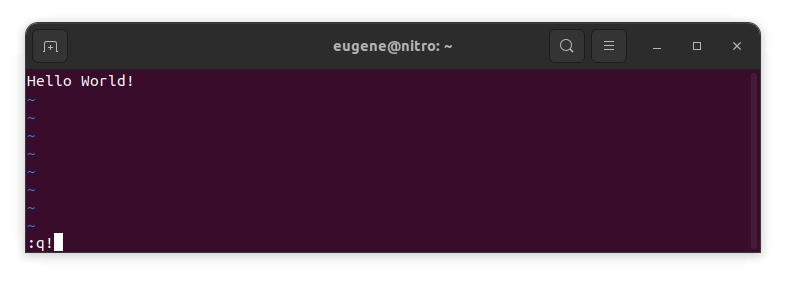
To exit vim without saving changes hold down Shift and press the colon key (:). Then enter “q!” and press Enter.
:q!
Tallenna muutokset ilman, että poistut VIM-editorista
To save changes without exiting vim hold down Shift and press the colon key (:). Then enter “w” and press Enter.
:w
VIM:in taitavaksi tuleminen
Nyt kun olen käynyt läpi Vimin perusasiat ja tallentamisen, siirrytään joihinkin lisäkäteviin VIM-pikanäppäimiin ja ominaisuuksiin, jotka parantavat taitojasi.
VIM:in käynnistäminen tiedoston muokkaamista varten
Yleensä kehittäjät käynnistävät vim:in muokatakseen tiedostoa komennolla:
vim filename
Jos tiedostoa ei ole, se luodaan. Voit määrittää useita tiedostoja muokattavaksi:
vim file1 file2 file3
Avaa tiedosto tietyltä riviltä lisäämällä +[num] vim-komennon jälkeen. Esimerkiksi avaa tiedosto riviltä 127 kirjoittamalla:
vim filename +127
Navigointi VIM:ssä
Once you’ve entered Vim, navigating efficiently is key. Here are some popular shortcuts:
- Kursorin siirtäminen:
- Käytä nuolinäppäimiä liikkuaksesi vastaaviin suuntiin (ylös, alas, vasemmalle, oikealle).
- Alternatively, employ the
h,j,k, andlkeys for left, down, up, and right movements, respectively.
- Sanasiirtyminen:
- Move the cursor to the beginning of the next word with
w. - Navigate to the end of the current word using
e. - Jump to the beginning of the previous word with
b.
- Move the cursor to the beginning of the next word with
- Rivien navigointi:
- Go to the start of the line by pressing
0. - Move to the end of the line with
$.
- Go to the start of the line by pressing
Tekstin muokkaaminen VIMissä
Once you’ve reached the desired location, these shortcuts will aid in text manipulation:
- Lisäystilaan siirtyminen:
- Press
ito enter insert mode before the cursor. - Use
Ito start inserting at the beginning of the line. - Employ
ato append after the cursor. Asallii lisäämisen rivin loppuun.
- Press
- Tekstin poistaminen:
- Delete the character under the cursor with
x. - Erase the entire line with
dd. - Cut (delete) the current line and enter insert mode with
cc.
- Delete the character under the cursor with
- Kopioi ja liitä:
- Copy a line with
yy. - Paste the copied line below the current line using
p.
- Copy a line with
- Kumoa ja Uudelleen:
- Undo the last action with
u. - Redo with
Ctrl + r.
- Undo the last action with
Haku VIMissä
Tehokas haku on ratkaisevan tärkeää. Tässä on joitakin hakua koskevia pikanäppäimiä:
- Tekstin haku:
- Initiate a search with
/, followed by the desired term. - Use
nto jump to the next occurrence andNto go to the previous one.
- Initiate a search with
- Tekstin korvaaminen:
- Substitute the current word with a new one using
:s/old/new/g.
- Substitute the current word with a new one using
Vimistä poistuminen
Olen jo käsitellyt perusteet alussa, mutta tässä on vielä muutama vaihtoehto:
- Tallenna ja poistu kaikista:
- To save all changes and quit multiple files simultaneously, use
:waja:qa.
- To save all changes and quit multiple files simultaneously, use
- Poistuminen tallentamatta:
- If you want to exit Vim without saving any changes made in any of the files,
:qa!will do the trick.
- If you want to exit Vim without saving any changes made in any of the files,
Johtopäätös
Muista, että Vimin hallitseminen vie aikaa ja harjoitusta. Mitä enemmän käytät sitä, sitä mukavammaksi ja tehokkaammaksi se muuttuu. Hyvää muokkaamista!