

If you are reading this article then you are in trouble. You wanted to edit a file using vim editor but got stuck in it. Stop panicking and wait with re-installing the OS and starting all from scratch – in this article I will show you how to exit a vim trap.
Avsluta VIM-redigeraren med tangentkombinationer
Vim editor är knepigt för nybörjare, men när du lär dig rätt tangentkombinationer blir det enkelt att använda VIM. Här är de mest populära tangentkombinationerna för att avsluta vim.
Avsluta vim spara ändringar
För att avsluta vim med att spara ändringar tryck Esc för att avsluta redigeringsläget och håll sedan ned Flytta and press kolon key (:). Then enter “wq” and press Enter. Here “w” stands for write and “q” stands for “quit”. On US keyboards the colon : är samma nyckel som semikolon ;, located right of the letter “L” key.
:wq
Avsluta vim utan att spara ändringar
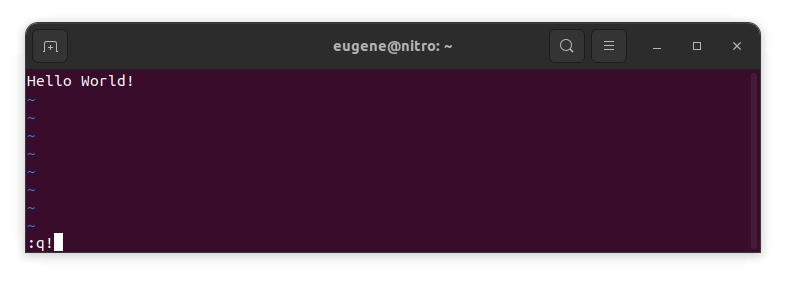
To exit vim without saving changes hold down Shift and press the colon key (:). Then enter “q!” and press Enter.
:q!
Spara ändringar utan befintlig VIM-redigerare
To save changes without exiting vim hold down Shift and press the colon key (:). Then enter “w” and press Enter.
:w
Bli van vid VIM
Nu när jag gick igenom grunderna för att avsluta Vim och spara ändringar kan vi gå vidare till några ytterligare användbara Vim-genvägar och funktioner för att förbättra din kompetens.
Startar VIM för att redigera filen
Vanligtvis startar utvecklare vim för att redigera filen med kommandot:
vim filename
Om filen saknas kommer den att skapas. Du kan ange flera filer att redigera:
vim file1 file2 file3
För att öppna filen på en specifik rad kan du lägga till [num] efter kommandot vim. För att till exempel öppna filen på rad 127 anger du:
vim filename +127
Navigerar i VIM
Once you’ve entered Vim, navigating efficiently is key. Here are some popular shortcuts:
- Flytta markören:
- Använd piltangenterna för att flytta i respektive riktning (upp, ner, vänster, höger).
- Alternatively, employ the
h,j,k, andlkeys for left, down, up, and right movements, respectively.
- Ordnavigering:
- Move the cursor to the beginning of the next word with
w. - Navigate to the end of the current word using
e. - Jump to the beginning of the previous word with
b.
- Move the cursor to the beginning of the next word with
- Navigera linjer:
- Go to the start of the line by pressing
0. - Move to the end of the line with
$.
- Go to the start of the line by pressing
Redigera text i VIM
Once you’ve reached the desired location, these shortcuts will aid in text manipulation:
- Gå in i infogningsläge:
- Press
ito enter insert mode before the cursor. - Use
Ito start inserting at the beginning of the line. - Employ
ato append after the cursor. Atillåter tillägg i slutet av raden.
- Press
- Ta bort text:
- Delete the character under the cursor with
x. - Erase the entire line with
dd. - Cut (delete) the current line and enter insert mode with
cc.
- Delete the character under the cursor with
- Kopiera och klistra in:
- Copy a line with
yy. - Paste the copied line below the current line using
p.
- Copy a line with
- Ångra och gör om:
- Undo the last action with
u. - Redo with
Ctrl + r.
- Undo the last action with
Söker i VIM
Effektiv sökning är avgörande. Här är några sökrelaterade genvägar:
- Söker efter text:
- Initiate a search with
/, followed by the desired term. - Use
nto jump to the next occurrence andNto go to the previous one.
- Initiate a search with
- Ersätter text:
- Substitute the current word with a new one using
:s/old/new/g.
- Substitute the current word with a new one using
Avslutar Vim
Jag har redan täckt grunderna i början, men här är några fler alternativ:
- Spara och avsluta alla:
- To save all changes and quit multiple files simultaneously, use
:waoch:qa.
- To save all changes and quit multiple files simultaneously, use
- Avsluta utan att spara:
- If you want to exit Vim without saving any changes made in any of the files,
:qa!will do the trick.
- If you want to exit Vim without saving any changes made in any of the files,
Slutsats
Kom ihåg att det tar tid och övning att bemästra Vim. Ju mer du använder den, desto mer bekväm och kraftfull blir den. Lycka till med redigeringen!