

If you are reading this article then you are in trouble. You wanted to edit a file using vim editor but got stuck in it. Stop panicking and wait with re-installing the OS and starting all from scratch – in this article I will show you how to exit a vim trap.
Beenden Sie den VIM-Editor mit Tastenkombinationen
Der Vim-Editor ist für Anfänger schwierig, aber wenn Sie die richtigen Tastenkombinationen lernen, wird die Verwendung von VIM einfach. Hier sind die beliebtesten Tastenkombinationen zum Beenden von vim.
Beenden Sie vim und speichern Sie die Änderungen
Um vim mit dem Speichern der Änderungen zu verlassen, drücken Sie Esc Um den Bearbeitungsmodus zu verlassen, halten Sie die Taste gedrückt Schicht und drücken Doppelpunkt key (:). Then enter “wq” and press Enter. Here “w” stands for write and “q” stands for “quit”. On US keyboards the colon : ist derselbe Schlüssel wie Semikolon ;, located right of the letter “L” key.
:wq
Beenden Sie vim, ohne die Änderungen zu speichern
To exit vim without saving changes hold down Shift and press the colon key (:). Then enter “q!” and press Enter.
:q!
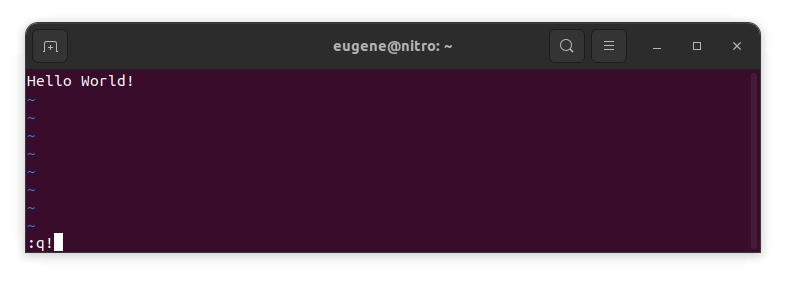
Speichern Sie Änderungen ohne vorhandenen VIM-Editor
To save changes without exiting vim hold down Shift and press the colon key (:). Then enter “w” and press Enter.
:w
Sich mit VIM vertraut machen
Nachdem ich nun die Grundlagen zum Beenden von Vim und zum Speichern von Änderungen behandelt habe, gehen wir nun zu einigen zusätzlichen nützlichen Vim-Verknüpfungen und -Funktionen über, um Ihre Kenntnisse zu verbessern.
Starten Sie VIM, um die Datei zu bearbeiten
Normalerweise starten Entwickler vim, um die Datei mit dem folgenden Befehl zu bearbeiten:
vim filename
Wenn die Datei fehlt, wird sie erstellt. Sie können mehrere Dateien zum Bearbeiten angeben:
vim file1 file2 file3
Um eine Datei in einer bestimmten Zeile zu öffnen, können Sie nach dem vim-Befehl [num] hinzufügen. Um beispielsweise eine Datei in Zeile 127 zu öffnen, geben Sie Folgendes ein:
vim filename +127
Navigieren in VIM
Once you’ve entered Vim, navigating efficiently is key. Here are some popular shortcuts:
- Bewegen des Cursors:
- Mit den Pfeiltasten bewegen Sie sich in die jeweilige Richtung (oben, unten, links, rechts).
- Alternatively, employ the
h,j,k, andlkeys for left, down, up, and right movements, respectively.
- Wortnavigation:
- Move the cursor to the beginning of the next word with
w. - Navigate to the end of the current word using
e. - Jump to the beginning of the previous word with
b.
- Move the cursor to the beginning of the next word with
- Navigationslinien:
- Go to the start of the line by pressing
0. - Move to the end of the line with
$.
- Go to the start of the line by pressing
Bearbeiten von Text in VIM
Once you’ve reached the desired location, these shortcuts will aid in text manipulation:
- Aufrufen des Einfügemodus:
- Press
ito enter insert mode before the cursor. - Use
Ito start inserting at the beginning of the line. - Employ
ato append after the cursor. Aermöglicht das Anhängen am Ende der Zeile.
- Press
- Text löschen:
- Delete the character under the cursor with
x. - Erase the entire line with
dd. - Cut (delete) the current line and enter insert mode with
cc.
- Delete the character under the cursor with
- Kopieren und Einfügen:
- Copy a line with
yy. - Paste the copied line below the current line using
p.
- Copy a line with
- Rückgängig und Wiederherstellen:
- Undo the last action with
u. - Redo with
Ctrl + r.
- Undo the last action with
Suche in VIM
Effiziente Suche ist entscheidend. Hier sind einige suchbezogene Verknüpfungen:
- Nach Text suchen:
- Initiate a search with
/, followed by the desired term. - Use
nto jump to the next occurrence andNto go to the previous one.
- Initiate a search with
- Text ersetzen:
- Substitute the current word with a new one using
:s/old/new/g.
- Substitute the current word with a new one using
Beenden von Vim
Ich habe die Grundlagen bereits am Anfang behandelt, aber hier sind noch ein paar weitere Optionen:
- Alles speichern und beenden:
- To save all changes and quit multiple files simultaneously, use
:waUnd:qa.
- To save all changes and quit multiple files simultaneously, use
- Beenden ohne Speichern:
- If you want to exit Vim without saving any changes made in any of the files,
:qa!will do the trick.
- If you want to exit Vim without saving any changes made in any of the files,
Abschluss
Denken Sie daran, dass die Beherrschung von Vim Zeit und Übung erfordert. Je öfter Sie es verwenden, desto komfortabler und leistungsfähiger wird es. Viel Spaß beim Bearbeiten!