

If you are reading this article then you are in trouble. You wanted to edit a file using vim editor but got stuck in it. Stop panicking and wait with re-installing the OS and starting all from scratch – in this article I will show you how to exit a vim trap.
Salga del editor VIM usando combinaciones de teclas
El editor Vim es complicado para los principiantes, pero cuando aprendes las combinaciones de teclas correctas, usar VIM se vuelve fácil. Estas son las combinaciones de teclas más populares para salir de vim.
Salir de vim guardando cambios
Para salir de vim y guardar los cambios, presione ESC para salir del modo de edición, luego mantenga presionada Cambio y presione colon key (:). Then enter “wq” and press Enter. Here “w” stands for write and “q” stands for “quit”. On US keyboards the colon : es la misma clave que el punto y coma ;, located right of the letter “L” key.
:wq
Salir de vim sin guardar los cambios
To exit vim without saving changes hold down Shift and press the colon key (:). Then enter “q!” and press Enter.
:q!
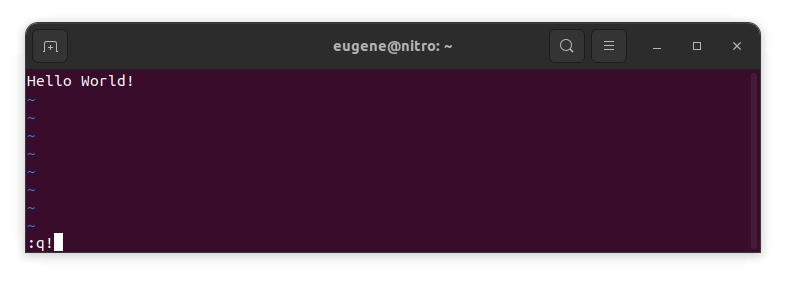
Guardar cambios sin el editor VIM existente
To save changes without exiting vim hold down Shift and press the colon key (:). Then enter “w” and press Enter.
:w
Dominar VIM
Ahora que cubrí los conceptos básicos para salir de Vim y guardar cambios, pasemos a algunos atajos y características útiles adicionales de Vim para mejorar su competencia.
Iniciando VIM para editar el archivo
Por lo general, los desarrolladores inician vim para editar el archivo usando el comando:
vim filename
Si falta el archivo, se creará. Puede especificar varios archivos para editar:
vim file1 file2 file3
Para abrir un archivo en una línea específica, puede agregar [num] después del comando vim. Por ejemplo, para abrir el archivo en la línea 127, ingrese:
vim filename +127
Navegando en VIM
Once you’ve entered Vim, navigating efficiently is key. Here are some popular shortcuts:
- Moviendo el cursor:
- Utilice las teclas de flecha para moverse en las direcciones respectivas (arriba, abajo, izquierda, derecha).
- Alternatively, employ the
h,j,k, andlkeys for left, down, up, and right movements, respectively.
- Navegación de palabras:
- Move the cursor to the beginning of the next word with
w. - Navigate to the end of the current word using
e. - Jump to the beginning of the previous word with
b.
- Move the cursor to the beginning of the next word with
- Líneas de navegación:
- Go to the start of the line by pressing
0. - Move to the end of the line with
$.
- Go to the start of the line by pressing
Editar texto en VIM
Once you’ve reached the desired location, these shortcuts will aid in text manipulation:
- Ingresando al modo Insertar:
- Press
ito enter insert mode before the cursor. - Use
Ito start inserting at the beginning of the line. - Employ
ato append after the cursor. Apermite agregar al final de la línea.
- Press
- Eliminar texto:
- Delete the character under the cursor with
x. - Erase the entire line with
dd. - Cut (delete) the current line and enter insert mode with
cc.
- Delete the character under the cursor with
- Copiar y pegar:
- Copy a line with
yy. - Paste the copied line below the current line using
p.
- Copy a line with
- Deshacer y Rehacer:
- Undo the last action with
u. - Redo with
Ctrl + r.
- Undo the last action with
Buscando en VIM
La búsqueda eficiente es crucial. Aquí hay algunos atajos relacionados con la búsqueda:
- Buscando texto:
- Initiate a search with
/, followed by the desired term. - Use
nto jump to the next occurrence andNto go to the previous one.
- Initiate a search with
- Reemplazo de texto:
- Substitute the current word with a new one using
:s/old/new/g.
- Substitute the current word with a new one using
Salir de Vim
Ya cubrí los conceptos básicos al principio, pero aquí hay algunas opciones más:
- Guardar y salir de todo:
- To save all changes and quit multiple files simultaneously, use
:way:qa.
- To save all changes and quit multiple files simultaneously, use
- Salir sin guardar:
- If you want to exit Vim without saving any changes made in any of the files,
:qa!will do the trick.
- If you want to exit Vim without saving any changes made in any of the files,
Conclusión
Recuerde, dominar Vim requiere tiempo y práctica. Cuanto más lo uses, más cómodo y potente se vuelve. ¡Feliz edición!