

If you are reading this article then you are in trouble. You wanted to edit a file using vim editor but got stuck in it. Stop panicking and wait with re-installing the OS and starting all from scratch – in this article I will show you how to exit a vim trap.
Uscire dall'editor VIM utilizzando combinazioni di tasti
L'editor Vim è complicato per i principianti, ma quando impari le giuste combinazioni di tasti usare VIM diventa facile. Ecco le combinazioni di tasti più popolari per uscire da Vim.
Esci da vim salvando le modifiche
Per uscire da Vim salvando le modifiche premere Esc per uscire dalla modalità di modifica, quindi tenerlo premuto Spostare e premere colon key (:). Then enter “wq” and press Enter. Here “w” stands for write and “q” stands for “quit”. On US keyboards the colon : è la stessa chiave del punto e virgola ;, located right of the letter “L” key.
:wq
Esci da vim senza salvare le modifiche
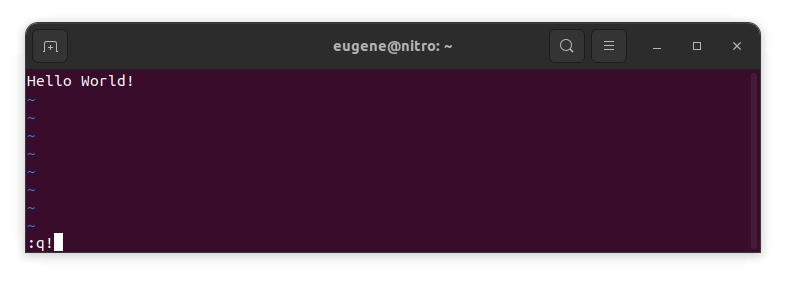
To exit vim without saving changes hold down Shift and press the colon key (:). Then enter “q!” and press Enter.
:q!
Salva le modifiche senza l'editor VIM esistente
To save changes without exiting vim hold down Shift and press the colon key (:). Then enter “w” and press Enter.
:w
Diventare esperto in VIM
Ora che ho trattato le nozioni di base per uscire da Vim e salvare le modifiche, procediamo con alcune scorciatoie e funzionalità aggiuntive di Vim utili per migliorare la tua competenza.
Avvio di VIM per modificare il file
Di solito gli sviluppatori avviano vim per modificare il file usando il comando:
vim filename
Se il file manca, verrà creato. È possibile specificare più file da modificare:
vim file1 file2 file3
Per aprire il file su una riga specifica puoi aggiungere [num] dopo il comando vim. Ad esempio per aprire il file alla riga 127 inserire:
vim filename +127
Navigazione in VIM
Once you’ve entered Vim, navigating efficiently is key. Here are some popular shortcuts:
- Spostamento del cursore:
- Utilizzare i tasti freccia per spostarsi nelle rispettive direzioni (su, giù, sinistra, destra).
- Alternatively, employ the
h,j,k, andlkeys for left, down, up, and right movements, respectively.
- Navigazione tra le parole:
- Move the cursor to the beginning of the next word with
w. - Navigate to the end of the current word using
e. - Jump to the beginning of the previous word with
b.
- Move the cursor to the beginning of the next word with
- Linee di navigazione:
- Go to the start of the line by pressing
0. - Move to the end of the line with
$.
- Go to the start of the line by pressing
Modifica del testo in VIM
Once you’ve reached the desired location, these shortcuts will aid in text manipulation:
- Accesso alla modalità di inserimento:
- Press
ito enter insert mode before the cursor. - Use
Ito start inserting at the beginning of the line. - Employ
ato append after the cursor. Aconsente di aggiungere alla fine della riga.
- Press
- Eliminazione del testo:
- Delete the character under the cursor with
x. - Erase the entire line with
dd. - Cut (delete) the current line and enter insert mode with
cc.
- Delete the character under the cursor with
- Copia e incolla:
- Copy a line with
yy. - Paste the copied line below the current line using
p.
- Copy a line with
- Annulla e ripristina:
- Undo the last action with
u. - Redo with
Ctrl + r.
- Undo the last action with
Ricerca in VIM
Una ricerca efficiente è fondamentale. Ecco alcune scorciatoie relative alla ricerca:
- Ricerca di testo:
- Initiate a search with
/, followed by the desired term. - Use
nto jump to the next occurrence andNto go to the previous one.
- Initiate a search with
- Sostituzione del testo:
- Substitute the current word with a new one using
:s/old/new/g.
- Substitute the current word with a new one using
Uscire da Vim
Ho già trattato le nozioni di base all'inizio, ma ecco alcune altre opzioni:
- Salva ed esci tutto:
- To save all changes and quit multiple files simultaneously, use
:waE:qa.
- To save all changes and quit multiple files simultaneously, use
- Uscire senza salvare:
- If you want to exit Vim without saving any changes made in any of the files,
:qa!will do the trick.
- If you want to exit Vim without saving any changes made in any of the files,
Conclusione
Ricorda, padroneggiare Vim richiede tempo e pratica. Più lo usi, più diventa comodo e potente. Buon editing!