

If you are reading this article then you are in trouble. You wanted to edit a file using vim editor but got stuck in it. Stop panicking and wait with re-installing the OS and starting all from scratch – in this article I will show you how to exit a vim trap.
Saia do editor VIM usando combinações de teclas
O editor Vim é complicado para iniciantes, mas quando você aprende as combinações corretas de teclas, usar o VIM torna-se fácil. Aqui estão as combinações de teclas mais populares para sair do vim.
Saia do vim salvando as alterações
Para sair do vim salvando as alterações, pressione Esc para sair do modo de edição e mantenha pressionada Mudança e pressione cólon key (:). Then enter “qq” and press Enter. Here “w” stands for write and “q” stands for “quit”. On US keyboards the colon : é a mesma chave que ponto e vírgula ;, located right of the letter “L” key.
:wq
Saia do vim sem salvar as alterações
To exit vim without saving changes hold down Shift and press the colon key (:). Then enter “q!” and press Enter.
:q!
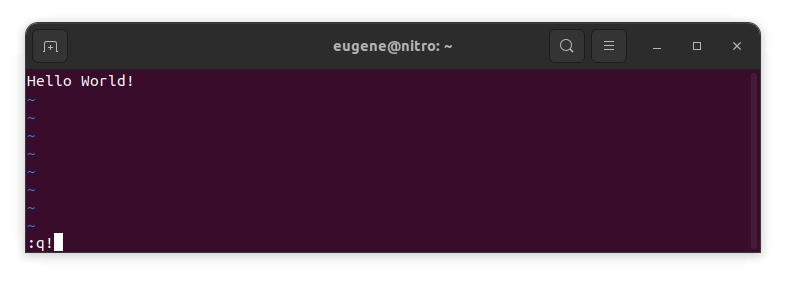
Salve as alterações sem o editor VIM existente
To save changes without exiting vim hold down Shift and press the colon key (:). Then enter “w” and press Enter.
:w
Tornando-se proficiente em VIM
Agora que abordei os fundamentos de sair do Vim e salvar as alterações, vamos prosseguir para alguns atalhos e recursos úteis adicionais do Vim para aprimorar sua proficiência.
Iniciando o VIM para editar o arquivo
Normalmente os desenvolvedores iniciam o vim para editar o arquivo usando o comando:
vim filename
Se o arquivo estiver faltando, ele será criado. Você pode especificar vários arquivos para editar:
vim file1 file2 file3
Para abrir o arquivo em uma linha específica, você pode adicionar [num] após o comando vim. Por exemplo, para abrir o arquivo na linha 127, digite:
vim filename +127
Navegando no VIM
Once you’ve entered Vim, navigating efficiently is key. Here are some popular shortcuts:
- Movendo o cursor:
- Use as setas do teclado para mover nas respectivas direções (cima, baixo, esquerda, direita).
- Alternatively, employ the
h,j,k, andlkeys for left, down, up, and right movements, respectively.
- Navegação por palavras:
- Move the cursor to the beginning of the next word with
w. - Navigate to the end of the current word using
e. - Jump to the beginning of the previous word with
b.
- Move the cursor to the beginning of the next word with
- Linhas de navegação:
- Go to the start of the line by pressing
0. - Move to the end of the line with
$.
- Go to the start of the line by pressing
Editando Texto no VIM
Once you’ve reached the desired location, these shortcuts will aid in text manipulation:
- Entrando no modo de inserção:
- Press
ito enter insert mode before the cursor. - Use
Ito start inserting at the beginning of the line. - Employ
ato append after the cursor. Apermite anexar no final da linha.
- Press
- Excluindo Texto:
- Delete the character under the cursor with
x. - Erase the entire line with
dd. - Cut (delete) the current line and enter insert mode with
cc.
- Delete the character under the cursor with
- Copiar e Colar:
- Copy a line with
yy. - Paste the copied line below the current line using
p.
- Copy a line with
- Desfazer e refazer:
- Undo the last action with
u. - Redo with
Ctrl + r.
- Undo the last action with
Pesquisando no VIM
Uma pesquisa eficiente é crucial. Aqui estão alguns atalhos relacionados à pesquisa:
- Procurando por texto:
- Initiate a search with
/, followed by the desired term. - Use
nto jump to the next occurrence andNto go to the previous one.
- Initiate a search with
- Substituindo Texto:
- Substitute the current word with a new one using
:s/old/new/g.
- Substitute the current word with a new one using
Saindo do Vim
I have already covered the basics in the beginning, but here are a few more options:
- Save and Quit All:
- To save all changes and quit multiple files simultaneously, use
:wae:qa.
- To save all changes and quit multiple files simultaneously, use
- Sair sem salvar:
- If you want to exit Vim without saving any changes made in any of the files,
:qa!will do the trick.
- If you want to exit Vim without saving any changes made in any of the files,
Conclusão
Lembre-se de que dominar o Vim leva tempo e prática. Quanto mais você usa, mais confortável e poderoso ele se torna. Boa edição!