

If you are reading this article then you are in trouble. You wanted to edit a file using vim editor but got stuck in it. Stop panicking and wait with re-installing the OS and starting all from scratch – in this article I will show you how to exit a vim trap.
Quittez l'éditeur VIM à l'aide de combinaisons de touches
L'éditeur Vim est délicat pour les débutants, mais lorsque vous apprenez les bonnes combinaisons de touches, l'utilisation de VIM devient facile. Voici les combinaisons de touches les plus populaires pour quitter vim.
Quitter vim en enregistrant les modifications
Pour quitter Vim en enregistrant les modifications, appuyez sur Échap pour quitter le mode édition, puis maintenez la touche enfoncée Changement et appuyez sur côlon key (:). Then enter “wq” and press Enter. Here “w” stands for write and “q” stands for “quit”. On US keyboards the colon : est la même clé que le point-virgule ;, located right of the letter “L” key.
:wq
Quittez vim sans enregistrer les modifications
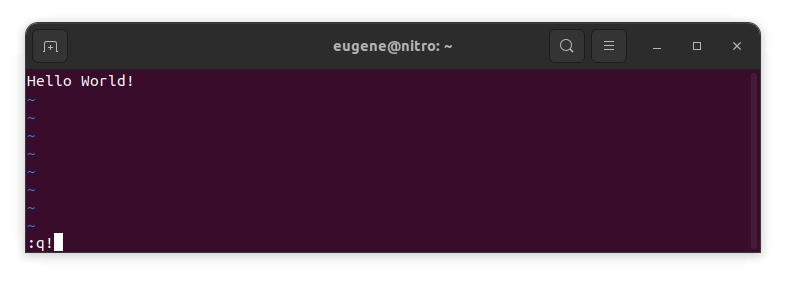
To exit vim without saving changes hold down Shift and press the colon key (:). Then enter “q!” and press Enter.
:q!
Enregistrer les modifications sans l'éditeur VIM existant
To save changes without exiting vim hold down Shift and press the colon key (:). Then enter “w” and press Enter.
:w
Maîtriser VIM
Maintenant que j'ai couvert les bases de la sortie de Vim et de l'enregistrement des modifications, passons à quelques raccourcis et fonctionnalités Vim supplémentaires utiles pour améliorer vos compétences.
Démarrer VIM pour modifier le fichier
Habituellement, les développeurs lancent vim pour éditer le fichier à l'aide de la commande :
vim filename
Si le fichier est manquant, il sera créé. Vous pouvez spécifier plusieurs fichiers à modifier :
vim file1 file2 file3
Pour ouvrir le fichier sur une ligne spécifique, vous pouvez ajouter [num] après la commande vim. Par exemple, pour ouvrir le fichier à la ligne 127, saisissez :
vim filename +127
Navigation dans VIM
Once you’ve entered Vim, navigating efficiently is key. Here are some popular shortcuts:
- Déplacer le curseur :
- Utilisez les touches fléchées pour vous déplacer dans les directions respectives (haut, bas, gauche, droite).
- Alternatively, employ the
h,j,k, andlkeys for left, down, up, and right movements, respectively.
- Navigation dans les mots :
- Move the cursor to the beginning of the next word with
w. - Navigate to the end of the current word using
e. - Jump to the beginning of the previous word with
b.
- Move the cursor to the beginning of the next word with
- Navigation dans les lignes :
- Go to the start of the line by pressing
0. - Move to the end of the line with
$.
- Go to the start of the line by pressing
Modification du texte dans VIM
Once you’ve reached the desired location, these shortcuts will aid in text manipulation:
- Passage en mode insertion :
- Press
ito enter insert mode before the cursor. - Use
Ito start inserting at the beginning of the line. - Employ
ato append after the cursor. Apermet d'ajouter à la fin de la ligne.
- Press
- Suppression de texte :
- Delete the character under the cursor with
x. - Erase the entire line with
dd. - Cut (delete) the current line and enter insert mode with
cc.
- Delete the character under the cursor with
- Copier et Coller :
- Copy a line with
yy. - Paste the copied line below the current line using
p.
- Copy a line with
- Annuler et refaire :
- Undo the last action with
u. - Redo with
Ctrl + r.
- Undo the last action with
Recherche dans VIM
Une recherche efficace est cruciale. Voici quelques raccourcis liés à la recherche :
- Recherche de texte :
- Initiate a search with
/, followed by the desired term. - Use
nto jump to the next occurrence andNto go to the previous one.
- Initiate a search with
- Remplacement du texte :
- Substitute the current word with a new one using
:s/old/new/g.
- Substitute the current word with a new one using
Quitter Vim
J'ai déjà couvert les bases au début, mais voici quelques options supplémentaires :
- Enregistrer et tout quitter :
- To save all changes and quit multiple files simultaneously, use
:waet:qa.
- To save all changes and quit multiple files simultaneously, use
- Quitter sans enregistrer :
- If you want to exit Vim without saving any changes made in any of the files,
:qa!will do the trick.
- If you want to exit Vim without saving any changes made in any of the files,
Conclusion
N'oubliez pas que maîtriser Vim demande du temps et de la pratique. Plus vous l’utilisez, plus il devient confortable et puissant. Bon montage !