

If you are reading this article then you are in trouble. You wanted to edit a file using vim editor but got stuck in it. Stop panicking and wait with re-installing the OS and starting all from scratch – in this article I will show you how to exit a vim trap.
Sortiu de l'editor VIM mitjançant combinacions de tecles
L'editor de Vim és complicat per als principiants, però quan apreneu les combinacions de tecles adequades amb VIM es fa fàcil. Aquí hi ha les combinacions de tecles més populars per sortir de vim.
Surt de vim desant els canvis
Per sortir de vim desant els canvis, premeu Esc per sortir del mode d'edició i, a continuació, manteniu premuda Canvi i premeu còlon key (:). Then enter “wq” and press Enter. Here “w” stands for write and “q” stands for “quit”. On US keyboards the colon : és la mateixa clau que el punt i coma ;, located right of the letter “L” key.
:wq
Surt de vim sense desar els canvis
To exit vim without saving changes hold down Shift and press the colon key (:). Then enter “q!” and press Enter.
:q!
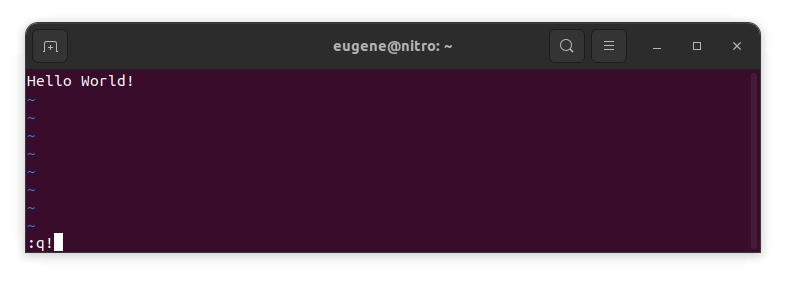
Desa els canvis sense l'editor VIM existent
To save changes without exiting vim hold down Shift and press the colon key (:). Then enter “w” and press Enter.
:w
Adquirir coneixements en VIM
Ara, quan vaig cobrir els conceptes bàsics de sortir de Vim i desar els canvis, passem a algunes dreceres i funcions útils addicionals de Vim per millorar la vostra competència.
S'està iniciant VIM per editar el fitxer
Normalment, els desenvolupadors inicien vim per editar el fitxer mitjançant l'ordre:
vim filename
Si falta el fitxer, es crearà. Podeu especificar diversos fitxers per editar:
vim file1 file2 file3
Per obrir un fitxer en una línia específica, podeu afegir [num] després de l'ordre vim. Per exemple, per obrir un fitxer a la línia 127, introduïu:
vim filename +127
Navegant en VIM
Once you’ve entered Vim, navigating efficiently is key. Here are some popular shortcuts:
- Moure el cursor:
- Utilitzeu les tecles de fletxa per moure's en les direccions respectives (amunt, avall, esquerra, dreta).
- Alternatively, employ the
h,j,k, andlkeys for left, down, up, and right movements, respectively.
- Navegació de paraules:
- Move the cursor to the beginning of the next word with
w. - Navigate to the end of the current word using
e. - Jump to the beginning of the previous word with
b.
- Move the cursor to the beginning of the next word with
- Línies de navegació:
- Go to the start of the line by pressing
0. - Move to the end of the line with
$.
- Go to the start of the line by pressing
Edició de text a VIM
Once you’ve reached the desired location, these shortcuts will aid in text manipulation:
- Entrant al mode d'inserció:
- Press
ito enter insert mode before the cursor. - Use
Ito start inserting at the beginning of the line. - Employ
ato append after the cursor. Apermet afegir al final de la línia.
- Press
- S'està suprimint el text:
- Delete the character under the cursor with
x. - Erase the entire line with
dd. - Cut (delete) the current line and enter insert mode with
cc.
- Delete the character under the cursor with
- Copia i enganxa:
- Copy a line with
yy. - Paste the copied line below the current line using
p.
- Copy a line with
- Desfer i refer:
- Undo the last action with
u. - Redo with
Ctrl + r.
- Undo the last action with
Buscant a VIM
La cerca eficient és crucial. Aquí hi ha algunes dreceres relacionades amb la cerca:
- Cercant text:
- Initiate a search with
/, followed by the desired term. - Use
nto jump to the next occurrence andNto go to the previous one.
- Initiate a search with
- Substitució del text:
- Substitute the current word with a new one using
:s/old/new/g.
- Substitute the current word with a new one using
Sortint de Vim
Ja he tractat els conceptes bàsics al principi, però aquí hi ha algunes opcions més:
- Desa i surt-ho tot:
- To save all changes and quit multiple files simultaneously, use
:wai:qa.
- To save all changes and quit multiple files simultaneously, use
- Sortint sense desar:
- If you want to exit Vim without saving any changes made in any of the files,
:qa!will do the trick.
- If you want to exit Vim without saving any changes made in any of the files,
Conclusió
Recordeu que dominar Vim requereix temps i pràctica. Com més l'utilitzeu, més còmode i potent serà. Bona edició!