

If you are reading this article then you are in trouble. You wanted to edit a file using vim editor but got stuck in it. Stop panicking and wait with re-installing the OS and starting all from scratch – in this article I will show you how to exit a vim trap.
Išeikite iš VIM redaktoriaus naudodami klavišų derinius
Vim redaktorius yra sudėtingas pradedantiesiems, tačiau išmokus tinkamų klavišų kombinacijų naudojant VIM tampa lengva. Čia pateikiami populiariausi klavišų deriniai, norint išeiti iš vim.
Išeikite iš Vim išsaugodami pakeitimus
Norėdami išeiti iš vim ir išsaugoti pakeitimus, paspauskite Esc klavišą, kad išeitumėte iš redagavimo režimo, tada laikykite nuspaudę Shift ir paspauskite dvitaškis key (:). Then enter “wq” and press Enter. Here “w” stands for write and “q” stands for “quit”. On US keyboards the colon : yra tas pats raktas kaip kabliataškis ;, located right of the letter “L” key.
:wq
Išeikite iš vim neišsaugoję pakeitimų
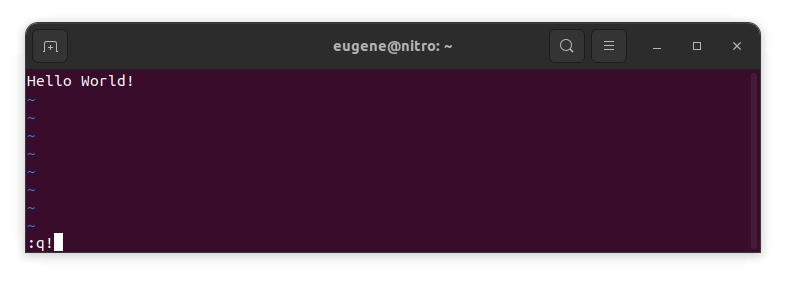
To exit vim without saving changes hold down Shift and press the colon key (:). Then enter “q!” and press Enter.
:q!
Išsaugokite pakeitimus be esamos VIM redaktoriaus
To save changes without exiting vim hold down Shift and press the colon key (:). Then enter “w” and press Enter.
:w
Įgyti VIM įgūdžių
Dabar, kai aptariau išėjimo iš „Vim“ ir pakeitimų išsaugojimo pagrindus, pereikime prie papildomų naudingų „Vim“ nuorodų ir funkcijų, kad pagerintumėte savo įgūdžius.
VIM paleidimas failo redagavimui
Paprastai kūrėjai paleidžia vim norėdami redaguoti failą naudodami komandą:
vim filename
Jei failo trūksta, jis bus sukurtas. Galite nurodyti kelis failus, kuriuos norite redaguoti:
vim file1 file2 file3
Norėdami atidaryti failą konkrečioje eilutėje, po komandos vim galite pridėti [num]. Pavyzdžiui, norėdami atidaryti failą 127 eilutėje, įveskite:
vim filename +127
Naršymas VIM
Once you’ve entered Vim, navigating efficiently is key. Here are some popular shortcuts:
- Žymeklio perkėlimas:
- Rodyklių klavišais judėkite atitinkamomis kryptimis (aukštyn, žemyn, kairėn, dešinėn).
- Alternatively, employ the
h,j,k, andlkeys for left, down, up, and right movements, respectively.
- Žodžių navigacija:
- Move the cursor to the beginning of the next word with
w. - Navigate to the end of the current word using
e. - Jump to the beginning of the previous word with
b.
- Move the cursor to the beginning of the next word with
- Navigacijos linijos:
- Go to the start of the line by pressing
0. - Move to the end of the line with
$.
- Go to the start of the line by pressing
Teksto redagavimas VIM
Once you’ve reached the desired location, these shortcuts will aid in text manipulation:
- Įterpimo režimo įjungimas:
- Press
ito enter insert mode before the cursor. - Use
Ito start inserting at the beginning of the line. - Employ
ato append after the cursor. Aleidžia pridėti eilutės pabaigoje.
- Press
- Teksto ištrynimas:
- Delete the character under the cursor with
x. - Erase the entire line with
dd. - Cut (delete) the current line and enter insert mode with
cc.
- Delete the character under the cursor with
- Kopijuoti ir įklijuoti:
- Copy a line with
yy. - Paste the copied line below the current line using
p.
- Copy a line with
- Anuliuoti ir perdaryti:
- Undo the last action with
u. - Redo with
Ctrl + r.
- Undo the last action with
Ieškoma VIM
Veiksminga paieška yra labai svarbi. Štai keletas su paieška susijusių sparčiųjų klavišų:
- Ieškau teksto:
- Initiate a search with
/, followed by the desired term. - Use
nto jump to the next occurrence andNto go to the previous one.
- Initiate a search with
- Teksto pakeitimas:
- Substitute the current word with a new one using
:s/old/new/g.
- Substitute the current word with a new one using
Išeina iš Vim
Pradžioje jau aprašiau pagrindus, bet čia yra dar keletas variantų:
- Išsaugoti ir uždaryti viską:
- To save all changes and quit multiple files simultaneously, use
:wair:qa.
- To save all changes and quit multiple files simultaneously, use
- Išėjimas neišsaugojus:
- If you want to exit Vim without saving any changes made in any of the files,
:qa!will do the trick.
- If you want to exit Vim without saving any changes made in any of the files,
Išvada
Atminkite, kad Vim įvaldymas reikalauja laiko ir praktikos. Kuo daugiau naudosite, tuo patogesnis ir galingesnis jis bus. Sėkmingo redagavimo!