

If you are reading this article then you are in trouble. You wanted to edit a file using vim editor but got stuck in it. Stop panicking and wait with re-installing the OS and starting all from scratch – in this article I will show you how to exit a vim trap.
キーの組み合わせを使ってVIMエディタを終了する
Vimエディタは初心者には難しいですが、正しいキーの組み合わせを学ぶことでVIMの使用が簡単になります。ここでは、vimを終了するための最も人気のあるキーの組み合わせを紹介します。
変更を保存してvimを終了する
変更を保存してvimを終了するには Esc キーを押して編集モードを終了し、次に Shift を押しながら コロン key (:). Then enter “wq” and press Enter. Here “w” stands for write and “q” stands for “quit”. On US keyboards the colon : はセミコロンと同じキーです。 ;, located right of the letter “L” key.
:wq
変更を保存せずにvimを終了する
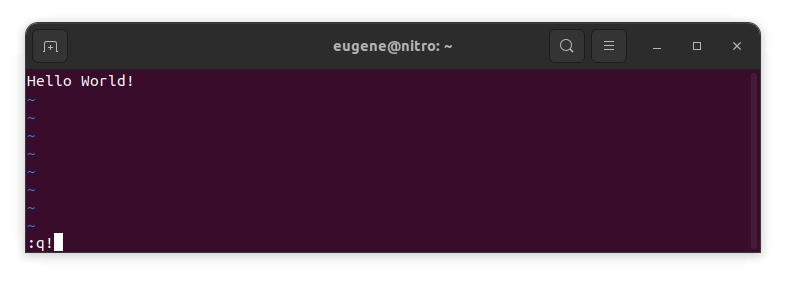
To exit vim without saving changes hold down Shift and press the colon key (:). Then enter “q!” and press Enter.
:q!
既存のVIMエディタを終了せずに変更を保存する
To save changes without exiting vim hold down Shift and press the colon key (:). Then enter “w” and press Enter.
:w
VIMに習熟する
Vimを終了し、変更を保存する基本をカバーしたので、次に習熟度を高めるための追加の便利なVimショートカットと機能に進みましょう。
ファイルを編集するためにVIMを起動する
通常、開発者は次のコマンドを使用してファイルを編集するためにvimを起動します:
vim filename
ファイルが存在しない場合は作成されます。編集する複数のファイルを指定できます:
vim file1 file2 file3
特定の行でファイルを開くには、vimコマンドの後に+[num]を追加します。たとえば、127行目でファイルを開くには、次のように入力します:
vim filename +127
VIMでのナビゲーション
Once you’ve entered Vim, navigating efficiently is key. Here are some popular shortcuts:
- カーソルの移動:
- 矢印キーを使ってそれぞれの方向(上、下、左、右)に移動します。
- Alternatively, employ the
h,j,k, andlkeys for left, down, up, and right movements, respectively.
- 単語のナビゲーション:
- Move the cursor to the beginning of the next word with
w. - Navigate to the end of the current word using
e. - Jump to the beginning of the previous word with
b.
- Move the cursor to the beginning of the next word with
- 行のナビゲーション:
- Go to the start of the line by pressing
0. - Move to the end of the line with
$.
- Go to the start of the line by pressing
VIMでのテキスト編集
Once you’ve reached the desired location, these shortcuts will aid in text manipulation:
- 挿入モードに入る:
- Press
ito enter insert mode before the cursor. - Use
Ito start inserting at the beginning of the line. - Employ
あるto append after the cursor. A行の末尾に追加することができます。
- Press
- テキストの削除:
- Delete the character under the cursor with
x. - Erase the entire line with
dd. - Cut (delete) the current line and enter insert mode with
cc.
- Delete the character under the cursor with
- コピーとペースト:
- Copy a line with
yy. - Paste the copied line below the current line using
p.
- Copy a line with
- 元に戻すとやり直し:
- Undo the last action with
u. - Redo with
Ctrl + r.
- Undo the last action with
VIMでの検索
効率的な検索は重要です。以下は検索に関連するショートカットです:
- テキストを検索する:
- Initiate a search with
/, followed by the desired term. - Use
nto jump to the next occurrence andNto go to the previous one.
- Initiate a search with
- テキストの置き換え:
- Substitute the current word with a new one using
:s/old/new/g.
- Substitute the current word with a new one using
Vimを終了する
最初に基本を説明しましたが、ここにいくつかのオプションがあります:
- すべて保存して終了:
- To save all changes and quit multiple files simultaneously, use
:waそして:qa.
- To save all changes and quit multiple files simultaneously, use
- 保存せずに終了する:
- If you want to exit Vim without saving any changes made in any of the files,
:qa!will do the trick.
- If you want to exit Vim without saving any changes made in any of the files,
結論
覚えておいてください、Vimをマスターするには時間と練習が必要です。使えば使うほど、より快適で強力になります。楽しい編集を!