
If you are reading this article then you are in trouble. You wanted to edit a file using vim editor but got stuck in it. Stop panicking and wait with re-installing the OS and starting all from scratch – in this article I will show you how to exit a vim trap.
Izađite iz VIM uređivača koristeći kombinacije tipki.
Vim uređivač je zamršen za početnike, ali kada naučite prave kombinacije tipki, korištenje VIM-a postaje lako. Evo najpopularnijih kombinacija tipki za izlazak iz vima.
Izađite iz vima spremanjem promjena.
Za izlazak iz vim-a s pohranom promjena pritisnite Esc tipku za izlazak iz načina uređivanja, zatim držite Shift i pritisnite dvotočku key (:). Then enter “wq” and press Enter. Here “w” stands for write and “q” stands for “quit”. On US keyboards the colon : je ista tipka kao i točka sa zarezom ;, located right of the letter “L” key.
:wq
Izađite iz vim-a bez spremanja promjena
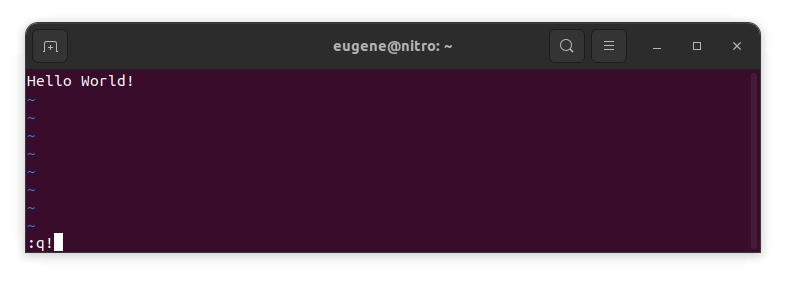
To exit vim without saving changes hold down Shift and press the colon key (:). Then enter “q!” and press Enter.
:q!
Spremite promjene bez izlaska iz VIM uređivača
To save changes without exiting vim hold down Shift and press the colon key (:). Then enter “w” and press Enter.
:w
Postati vješt u VIM-u
Sada kada sam pokrio osnove izlaska iz Vima i spremanja promjena, idemo na neke dodatne korisne prečace i značajke Vima koje će poboljšati vašu vještinu.
Pokretanje VIM-a za uređivanje datoteke
Obično programeri pokreću vim za uređivanje datoteke koristeći naredbu:
vim filename
Ako datoteka nedostaje, bit će stvorena. Možete odrediti više datoteka za uređivanje:
vim file1 file2 file3
Da biste otvorili datoteku na određenom retku, možete dodati +[broj] nakon vim naredbe. Na primjer, da biste otvorili datoteku na retku 127, unesite:
vim filename +127
Navigacija u VIM-u
Once you’ve entered Vim, navigating efficiently is key. Here are some popular shortcuts:
- Pomicanje pokazivača:
- Koristite tipke sa strelicama za pomicanje u odgovarajućim smjerovima (gore, dolje, lijevo, desno).
- Alternatively, employ the
h,j,k, andlkeys for left, down, up, and right movements, respectively.
- Navigacija riječima:
- Move the cursor to the beginning of the next word with
w. - Navigate to the end of the current word using
e. - Jump to the beginning of the previous word with
b.
- Move the cursor to the beginning of the next word with
- Navigacija redovima:
- Go to the start of the line by pressing
0. - Move to the end of the line with
$.
- Go to the start of the line by pressing
Uređivanje teksta u VIM-u
Once you’ve reached the desired location, these shortcuts will aid in text manipulation:
- Ulazak u način umetanja:
- Press
ito enter insert mode before the cursor. - Use
Ito start inserting at the beginning of the line. - Employ
ato append after the cursor. Aomogućuje dodavanje na kraj retka.
- Press
- Brisanje teksta:
- Delete the character under the cursor with
x. - Erase the entire line with
dd. - Cut (delete) the current line and enter insert mode with
cc.
- Delete the character under the cursor with
- Kopiraj i zalijepi:
- Copy a line with
yy. - Paste the copied line below the current line using
p.
- Copy a line with
- Poništi i ponovi:
- Undo the last action with
u. - Redo with
Ctrl + r.
- Undo the last action with
Pretraživanje u VIM-u
Učinkovito pretraživanje je ključno. Evo nekoliko prečaca vezanih uz pretraživanje:
- Pretraživanje teksta:
- Initiate a search with
/, followed by the desired term. - Use
nto jump to the next occurrence andNto go to the previous one.
- Initiate a search with
- Zamjena teksta:
- Substitute the current word with a new one using
:s/old/new/g.
- Substitute the current word with a new one using
Izlazak iz Vima
Već sam pokrio osnove na početku, ali evo još nekoliko opcija:
- Spremi i izađi iz svih:
- To save all changes and quit multiple files simultaneously, use
:wai:qa.
- To save all changes and quit multiple files simultaneously, use
- Izlazak bez spremanja:
- If you want to exit Vim without saving any changes made in any of the files,
:qa!will do the trick.
- If you want to exit Vim without saving any changes made in any of the files,
Zaključak
Zapamtite, ovladavanje Vim-om zahtijeva vrijeme i praksu. Što ga više koristite, to postaje udobniji i moćniji. Sretno uređivanje!