

If you are reading this article then you are in trouble. You wanted to edit a file using vim editor but got stuck in it. Stop panicking and wait with re-installing the OS and starting all from scratch – in this article I will show you how to exit a vim trap.
გამოდით VIM რედაქტორიდან კლავიშთა კომბინაციების გამოყენებით
Vim რედაქტორი დამწყებთათვის რთულია, მაგრამ როდესაც ისწავლით კლავიშების სწორ კომბინაციებს VIM-ის გამოყენებით, ადვილი ხდება. აქ არის ყველაზე პოპულარული კლავიშების კომბინაციები vim-ის დატოვების მიზნით.
გამოდით vim შენახვის ცვლილებებიდან
ცვლილებების შენახვით vim-დან გასასვლელად დააჭირეთ ესკ რედაქტირების რეჟიმიდან გასასვლელად, დააჭირეთ ღილაკს ცვლა და დააჭირეთ მსხვილი ნაწლავი key (:). Then enter “I'm sorry, but "wq" does not appear to be a word or phrase that can be translated. Could you please provide more context or clarify what you would like to translate?” and press Enter. Here “w” stands for write and “q” stands for “quit”. On US keyboards the colon : არის იგივე გასაღები, რაც მძიმით ;, located right of the letter “L” key.
:wq
გადით vim ცვლილებების შენახვის გარეშე
To exit vim without saving changes hold down Shift and press the colon key (:). Then enter “q!” and press Enter.
:q!
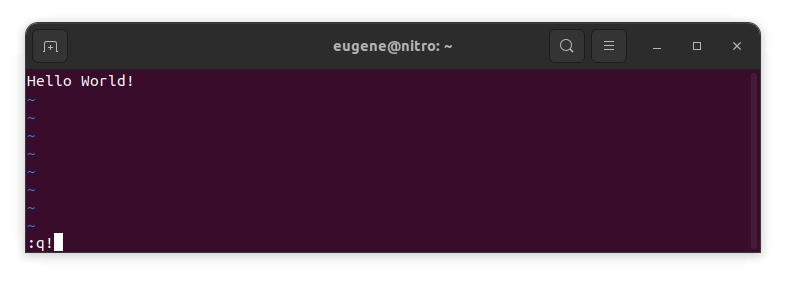
შეინახეთ ცვლილებები არსებული VIM რედაქტორის გარეშე
To save changes without exiting vim hold down Shift and press the colon key (:). Then enter “w” and press Enter.
:w
ვიმ-ში დახელოვნება
ახლა, როდესაც მე გავაშუქე Vim-იდან გასვლის საფუძვლები და ცვლილებების შენახვა, მოდით გადავიდეთ რამდენიმე დამატებით სასარგებლო Vim მალსახმობებზე და ფუნქციებზე, რათა გაზარდოთ თქვენი ცოდნა.
იწყება VIM ფაილის რედაქტირება
როგორც წესი, დეველოპერები იწყებენ vim-ს ფაილის რედაქტირებისთვის ბრძანების გამოყენებით:
vim filename
თუ ფაილი აკლია, ის შეიქმნება. თქვენ შეგიძლიათ მიუთითოთ მრავალი ფაილი რედაქტირებისთვის:
vim file1 file2 file3
ფაილის კონკრეტულ ხაზზე გასახსნელად შეგიძლიათ დაამატოთ [num] vim ბრძანების შემდეგ. მაგალითად, ფაილის გასახსნელად 127 ხაზზე, შეიყვანეთ:
vim filename +127
ნავიგაცია VIM-ში
Once you’ve entered Vim, navigating efficiently is key. Here are some popular shortcuts:
- კურსორის გადაადგილება:
- გამოიყენეთ ისრიანი ღილაკები შესაბამისი მიმართულებით გადასაადგილებლად (ზემოთ, ქვევით, მარცხნივ, მარჯვნივ).
- Alternatively, employ the
h,j,k, andlkeys for left, down, up, and right movements, respectively.
- სიტყვების ნავიგაცია:
- Move the cursor to the beginning of the next word with
w. - Navigate to the end of the current word using
e. - Jump to the beginning of the previous word with
b.
- Move the cursor to the beginning of the next word with
- ნავიგაციის ხაზები:
- Go to the start of the line by pressing
0. - Move to the end of the line with
$.
- Go to the start of the line by pressing
ტექსტის რედაქტირება VIM-ში
Once you’ve reached the desired location, these shortcuts will aid in text manipulation:
- ჩასმის რეჟიმში შესვლა:
- Press
ito enter insert mode before the cursor. - Use
Ito start inserting at the beginning of the line. - Employ
აto append after the cursor. Aსაშუალებას იძლევა მიმაგრდეს ხაზის ბოლოს.
- Press
- ტექსტის წაშლა:
- Delete the character under the cursor with
x. - Erase the entire line with
dd. - Cut (delete) the current line and enter insert mode with
cc.
- Delete the character under the cursor with
- დააკოპირეთ და ჩასვით:
- Copy a line with
yy. - Paste the copied line below the current line using
p.
- Copy a line with
- გაუქმება და გამეორება:
- Undo the last action with
u. - Redo with
Ctrl + r.
- Undo the last action with
ვეძებთ VIM-ში
ეფექტური ძებნა გადამწყვეტია. აქ არის ძიებასთან დაკავშირებული რამდენიმე მალსახმობი:
- ტექსტის ძიება:
- Initiate a search with
/, followed by the desired term. - Use
nto jump to the next occurrence andNto go to the previous one.
- Initiate a search with
- ტექსტის ჩანაცვლება:
- Substitute the current word with a new one using
:s/old/new/g.
- Substitute the current word with a new one using
გასვლა Vim
მე უკვე განვიხილეთ საფუძვლები დასაწყისში, მაგრამ აქ არის კიდევ რამდენიმე ვარიანტი:
- შეინახეთ და დატოვეთ ყველა:
- To save all changes and quit multiple files simultaneously, use
:waდა:qa.
- To save all changes and quit multiple files simultaneously, use
- გასვლა შენახვის გარეშე:
- If you want to exit Vim without saving any changes made in any of the files,
:qa!will do the trick.
- If you want to exit Vim without saving any changes made in any of the files,
დასკვნა
გახსოვდეთ, Vim-ის დაუფლებას დრო და პრაქტიკა სჭირდება. რაც უფრო მეტს იყენებთ, მით უფრო კომფორტული და ძლიერი ხდება. ბედნიერი რედაქტირება!