

If you are reading this article then you are in trouble. You wanted to edit a file using vim editor but got stuck in it. Stop panicking and wait with re-installing the OS and starting all from scratch – in this article I will show you how to exit a vim trap.
Sluit de VIM-editor af met toetscombinaties
De Vim-editor is lastig voor beginners, maar als je de juiste toetscombinaties leert, wordt het gebruik van VIM eenvoudig. Hier zijn de populairste toetscombinaties om vim af te sluiten.
Sluit vim af en bewaar wijzigingen
Om vim af te sluiten en de wijzigingen op te slaan, drukt u op Opl om de bewerkingsmodus te verlaten en houd vervolgens ingedrukt Verschuiving en druk op dubbele punt key (:). Then enter “w” and press Enter. Here “w” stands for write and “q” stands for “quit”. On US keyboards the colon : is dezelfde sleutel als puntkomma ;, located right of the letter “L” key.
:wq
Sluit vim af zonder de wijzigingen op te slaan
To exit vim without saving changes hold down Shift and press the colon key (:). Then enter “q!” and press Enter.
:q!
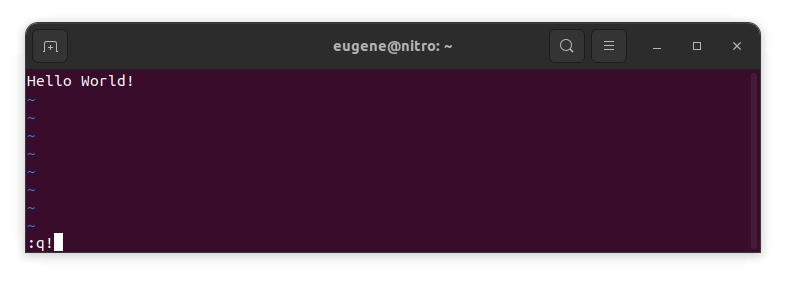
Sla wijzigingen op zonder bestaande VIM-editor
To save changes without exiting vim hold down Shift and press the colon key (:). Then enter “w” and press Enter.
:w
Vaardig worden in VIM
Nu ik de basisbeginselen van het afsluiten van Vim en het opslaan van wijzigingen heb besproken, gaan we verder met enkele aanvullende handige Vim-snelkoppelingen en -functies om uw vaardigheid te verbeteren.
VIM starten om het bestand te bewerken
Meestal starten ontwikkelaars vim om het bestand te bewerken met behulp van de opdracht:
vim filename
Als het bestand ontbreekt, wordt het gemaakt. U kunt meerdere bestanden opgeven om te bewerken:
vim file1 file2 file3
Om een bestand op een specifieke regel te openen, kunt u [num] toevoegen na het vim-commando. Om bijvoorbeeld een bestand op regel 127 te openen, typt u:
vim filename +127
Navigeren in VIM
Once you’ve entered Vim, navigating efficiently is key. Here are some popular shortcuts:
- De cursor verplaatsen:
- Gebruik de pijltjestoetsen om in de betreffende richtingen te bewegen (omhoog, omlaag, links, rechts).
- Alternatively, employ the
h,j,k, andlkeys for left, down, up, and right movements, respectively.
- Woordnavigatie:
- Move the cursor to the beginning of the next word with
w. - Navigate to the end of the current word using
e. - Jump to the beginning of the previous word with
b.
- Move the cursor to the beginning of the next word with
- Navigeren door lijnen:
- Go to the start of the line by pressing
0. - Move to the end of the line with
$.
- Go to the start of the line by pressing
Tekst bewerken in VIM
Once you’ve reached the desired location, these shortcuts will aid in text manipulation:
- Invoegmodus openen:
- Press
ito enter insert mode before the cursor. - Use
Ito start inserting at the beginning of the line. - Employ
eento append after the cursor. Amaakt het mogelijk om aan het einde van de regel toe te voegen.
- Press
- Tekst verwijderen:
- Delete the character under the cursor with
x. - Erase the entire line with
dd. - Cut (delete) the current line and enter insert mode with
cc.
- Delete the character under the cursor with
- Kopiëren en plakken:
- Copy a line with
yy. - Paste the copied line below the current line using
p.
- Copy a line with
- Ongedaan maken en opnieuw uitvoeren:
- Undo the last action with
u. - Redo with
Ctrl + r.
- Undo the last action with
Zoeken in VIM
Efficiënt zoeken is cruciaal. Hier zijn enkele zoekgerelateerde snelkoppelingen:
- Zoeken naar tekst:
- Initiate a search with
/, followed by the desired term. - Use
nto jump to the next occurrence andNto go to the previous one.
- Initiate a search with
- Tekst vervangen:
- Substitute the current word with a new one using
:s/old/new/g.
- Substitute the current word with a new one using
Vim verlaten
Ik heb de basisbeginselen in het begin al behandeld, maar hier zijn nog een paar opties:
- Opslaan en alles afsluiten:
- To save all changes and quit multiple files simultaneously, use
:waEn:qa.
- To save all changes and quit multiple files simultaneously, use
- Afsluiten zonder op te slaan:
- If you want to exit Vim without saving any changes made in any of the files,
:qa!will do the trick.
- If you want to exit Vim without saving any changes made in any of the files,
Conclusie
Vergeet niet dat het beheersen van Vim tijd en oefening kost. Hoe meer je hem gebruikt, hoe comfortabeler en krachtiger hij wordt. Veel plezier met bewerken!