

If you are reading this article then you are in trouble. You wanted to edit a file using vim editor but got stuck in it. Stop panicking and wait with re-installing the OS and starting all from scratch – in this article I will show you how to exit a vim trap.
Wyjdź z edytora VIM, używając kombinacji klawiszy
Edytor Vima jest trudny dla początkujących, ale kiedy nauczysz się odpowiednich kombinacji klawiszy, używanie VIM staje się łatwe. Oto najpopularniejsze kombinacje klawiszy umożliwiające zamknięcie vima.
Wyjdź z vima zapisując zmiany
Aby wyjść z vima z zapisaniem zmian, naciśnij Wyjście , aby wyjść z trybu edycji, a następnie przytrzymaj Zmiana i naciśnij okrężnica key (:). Then enter “wq” and press Enter. Here “w” stands for write and “q” stands for “quit”. On US keyboards the colon : jest tym samym kluczem co średnik ;, located right of the letter “L” key.
:wq
Wyjdź z vima bez zapisywania zmian
To exit vim without saving changes hold down Shift and press the colon key (:). Then enter “q!” and press Enter.
:q!
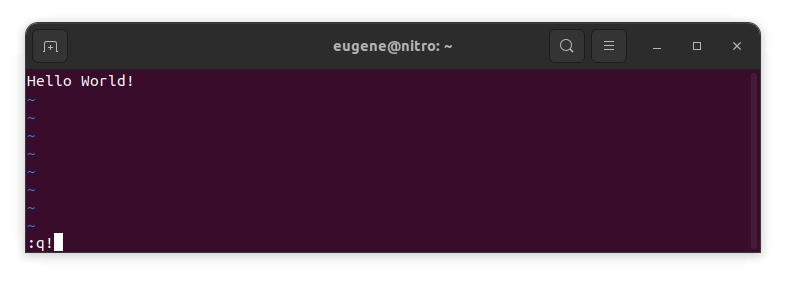
Zapisz zmiany bez istniejącego edytora VIM
To save changes without exiting vim hold down Shift and press the colon key (:). Then enter “w” and press Enter.
:w
Nabycie biegłości w VIM
Teraz, kiedy opisałem podstawy wychodzenia z Vima i zapisywania zmian, przejdźmy do kilku dodatkowych przydatnych skrótów i funkcji Vima, które zwiększą twoją biegłość.
Uruchamianie VIMA w celu edycji pliku
Zwykle programiści uruchamiają vima, aby edytować plik za pomocą polecenia:
vim filename
Jeśli brakuje pliku, zostanie on utworzony. Możesz określić wiele plików do edycji:
vim file1 file2 file3
Aby otworzyć plik w określonej linii, możesz dodać [num] po poleceniu vim. Na przykład, aby otworzyć plik w linii 127, wpisz:
vim filename +127
Nawigacja w VIM
Once you’ve entered Vim, navigating efficiently is key. Here are some popular shortcuts:
- Przesuwanie kursora:
- Użyj klawiszy strzałek, aby poruszać się w odpowiednich kierunkach (góra, dół, lewo, prawo).
- Alternatively, employ the
h,j,k, andlkeys for left, down, up, and right movements, respectively.
- Nawigacja słów:
- Move the cursor to the beginning of the next word with
w. - Navigate to the end of the current word using
e. - Jump to the beginning of the previous word with
b.
- Move the cursor to the beginning of the next word with
- Linie nawigacji:
- Go to the start of the line by pressing
0. - Move to the end of the line with
$.
- Go to the start of the line by pressing
Edycja tekstu w VIM
Once you’ve reached the desired location, these shortcuts will aid in text manipulation:
- Wejście do trybu wstawiania:
- Press
ito enter insert mode before the cursor. - Use
Ito start inserting at the beginning of the line. - Employ
ato append after the cursor. Aumożliwia dołączenie na końcu linii.
- Press
- Usuwanie tekstu:
- Delete the character under the cursor with
x. - Erase the entire line with
dd. - Cut (delete) the current line and enter insert mode with
cc.
- Delete the character under the cursor with
- Kopiuj i wklej:
- Copy a line with
yy. - Paste the copied line below the current line using
p.
- Copy a line with
- Cofnij i ponów:
- Undo the last action with
u. - Redo with
Ctrl + r.
- Undo the last action with
Wyszukiwanie w VIM
Skuteczne wyszukiwanie jest kluczowe. Oto kilka skrótów związanych z wyszukiwaniem:
- Wyszukiwanie tekstu:
- Initiate a search with
/, followed by the desired term. - Use
nto jump to the next occurrence andNto go to the previous one.
- Initiate a search with
- Zastępowanie tekstu:
- Substitute the current word with a new one using
:s/old/new/g.
- Substitute the current word with a new one using
Wychodzenie z Vima
Podstawy opisałem już na początku, ale oto jeszcze kilka opcji:
- Zapisz i zamknij wszystko:
- To save all changes and quit multiple files simultaneously, use
:waI:qa.
- To save all changes and quit multiple files simultaneously, use
- Wychodzenie bez zapisywania:
- If you want to exit Vim without saving any changes made in any of the files,
:qa!will do the trick.
- If you want to exit Vim without saving any changes made in any of the files,
Wniosek
Pamiętaj, że opanowanie Vima wymaga czasu i praktyki. Im częściej go używasz, tym staje się wygodniejszy i wydajniejszy. Miłego edytowania!