

If you are reading this article then you are in trouble. You wanted to edit a file using vim editor but got stuck in it. Stop panicking and wait with re-installing the OS and starting all from scratch – in this article I will show you how to exit a vim trap.
اخرج من محرر VIM باستخدام مجموعات المفاتيح
يعد محرر Vim أمرًا صعبًا بالنسبة للمبتدئين، ولكن عندما تتعلم مجموعات المفاتيح الصحيحة، يصبح استخدام VIM أمرًا سهلاً. فيما يلي مجموعات المفاتيح الأكثر شيوعًا لإنهاء vim.
الخروج من حفظ التغييرات vim
للخروج من vim مع حفظ التغييرات اضغط خروج للخروج من وضع التحرير، ثم اضغط باستمرار يحول واضغط القولون key (:). Then enter “I'm sorry, but "wq" does not appear to be a word or phrase that can be translated. Could you please provide more context or clarify what you would like to translate?” and press Enter. Here “w” stands for write and “q” stands for “quit”. On US keyboards the colon : هو نفس المفتاح مثل الفاصلة المنقوطة ;, located right of the letter “L” key.
:wq
الخروج من vim دون حفظ التغييرات
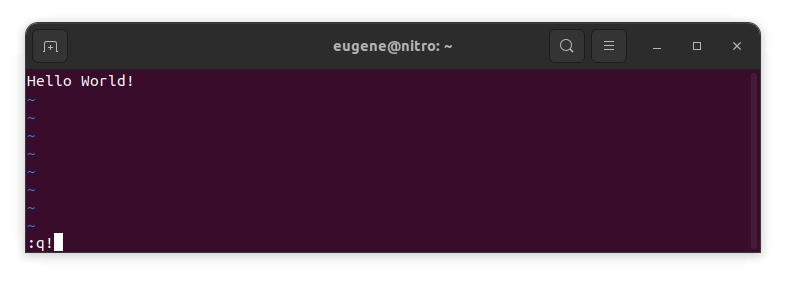
To exit vim without saving changes hold down Shift and press the colon key (:). Then enter “q!” and press Enter.
:q!
احفظ التغييرات بدون محرر VIM الموجود
To save changes without exiting vim hold down Shift and press the colon key (:). Then enter “w” and press Enter.
:w
إتقان VIM
الآن، بعد أن قمت بتغطية أساسيات الخروج من Vim وحفظ التغييرات، يتيح لك الانتقال إلى بعض اختصارات وميزات Vim الإضافية المفيدة لتحسين كفاءتك.
بدء VIM لتحرير الملف
عادةً ما يقوم المطورون بتشغيل vim لتحرير الملف باستخدام الأمر:
vim filename
إذا كان الملف مفقودا سيتم إنشاؤه. يمكنك تحديد ملفات متعددة لتحريرها:
vim file1 file2 file3
لفتح ملف على سطر معين، يمكنك إضافة [num] بعد أمر vim. على سبيل المثال لفتح ملف على السطر 127 أدخل:
vim filename +127
التنقل في VIM
Once you’ve entered Vim, navigating efficiently is key. Here are some popular shortcuts:
- تحريك المؤشر:
- استخدم مفاتيح الأسهم للتحرك في الاتجاهات المعنية (أعلى، أسفل، يسار، يمين).
- Alternatively, employ the
h,j,k, andlkeys for left, down, up, and right movements, respectively.
- التنقل بالكلمات:
- Move the cursor to the beginning of the next word with
w. - Navigate to the end of the current word using
e. - Jump to the beginning of the previous word with
b.
- Move the cursor to the beginning of the next word with
- خطوط التنقل:
- Go to the start of the line by pressing
0. - Move to the end of the line with
$.
- Go to the start of the line by pressing
تحرير النص في VIM
Once you’ve reached the desired location, these shortcuts will aid in text manipulation:
- الدخول في وضع الإدراج:
- Press
ito enter insert mode before the cursor. - Use
Ito start inserting at the beginning of the line. - Employ
مجموعةto append after the cursor. Aيسمح بالإلحاق في نهاية السطر.
- Press
- حذف النص:
- Delete the character under the cursor with
x. - Erase the entire line with
dd. - Cut (delete) the current line and enter insert mode with
cc.
- Delete the character under the cursor with
- النسخ واللصق:
- Copy a line with
yy. - Paste the copied line below the current line using
p.
- Copy a line with
- التراجع والإعادة:
- Undo the last action with
u. - Redo with
Ctrl + r.
- Undo the last action with
البحث في VIM
البحث الفعال أمر بالغ الأهمية. فيما يلي بعض الاختصارات المتعلقة بالبحث:
- البحث عن النص:
- Initiate a search with
/, followed by the desired term. - Use
nto jump to the next occurrence andNto go to the previous one.
- Initiate a search with
- استبدال النص:
- Substitute the current word with a new one using
:s/old/new/g.
- Substitute the current word with a new one using
الخروج من فيم
لقد قمت بالفعل بتغطية الأساسيات في البداية، ولكن إليك بعض الخيارات الإضافية:
- حفظ وإنهاء الكل:
- To save all changes and quit multiple files simultaneously, use
:waو:qa.
- To save all changes and quit multiple files simultaneously, use
- الخروج بدون حفظ:
- If you want to exit Vim without saving any changes made in any of the files,
:qa!will do the trick.
- If you want to exit Vim without saving any changes made in any of the files,
خاتمة
تذكر أن إتقان Vim يستغرق وقتًا وممارسة. كلما استخدمته أكثر، أصبح أكثر راحة وقوة. تحرير سعيد!