

If you are reading this article then you are in trouble. You wanted to edit a file using vim editor but got stuck in it. Stop panicking and wait with re-installing the OS and starting all from scratch – in this article I will show you how to exit a vim trap.
Ukončite editor VIM pomocou kombinácií klávesov
Editor Vim je zložitý pre začiatočníkov, ale keď sa naučíte správne kombinácie klávesov pomocou VIM, bude to jednoduché. Tu sú najobľúbenejšie kombinácie klávesov na ukončenie vim.
Ukončite vim ukladanie zmien
Ak chcete ukončiť vim s uložením zmien, stlačte Esc , čím ukončíte režim úprav, potom ho podržte Shift a stlačte hrubého čreva key (:). Then enter “wq” and press Enter. Here “w” stands for write and “q” stands for “quit”. On US keyboards the colon : je rovnaký kľúč ako bodkočiarka ;, located right of the letter “L” key.
:wq
Ukončite vim bez uloženia zmien
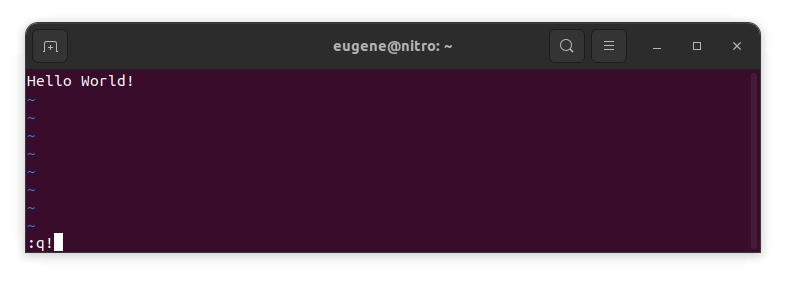
To exit vim without saving changes hold down Shift and press the colon key (:). Then enter “q!” and press Enter.
:q!
Uložte zmeny bez existujúceho editora VIM
To save changes without exiting vim hold down Shift and press the colon key (:). Then enter “w” and press Enter.
:w
Zdokonalenie vo VIM
Teraz, keď som prebral základy ukončenia Vimu a ukladania zmien, poďme prejsť k niektorým ďalším užitočným skratkám a funkciám Vimu na zlepšenie vašej odbornosti.
Spustenie VIM na úpravu súboru
Vývojári zvyčajne spúšťajú vim na úpravu súboru pomocou príkazu:
vim filename
Ak súbor chýba, vytvorí sa. Môžete zadať viacero súborov na úpravu:
vim file1 file2 file3
Ak chcete otvoriť súbor na konkrétnom riadku, môžete za príkaz vim pridať [num]. Napríklad na otvorenie súboru na riadku 127 zadajte:
vim filename +127
Navigácia vo VIM
Once you’ve entered Vim, navigating efficiently is key. Here are some popular shortcuts:
- Pohyb kurzora:
- Pomocou klávesov so šípkami sa môžete pohybovať v príslušných smeroch (hore, dole, vľavo, vpravo).
- Alternatively, employ the
h,j,k, andlkeys for left, down, up, and right movements, respectively.
- Navigácia v slovách:
- Move the cursor to the beginning of the next word with
w. - Navigate to the end of the current word using
e. - Jump to the beginning of the previous word with
b.
- Move the cursor to the beginning of the next word with
- Navigačné linky:
- Go to the start of the line by pressing
0. - Move to the end of the line with
$.
- Go to the start of the line by pressing
Úprava textu vo VIM
Once you’ve reached the desired location, these shortcuts will aid in text manipulation:
- Vstup do režimu vkladania:
- Press
ito enter insert mode before the cursor. - Use
Ito start inserting at the beginning of the line. - Employ
ato append after the cursor. Aumožňuje pripojenie na koniec riadku.
- Press
- Odstránenie textu:
- Delete the character under the cursor with
x. - Erase the entire line with
dd. - Cut (delete) the current line and enter insert mode with
cc.
- Delete the character under the cursor with
- Kopírovať a prilepiť:
- Copy a line with
yy. - Paste the copied line below the current line using
p.
- Copy a line with
- Späť a Znova:
- Undo the last action with
u. - Redo with
Ctrl + r.
- Undo the last action with
Vyhľadávanie vo VIM
Rozhodujúce je efektívne vyhľadávanie. Tu sú niektoré skratky súvisiace s vyhľadávaním:
- Hľadá sa text:
- Initiate a search with
/, followed by the desired term. - Use
nto jump to the next occurrence andNto go to the previous one.
- Initiate a search with
- Nahradenie textu:
- Substitute the current word with a new one using
:s/old/new/g.
- Substitute the current word with a new one using
Ukončenie Vim
Základy som už prebral na začiatku, ale tu je niekoľko ďalších možností:
- Uložiť a ukončiť všetko:
- To save all changes and quit multiple files simultaneously, use
:waa:qa.
- To save all changes and quit multiple files simultaneously, use
- Ukončenie bez uloženia:
- If you want to exit Vim without saving any changes made in any of the files,
:qa!will do the trick.
- If you want to exit Vim without saving any changes made in any of the files,
Záver
Pamätajte, že zvládnutie Vima si vyžaduje čas a prax. Čím viac ho budete používať, tým bude pohodlnejší a výkonnejší. Veľa šťastia pri úpravách!