

If you are reading this article then you are in trouble. You wanted to edit a file using vim editor but got stuck in it. Stop panicking and wait with re-installing the OS and starting all from scratch – in this article I will show you how to exit a vim trap.
צא מעורך VIM באמצעות שילובי מקשים
עורך Vim הוא מסובך למתחילים, אך כאשר אתה לומד שילובי מקשים נכונים השימוש ב-VIM הופך להיות קל. להלן שילובי המקשים הפופולריים ביותר ליציאה מ-vim.
צא משמירת שינויים ב-vim
כדי לצאת מ-vim עם שמירת שינויים לחץ בריחה מקש כדי לצאת ממצב עריכה, ולאחר מכן החזק את העכבר מִשׁמֶרֶת ולחץ מְעִי גַס key (:). Then enter “wq” and press Enter. Here “w” stands for write and “q” stands for “quit”. On US keyboards the colon : הוא אותו מפתח כמו נקודה-פסיק ;, located right of the letter “L” key.
:wq
צא מ-vim מבלי לשמור שינויים
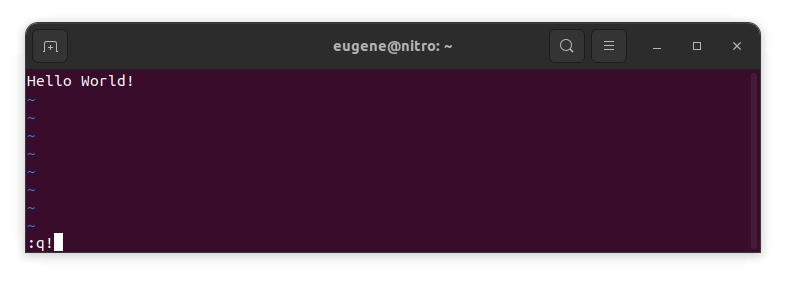
To exit vim without saving changes hold down Shift and press the colon key (:). Then enter “q!” and press Enter.
:q!
שמור שינויים ללא עורך VIM קיים
To save changes without exiting vim hold down Shift and press the colon key (:). Then enter “w” and press Enter.
:w
התמחות ב-VIM
כעת, כאשר כיסיתי את היסודות של יציאה מ-Vim ושמירת שינויים, אפשר להמשיך לכמה קיצורי דרך ותכונות שימושיות נוספות של Vim כדי לשפר את המיומנות שלך.
הפעלת VIM כדי לערוך את הקובץ
בדרך כלל מפתחים מפעילים את vim כדי לערוך את הקובץ באמצעות הפקודה:
vim filename
אם הקובץ חסר הוא ייווצר. אתה יכול לציין מספר קבצים לעריכה:
vim file1 file2 file3
כדי לפתוח קובץ בשורה ספציפית אתה יכול להוסיף [num] אחרי הפקודה vim. לדוגמה כדי לפתוח קובץ בשורה 127 הזן:
vim filename +127
ניווט ב-VIM
Once you’ve entered Vim, navigating efficiently is key. Here are some popular shortcuts:
- הזזת הסמן:
- השתמש במקשי החצים כדי לנוע בכיוונים המתאימים (למעלה, למטה, שמאלה, ימינה).
- Alternatively, employ the
h,j,k, andlkeys for left, down, up, and right movements, respectively.
- ניווט מילים:
- Move the cursor to the beginning of the next word with
w. - Navigate to the end of the current word using
e. - Jump to the beginning of the previous word with
b.
- Move the cursor to the beginning of the next word with
- ניווט קווים:
- Go to the start of the line by pressing
0. - Move to the end of the line with
$.
- Go to the start of the line by pressing
עריכת טקסט ב-VIM
Once you’ve reached the desired location, these shortcuts will aid in text manipulation:
- כניסה למצב הוספה:
- Press
ito enter insert mode before the cursor. - Use
Ito start inserting at the beginning of the line. - Employ
אto append after the cursor. Aמאפשר הוספה בסוף השורה.
- Press
- מחיקת טקסט:
- Delete the character under the cursor with
x. - Erase the entire line with
dd. - Cut (delete) the current line and enter insert mode with
cc.
- Delete the character under the cursor with
- העתק והדבק:
- Copy a line with
yy. - Paste the copied line below the current line using
p.
- Copy a line with
- בטל ובצע שוב:
- Undo the last action with
u. - Redo with
Ctrl + r.
- Undo the last action with
חיפוש ב-VIM
חיפוש יעיל הוא קריטי. הנה כמה קיצורי דרך הקשורים לחיפוש:
- מחפש טקסט:
- Initiate a search with
/, followed by the desired term. - Use
nto jump to the next occurrence andNto go to the previous one.
- Initiate a search with
- מחליף טקסט:
- Substitute the current word with a new one using
:s/old/new/g.
- Substitute the current word with a new one using
יוצא Vim
כבר כיסיתי את היסודות בהתחלה, אבל הנה כמה אפשרויות נוספות:
- שמור וצא הכל:
- To save all changes and quit multiple files simultaneously, use
:waו:qa.
- To save all changes and quit multiple files simultaneously, use
- יציאה מבלי לשמור:
- If you want to exit Vim without saving any changes made in any of the files,
:qa!will do the trick.
- If you want to exit Vim without saving any changes made in any of the files,
מַסְקָנָה
זכור, שליטה ב-Vim דורשת זמן ותרגול. ככל שאתה משתמש בו יותר, כך הוא הופך נוח ועוצמתי יותר. עריכה נעימה!