

If you are reading this article then you are in trouble. You wanted to edit a file using vim editor but got stuck in it. Stop panicking and wait with re-installing the OS and starting all from scratch – in this article I will show you how to exit a vim trap.
Ukončete editor VIM pomocí kombinací kláves
Editor Vim je pro začátečníky složitý, ale když se naučíte správné kombinace kláves pomocí VIM, bude to snadné. Zde jsou nejoblíbenější kombinace kláves pro ukončení vim.
Ukončete ukládání změn vim
Pro ukončení vim s uložením změn stiskněte Esc opusťte režim úprav a poté jej podržte Posun a stiskněte dvojtečka key (:). Then enter “wq” and press Enter. Here “w” stands for write and “q” stands for “quit”. On US keyboards the colon : je stejný klíč jako středník ;, located right of the letter “L” key.
:wq
Ukončete vim bez uložení změn
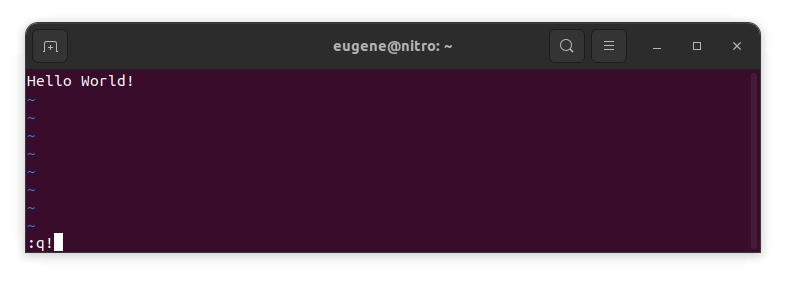
To exit vim without saving changes hold down Shift and press the colon key (:). Then enter “q!” and press Enter.
:q!
Uložte změny bez existujícího editoru VIM
To save changes without exiting vim hold down Shift and press the colon key (:). Then enter “w” and press Enter.
:w
Zvládnutí VIM
Nyní, když jsem probral základy ukončování Vimu a ukládání změn, přistoupíme k některým dalším užitečným zkratkám a funkcím Vimu, které vylepší vaši odbornost.
Spuštění VIM pro úpravu souboru
Vývojáři obvykle spouštějí vim pro úpravu souboru pomocí příkazu:
vim filename
Pokud soubor chybí, bude vytvořen. Můžete zadat více souborů, které chcete upravit:
vim file1 file2 file3
Chcete-li otevřít soubor na konkrétním řádku, můžete za příkaz vim přidat [num]. Například pro otevření souboru na řádku 127 zadejte:
vim filename +127
Navigace ve VIM
Once you’ve entered Vim, navigating efficiently is key. Here are some popular shortcuts:
- Přesunutí kurzoru:
- Pomocí kláves se šipkami se můžete pohybovat v příslušných směrech (nahoru, dolů, doleva, doprava).
- Alternatively, employ the
h,j,k, andlkeys for left, down, up, and right movements, respectively.
- Navigace ve slovech:
- Move the cursor to the beginning of the next word with
w. - Navigate to the end of the current word using
e. - Jump to the beginning of the previous word with
b.
- Move the cursor to the beginning of the next word with
- Navigační linky:
- Go to the start of the line by pressing
0. - Move to the end of the line with
$.
- Go to the start of the line by pressing
Úprava textu ve VIM
Once you’ve reached the desired location, these shortcuts will aid in text manipulation:
- Vstup do režimu vkládání:
- Press
ito enter insert mode before the cursor. - Use
Ito start inserting at the beginning of the line. - Employ
ato append after the cursor. Aumožňuje připojení na konec řádku.
- Press
- Mazání textu:
- Delete the character under the cursor with
x. - Erase the entire line with
dd. - Cut (delete) the current line and enter insert mode with
cc.
- Delete the character under the cursor with
- Kopírovat a vložit:
- Copy a line with
yy. - Paste the copied line below the current line using
p.
- Copy a line with
- Zpět a znovu:
- Undo the last action with
u. - Redo with
Ctrl + r.
- Undo the last action with
Vyhledávání ve VIM
Rozhodující je efektivní vyhledávání. Zde jsou některé zkratky související s vyhledáváním:
- Hledání textu:
- Initiate a search with
/, followed by the desired term. - Use
nto jump to the next occurrence andNto go to the previous one.
- Initiate a search with
- Nahrazení textu:
- Substitute the current word with a new one using
:s/old/new/g.
- Substitute the current word with a new one using
Ukončení Vim
Základy jsem již probral na začátku, ale zde je několik dalších možností:
- Uložit a ukončit vše:
- To save all changes and quit multiple files simultaneously, use
:waa:qa.
- To save all changes and quit multiple files simultaneously, use
- Ukončení bez uložení:
- If you want to exit Vim without saving any changes made in any of the files,
:qa!will do the trick.
- If you want to exit Vim without saving any changes made in any of the files,
Závěr
Pamatujte, že zvládnutí Vima vyžaduje čas a praxi. Čím více jej používáte, tím pohodlnější a výkonnější se stává. Hodně štěstí při úpravách!