

If you are reading this article then you are in trouble. You wanted to edit a file using vim editor but got stuck in it. Stop panicking and wait with re-installing the OS and starting all from scratch – in this article I will show you how to exit a vim trap.
Avslutt VIM-redigering ved hjelp av tastekombinasjoner
Vim editor er vanskelig for nybegynnere, men når du lærer riktige tastekombinasjoner blir det enkelt å bruke VIM. Her er de mest populære tastekombinasjonene for å avslutte vim.
Avslutt vim-lagringsendringer
For å avslutte vim med å lagre endringer, trykk Esc tasten for å gå ut av redigeringsmodus, og hold deretter nede Skifte og trykk kolon key (:). Then enter “wq” and press Enter. Here “w” stands for write and “q” stands for “quit”. On US keyboards the colon : er samme nøkkel som semikolon ;, located right of the letter “L” key.
:wq
Avslutt vim uten å lagre endringer
To exit vim without saving changes hold down Shift and press the colon key (:). Then enter “q!” and press Enter.
:q!
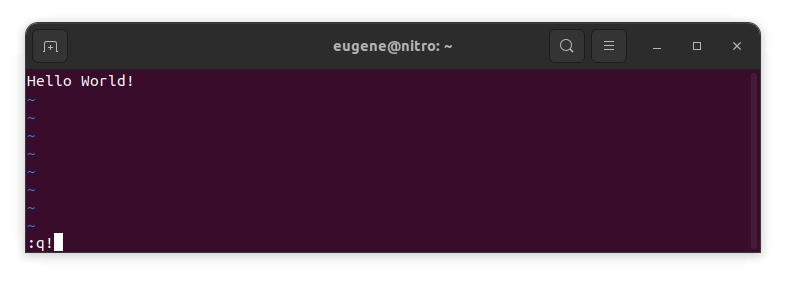
Lagre endringer uten eksisterende VIM-editor
To save changes without exiting vim hold down Shift and press the colon key (:). Then enter “w” and press Enter.
:w
Bli dyktig i VIM
Når jeg nå dekket det grunnleggende om å avslutte Vim og lagre endringer, kan vi fortsette til noen ekstra nyttige Vim-snarveier og funksjoner for å forbedre ferdighetene dine.
Starter VIM for å redigere filen
Vanligvis starter utviklere vim for å redigere filen ved å bruke kommandoen:
vim filename
Hvis filen mangler vil den bli opprettet. Du kan spesifisere flere filer som skal redigeres:
vim file1 file2 file3
For å åpne filen på en bestemt linje kan du legge til [num] etter vim-kommandoen. For å åpne fil på linje 127, skriv inn:
vim filename +127
Navigerer i VIM
Once you’ve entered Vim, navigating efficiently is key. Here are some popular shortcuts:
- Flytte markøren:
- Bruk piltastene for å bevege deg i de respektive retningene (opp, ned, venstre, høyre).
- Alternatively, employ the
h,j,k, andlkeys for left, down, up, and right movements, respectively.
- Ordnavigering:
- Move the cursor to the beginning of the next word with
w. - Navigate to the end of the current word using
e. - Jump to the beginning of the previous word with
b.
- Move the cursor to the beginning of the next word with
- Navigeringslinjer:
- Go to the start of the line by pressing
0. - Move to the end of the line with
$.
- Go to the start of the line by pressing
Redigere tekst i VIM
Once you’ve reached the desired location, these shortcuts will aid in text manipulation:
- Gå inn i innsettingsmodus:
- Press
ito enter insert mode before the cursor. - Use
Ito start inserting at the beginning of the line. - Employ
ato append after the cursor. Atillater tilføying på slutten av linjen.
- Press
- Sletter tekst:
- Delete the character under the cursor with
x. - Erase the entire line with
dd. - Cut (delete) the current line and enter insert mode with
cc.
- Delete the character under the cursor with
- Kopier og lim inn:
- Copy a line with
yy. - Paste the copied line below the current line using
p.
- Copy a line with
- Angre og gjør om:
- Undo the last action with
u. - Redo with
Ctrl + r.
- Undo the last action with
Søker i VIM
Effektivt søk er avgjørende. Her er noen søkerelaterte snarveier:
- Søker etter tekst:
- Initiate a search with
/, followed by the desired term. - Use
nto jump to the next occurrence andNto go to the previous one.
- Initiate a search with
- Erstatter tekst:
- Substitute the current word with a new one using
:s/old/new/g.
- Substitute the current word with a new one using
Avslutter Vim
Jeg har allerede dekket det grunnleggende i begynnelsen, men her er noen flere alternativer:
- Lagre og avslutt alle:
- To save all changes and quit multiple files simultaneously, use
:waog:qa.
- To save all changes and quit multiple files simultaneously, use
- Avslutte uten å lagre:
- If you want to exit Vim without saving any changes made in any of the files,
:qa!will do the trick.
- If you want to exit Vim without saving any changes made in any of the files,
Konklusjon
Husk at å mestre Vim tar tid og trening. Jo mer du bruker den, jo mer komfortabel og kraftig blir den. Lykke til med redigeringen!