

If you are reading this article then you are in trouble. You wanted to edit a file using vim editor but got stuck in it. Stop panicking and wait with re-installing the OS and starting all from scratch – in this article I will show you how to exit a vim trap.
Вийдіть з редактора VIM за допомогою комбінацій клавіш
Редактор Vim складний для початківців, але коли ви навчитеся правильні комбінації клавіш, користуватися VIM стане легко. Ось найпопулярніші комбінації клавіш для виходу з vim.
Вийти з vim, зберігаючи зміни
Щоб вийти з vim зі збереженням змін, натисніть Esc щоб вийти з режиму редагування, а потім утримуйте Shift і натисніть товста кишка key (:). Then enter “wq” and press Enter. Here “w” stands for write and “q” stands for “quit”. On US keyboards the colon : є тим самим ключем, що і крапка з комою ;, located right of the letter “L” key.
:wq
Вийдіть з vim без збереження змін
To exit vim without saving changes hold down Shift and press the colon key (:). Then enter “q!” and press Enter.
:q!
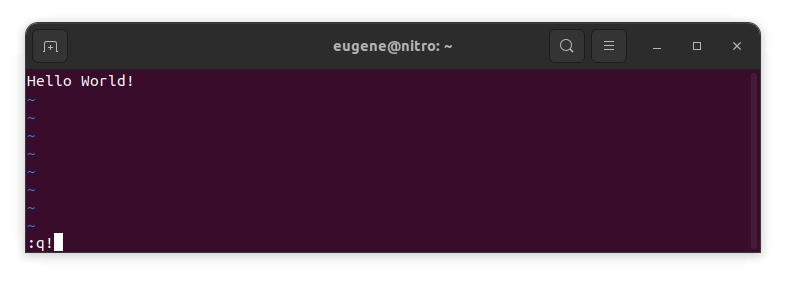
Збережіть зміни без наявного редактора VIM
To save changes without exiting vim hold down Shift and press the colon key (:). Then enter “w” and press Enter.
:w
Оволодіння VIM
Тепер, коли я розглянув основи виходу з Vim і збереження змін, давайте перейдемо до деяких додаткових корисних ярликів і функцій Vim, щоб покращити ваші навички.
Запуск VIM для редагування файлу
Зазвичай розробники запускають vim для редагування файлу за допомогою команди:
vim filename
Якщо файл відсутній, він буде створений. Ви можете вказати кілька файлів для редагування:
vim file1 file2 file3
Щоб відкрити файл у певному рядку, ви можете додати [num] після команди vim. Наприклад, щоб відкрити файл у рядку 127, введіть:
vim filename +127
Навігація у VIM
Once you’ve entered Vim, navigating efficiently is key. Here are some popular shortcuts:
- Переміщення курсору:
- Використовуйте клавіші зі стрілками для переміщення у відповідних напрямках (вгору, вниз, вліво, вправо).
- Alternatively, employ the
h,j,k, andlkeys for left, down, up, and right movements, respectively.
- Навігація словами:
- Move the cursor to the beginning of the next word with
w. - Navigate to the end of the current word using
e. - Jump to the beginning of the previous word with
b.
- Move the cursor to the beginning of the next word with
- Лінії навігації:
- Go to the start of the line by pressing
0. - Move to the end of the line with
$.
- Go to the start of the line by pressing
Редагування тексту в VIM
Once you’ve reached the desired location, these shortcuts will aid in text manipulation:
- Вхід у режим вставки:
- Press
ito enter insert mode before the cursor. - Use
Ito start inserting at the beginning of the line. - Employ
ato append after the cursor. Aдозволяє додавати в кінці рядка.
- Press
- Видалення тексту:
- Delete the character under the cursor with
x. - Erase the entire line with
dd. - Cut (delete) the current line and enter insert mode with
cc.
- Delete the character under the cursor with
- Скопіюйте та вставте:
- Copy a line with
yy. - Paste the copied line below the current line using
p.
- Copy a line with
- Скасувати та повторити:
- Undo the last action with
u. - Redo with
Ctrl + r.
- Undo the last action with
Пошук у VIM
Ефективний пошук має вирішальне значення. Ось кілька комбінацій клавіш, пов’язаних із пошуком:
- Пошук тексту:
- Initiate a search with
/, followed by the desired term. - Use
nto jump to the next occurrence andNto go to the previous one.
- Initiate a search with
- Заміна тексту:
- Substitute the current word with a new one using
:s/old/new/g.
- Substitute the current word with a new one using
Вихід з Vim
Я вже розглянув основи на початку, але ось ще кілька варіантів:
- Зберегти та вийти з усіх:
- To save all changes and quit multiple files simultaneously, use
:waі:qa.
- To save all changes and quit multiple files simultaneously, use
- Вихід без збереження:
- If you want to exit Vim without saving any changes made in any of the files,
:qa!will do the trick.
- If you want to exit Vim without saving any changes made in any of the files,
Висновок
Пам’ятайте, що для освоєння Vim потрібен час і практика. Чим більше ви використовуєте його, тим зручнішим і потужнішим він стає. Приємного редагування!