
If you are reading this article then you are in trouble. You wanted to edit a file using vim editor but got stuck in it. Stop panicking and wait with re-installing the OS and starting all from scratch – in this article I will show you how to exit a vim trap.
VIM redaktorist väljumine klahvikombinatsioonide abil
Vim redaktor on algajatele keeruline, kuid kui õpite õigeid klahvikombinatsioone, siis VIM-i kasutamine muutub lihtsaks. Siin on kõige populaarsemad klahvikombinatsioonid vim-ist väljumiseks.
Vim-ist väljumine muudatuste salvestamisega
Vimist väljumiseks ja muudatuste salvestamiseks vajutage Esc klahvi, et välja minna redigeerimisrežiimist, seejärel hoidke all Shift ja vajutage koolon key (:). Then enter “wq” and press Enter. Here “w” stands for write and “q” stands for “quit”. On US keyboards the colon : sama klahv kui semikoolon ;, located right of the letter “L” key.
:wq
Väljuge vimist ilma muudatusi salvestamata
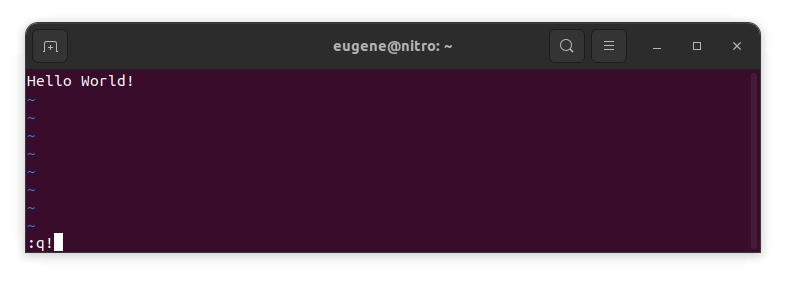
To exit vim without saving changes hold down Shift and press the colon key (:). Then enter “q!” and press Enter.
:q!
Salvesta muudatused, ilma et VIM-i redaktorist väljutaks
To save changes without exiting vim hold down Shift and press the colon key (:). Then enter “w” and press Enter.
:w
VIMi oskuslikuks saamine
Nüüd, kui olen katnud Vimi sulgemise ja muudatuste salvestamise põhialused, liikume edasi mõne täiendava kasuliku Vimi otsetee ja funktsiooni juurde, et suurendada teie oskusi.
VIMi käivitamine faili redigeerimiseks
Tavaliselt käivitavad arendajad vim'i faili redigeerimiseks käsuga:
vim filename
Kui faili pole, siis see luuakse. Saate redigeerida mitut faili:
vim file1 file2 file3
Konkreetse rea avamiseks failis saate vim'i käsule lisada +[num]. Näiteks, et avada fail real 127, sisestage:
vim filename +127
Navigeerimine VIMis
Once you’ve entered Vim, navigating efficiently is key. Here are some popular shortcuts:
- Kursori liigutamine:
- Kasutage nooleklahve, et liikuda vastavates suundades (üles, alla, vasakule, paremale).
- Alternatively, employ the
h,j,k, andlkeys for left, down, up, and right movements, respectively.
- Sõna navigeerimine:
- Move the cursor to the beginning of the next word with
w. - Navigate to the end of the current word using
e. - Jump to the beginning of the previous word with
b.
- Move the cursor to the beginning of the next word with
- Rea navigeerimine:
- Go to the start of the line by pressing
0. - Move to the end of the line with
$.
- Go to the start of the line by pressing
Teksti redigeerimine VIM-is
Once you’ve reached the desired location, these shortcuts will aid in text manipulation:
- Sisestusrežiimi sisenemine:
- Press
ito enter insert mode before the cursor. - Use
Ito start inserting at the beginning of the line. - Employ
ato append after the cursor. Alubab rea lõppu lisama.
- Press
- Teksti kustutamine:
- Delete the character under the cursor with
x. - Erase the entire line with
dd. - Cut (delete) the current line and enter insert mode with
cc.
- Delete the character under the cursor with
- Kopeeri ja Kleepeka:
- Copy a line with
yy. - Paste the copied line below the current line using
p.
- Copy a line with
- Tagasi ja Korda:
- Undo the last action with
u. - Redo with
Ctrl + r.
- Undo the last action with
Otsimine VIM-is
Tõhus otsimine on ülioluline. Siin on mõned otsinguga seotud otseteed:
- Teksti otsimine:
- Initiate a search with
/, followed by the desired term. - Use
nto jump to the next occurrence andNto go to the previous one.
- Initiate a search with
- Teksti asendamine:
- Substitute the current word with a new one using
:s/old/new/g.
- Substitute the current word with a new one using
Vimist väljumine
Olen juba alguses põhialused katnud, kuid siin on veel mõned valikud:
- Salvesta ja välju kõigist:
- To save all changes and quit multiple files simultaneously, use
:waja:qa.
- To save all changes and quit multiple files simultaneously, use
- Väljumine salvestamata:
- If you want to exit Vim without saving any changes made in any of the files,
:qa!will do the trick.
- If you want to exit Vim without saving any changes made in any of the files,
Järeldus
Pea, Vim'i valdamine võtab aega ja harjutamist. Mida rohkem sa seda kasutad, seda mugavamaks ja võimsamaks see muutub. Head redigeerimist!