

If you are reading this article then you are in trouble. You wanted to edit a file using vim editor but got stuck in it. Stop panicking and wait with re-installing the OS and starting all from scratch – in this article I will show you how to exit a vim trap.
ออกจากโปรแกรมแก้ไข VIM โดยใช้คีย์ผสม
โปรแกรมแก้ไข Vim เป็นเรื่องยากสำหรับผู้เริ่มต้น แต่เมื่อคุณเรียนรู้การใช้คีย์ผสมที่ถูกต้องโดยใช้ VIM จะกลายเป็นเรื่องง่าย ต่อไปนี้เป็นคีย์ผสมที่ได้รับความนิยมมากที่สุดในการออกจากกลุ่ม
ออกจากการเปลี่ยนแปลงการบันทึกเป็นกลุ่ม
หากต้องการออกจากกลุ่มโดยบันทึกการเปลี่ยนแปลงให้กด Esc ปุ่มเพื่อออกจากโหมดแก้ไข จากนั้นกดค้างไว้ กะ และกด ลำไส้ใหญ่ key (:). Then enter “ส” and press Enter. Here “w” stands for write and “q” stands for “quit”. On US keyboards the colon : เป็นคีย์เดียวกับอัฒภาค ;, located right of the letter “L” key.
:wq
ออกจากกลุ่มโดยไม่บันทึกการเปลี่ยนแปลง
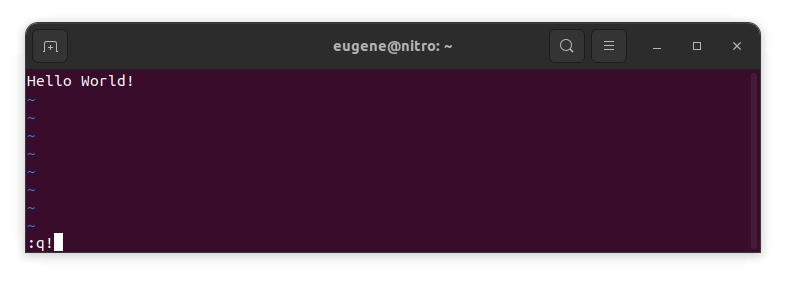
To exit vim without saving changes hold down Shift and press the colon key (:). Then enter “q!” and press Enter.
:q!
บันทึกการเปลี่ยนแปลงโดยไม่ต้องใช้ตัวแก้ไข VIM ที่มีอยู่
To save changes without exiting vim hold down Shift and press the colon key (:). Then enter “w” and press Enter.
:w
มีความเชี่ยวชาญใน VIM
ตอนนี้เมื่อฉันได้กล่าวถึงพื้นฐานของการออกจาก Vim และการบันทึกการเปลี่ยนแปลงแล้ว ให้ดำเนินการต่อไปยังทางลัดและฟีเจอร์ Vim ที่เป็นประโยชน์เพิ่มเติมเพื่อเพิ่มความชำนาญของคุณ
การเริ่ม VIM เพื่อแก้ไขไฟล์
โดยปกติแล้วนักพัฒนาจะเรียกใช้ vim เพื่อแก้ไขไฟล์โดยใช้คำสั่ง:
vim filename
หากไฟล์หายไปก็จะถูกสร้างขึ้น คุณสามารถระบุหลายไฟล์ที่จะแก้ไข:
vim file1 file2 file3
หากต้องการเปิดไฟล์ในบรรทัดใดบรรทัดหนึ่ง คุณสามารถเพิ่ม [num] หลังคำสั่ง vim ตัวอย่างเช่นหากต้องการเปิดไฟล์ในบรรทัด 127 ให้ป้อน:
vim filename +127
การนำทางใน VIM
Once you’ve entered Vim, navigating efficiently is key. Here are some popular shortcuts:
- การเลื่อนเคอร์เซอร์:
- ใช้ปุ่มลูกศรเพื่อเลื่อนไปในทิศทางที่เกี่ยวข้อง (ขึ้น, ลง, ซ้าย, ขวา)
- Alternatively, employ the
h,j,k, andlkeys for left, down, up, and right movements, respectively.
- การนำทางคำ:
- Move the cursor to the beginning of the next word with
w. - Navigate to the end of the current word using
e. - Jump to the beginning of the previous word with
b.
- Move the cursor to the beginning of the next word with
- การนำทางเส้น:
- Go to the start of the line by pressing
0. - Move to the end of the line with
$.
- Go to the start of the line by pressing
การแก้ไขข้อความใน VIM
Once you’ve reached the desired location, these shortcuts will aid in text manipulation:
- เข้าสู่โหมดแทรก:
- Press
ito enter insert mode before the cursor. - Use
Ito start inserting at the beginning of the line. - Employ
กto append after the cursor. Aอนุญาตให้ต่อท้ายบรรทัด
- Press
- การลบข้อความ:
- Delete the character under the cursor with
x. - Erase the entire line with
dd. - Cut (delete) the current line and enter insert mode with
cc.
- Delete the character under the cursor with
- คัดลอกและวาง:
- Copy a line with
yy. - Paste the copied line below the current line using
p.
- Copy a line with
- เลิกทำและทำซ้ำ:
- Undo the last action with
u. - Redo with
Ctrl + r.
- Undo the last action with
ค้นหาใน VIM
การค้นหาที่มีประสิทธิภาพเป็นสิ่งสำคัญ ต่อไปนี้เป็นทางลัดบางส่วนที่เกี่ยวข้องกับการค้นหา:
- ค้นหาข้อความ:
- Initiate a search with
/, followed by the desired term. - Use
nto jump to the next occurrence andNto go to the previous one.
- Initiate a search with
- การแทนที่ข้อความ:
- Substitute the current word with a new one using
:s/old/new/g.
- Substitute the current word with a new one using
กำลังออกจากกลุ่ม
ฉันได้กล่าวถึงพื้นฐานไปแล้วตั้งแต่เริ่มต้น แต่มีตัวเลือกเพิ่มเติมดังนี้:
- บันทึกและออกทั้งหมด:
- To save all changes and quit multiple files simultaneously, use
:waและ:qa.
- To save all changes and quit multiple files simultaneously, use
- ออกโดยไม่บันทึก:
- If you want to exit Vim without saving any changes made in any of the files,
:qa!will do the trick.
- If you want to exit Vim without saving any changes made in any of the files,
บทสรุป
โปรดจำไว้ว่าการเรียนรู้ Vim ต้องใช้เวลาและการฝึกฝน ยิ่งคุณใช้งานมากเท่าไรก็ยิ่งสะดวกสบายและทรงพลังมากขึ้นเท่านั้น มีความสุขในการแก้ไข!